All bot docs

Avatar bot

Avatars, banners, profile pictures and server sharing for your members.

Getting started

Set up the Avatar bot in a few minutes. Do these steps in order.

  1. Invite the bot to the right server

    Invite the bot to the server your subscription is for. Get the invite link from the subscriptions control channel in the Fate Store server. The bot only works in that server and leaves any other server right away.

  2. Give the bot a role with the right permissions

    Give the bot View Channels, Send Messages, Embed Links, Attach Files, Read Message History, Add Reactions and Manage Messages. Manage Messages is needed for the pictures channel, the profile channel, auto-clear and cleaning the link channels. Administrator is the easy way.

  3. Know the prefix

    The default prefix is $, for example $avatar. Mentioning the bot also works, for example @bot setup. This is handy if you forget the prefix or change it.

  4. Know who the owners are

    Owners can use every command, including @bot setup and @bot vip. Owners are the subscription owner and the extra owners you add with $setowner @member. See them with $ownerlist. For anyone else, owner commands do nothing and show no error. Panel commands like $setpic and $avcontrol also need the Administrator permission, even for owners.

  5. Open the settings menu

    Type @bot setup (or $setup). Pick an option, then type or attach your answer in the same channel within 60 seconds. Picking a channel or role that's already set removes it. The menu stays open for 4 minutes.

  6. Send the control panel

    Pick كنترول الافتار و الروابط, mention the channel, then attach an image. The bot posts the panel there. Members use it to download videos, see badge cards, share servers and edit images.

  7. Add link channels (optional)

    Pick اضافة/ازالة شات روابط, mention a channel and type its type: server, store or avatar. Up to 4. Shared servers go to the channel of the matching type.

  8. Add command channels (optional)

    Pick اضافة/ازالة شات اوامر to limit member commands ($avatar, $banner, $link...) to some channels. With none set, they work everywhere.

  9. Set up picture and profile channels (optional)

    اضافة/ازالة شات صور re-posts every image in a channel as a clean embed. اضافة/ازالة شات بروفايل turns an avatar and a banner posted together into one profile image.

  10. Turn on boost and Nitro badges (optional)

    Pick تفعيل/تعطيل نظام البوست, then ادخال حساب البوست. If the bot asks, add the Fate helper bot from the link it gives you with Administrator, then pick ادخال حساب البوست again. After that $boost and $nitro show badge cards.

  11. What members do

    Members type $avatar, $banner, $change, $review, $link, $boost or $nitro, or use the control panel. $help sends them the command list in DMs.

What it looks like

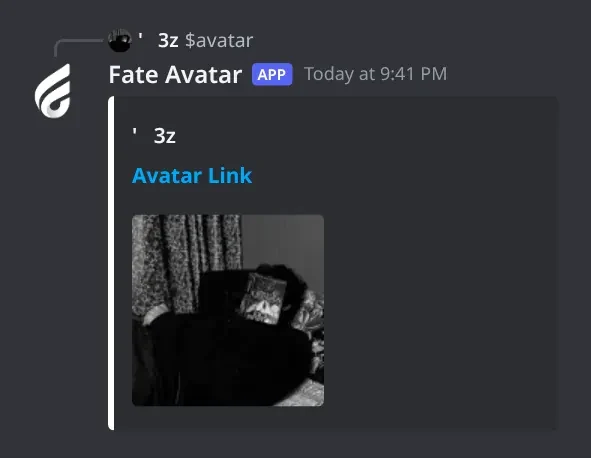
Avatar. The full-size avatar with a link. `$banner` looks the same with `Banner Link`.
Avatar · The full-size avatar with a link. $banner looks the same with Banner Link.

Commands

Examples use the default prefix $. If you changed it, type yours instead.

Who can use a command?

Everyone
Any member. Some commands only work in the channels or rooms the bot is set to.
Owners only
The subscription owner and the extra owners you add (with setowner or from vip). Being the server owner isn't enough.
Admins
Members with the Administrator permission, and the owners.

Setup4

  • $avcontrol

    Who can use it: Owners only

    Sends the main control panel (downloads, badges, share servers, image tools) to a channel.

    Usage
    $avcontrol [#channel]  (+ image)
    Example
    $avcontrol #commands

    Attach the image you want on top of the panel. Without a channel it's sent in the current channel. This is the same as كنترول الافتار و الروابط in $setup. You also need the Administrator permission.

    Heads up: Without an image you get يرجى ارفاق الصورة مع الامر .
  • $control

    Who can use it: Owners only

    Sends the old avatar panel (Avatar, Banner, Edit, Download, Boost) to a channel.

    Usage
    $control <#channel> [description]  (+ image)
    Example
    $control #commands Pick an option below

    With no description and no image, the panel uses a default text that explains the options. You also need the Administrator permission. كنترول الافتار (قديم) in $setup does the same.

  • $controll

    Who can use it: Owners only

    Sends the old link panel: one button that members press to share a server invite.

    Usage
    $controll <#channel> [description]  (+ image)
    Example
    $controll #links Press the button to share your server

    Add a description, attach an image, or both. You also need the Administrator permission. كنترول الروابط (قديم) in $setup does the same. The posted card shows the server icon, name, member count and online count.

    Heads up: Without a description or image you get يرجى ارفاق الصورة او الوصف مع الامر .

  • $setup

    Also works assettingssetting
    Who can use it: Owners only

    Opens the settings menu: control panels, command channels, link channels, picture and profile channels, auto-clear, embed colour and the boost system.

    Usage
    $setup
    Example
    @bot setup

    Also works as $settings, $setting or @bot setup. Pick an option, then type or attach your answer in the same channel within 60 seconds. Picking a channel or role that's already set removes it. The menu stays open for 4 minutes and only the person who opened it can use it. All replies are shown only to you.

Avatars8

  • $avatar

    Also works asavavt
    Who can use it: Everyone

    Shows a member's avatar in full size with a link to it.

    Usage
    $avatar [@member | ID | server]
    Example
    $avatar @Sam

    Also works as $av or $avt. With nothing after it, you get your own avatar. $avatar server shows the server icon. You can also give the ID of someone who isn't in the server.

  • $banner

    Who can use it: Everyone

    Shows a member's profile banner in full size with a link to it.

    Usage
    $banner [@member | ID | server]
    Example
    $banner @Sam

    With nothing after it, you get your own banner. $banner server shows the server banner. If the member has no banner you get لا يوجد بنر لعرضه .

  • $boost

    Who can use it: Everyone

    Shows a member's server boost badge and how long until the next one.

    Usage
    $boost [@member | ID]
    Example
    $boost @Sam

    You get an image of the member's current boost badge with سوف تصل الى الشارة التالية بعد ... (time until the next badge), or لديك اعلى شاره ! at the top badge. Without a member, it shows yours. It only works after you turn on the boost system and add the boost account in $setup.

    Heads up: If the boost system is off, the typed command doesn't reply at all. If the member isn't boosting you get ❌ لا تمتلك شارة بوست.

  • $change

    Who can use it: Everyone

    Turns an image black and white (grey). GIFs stay animated.

    Usage
    $change <image link>  (or attach an image)
    Example
    $change https://example.com/avatar.png

    Attach the image to the command or paste a direct image link. The bot replies يتم تجهيز الصورة ... and then edits that message with the result. GIFs with more than 200 frames can't be converted.

    Heads up: Without an image or a valid image link you get يرجى ارفاق الصورة او الرابط .. If it fails you get لا يمكنني تحويل الصورة .

  • $nitro

    Who can use it: Everyone

    Shows a member's Nitro badge and how long until the next one.

    Usage
    $nitro [@member | ID]
    Example
    $nitro @Sam

    Works like $boost, for the Nitro subscription badge. It needs the same boost system and boost account from $setup.

    Heads up: If the boost system is off, the typed command doesn't reply at all. Without a Nitro badge you get ❌ لا تمتلك شارة نيترو.

  • $review

    Who can use it: Everyone

    Previews an avatar and a banner together as a Discord profile.

    Usage
    $review
    Example
    $review

    Type $review. The bot asks يرجى ارسال الافتار او الرابط الان ..: send the avatar (attach it or paste a link) within 60 seconds. Then it asks يرجى ارسال البنر او الرابط الان ..: send the banner within 60 seconds. You get an 800×400 profile image, and your two messages are deleted.

    Heads up: If you don't answer in time you get لم يتم ارفاق الصورة.

  • $help

    Also works asاوامر
    Who can use it: Everyone

    Sends you the command list in a DM.

    Usage
    $help
    Example
    $help

    Also works as $اوامر. Members get the avatar commands. Administrators also get the channel commands, and owners get the owner commands too. The bot reacts ✅ when the DM is sent, or 🔒 if your DMs are closed.

Owner11

  • $prefix

    Also works assetprefix
    Who can use it: Owners only

    Shows or changes the bot's prefix.

    Usage
    $prefix [new prefix]
    Example
    $prefix !

    Also works as $setprefix. With nothing after it, it shows the current prefix. $prefix NONE or $prefix اوامر puts it back to $. If you forget the prefix, mention the bot instead: @bot prefix $.

  • $setavatar

    Also works assa
    Who can use it: Owners only
    Premium

    Changes the bot's avatar.

    Usage
    $setavatar <image link>  (or attach an image)
    Example
    $setavatar https://example.com/logo.png

    Also works as $sa. The bot reacts ✅ when it's done. If you change it too often you get يرجى الانتظار يتم تغير الاقتار بوقت سريع .

  • $setbanner

    Also works assb
    Who can use it: Owners only
    Premium

    Changes the bot's profile banner.

    Usage
    $setbanner <image link>  (or attach an image)
    Example
    $setbanner https://example.com/banner.png

    Also works as $sb. The bot reacts ✅ when it's done.

  • $setecolor

    Who can use it: Owners only
    Premium

    Changes the embed colour used for pictures, profiles, cards and panels.

    Usage
    $setecolor <#hex | none>
    Example
    $setecolor #3e635b

    The colour must start with #, for example #3e635b. $setecolor none removes it. The bot reacts ✅ (or ☑️ for none).

  • $setgame

    Also works asgame
    Who can use it: Owners only
    Premium

    Changes the bot's activity (Playing, Watching...) or its status (Online, Dnd...).

    Usage
    $setgame <activity text | status>
    Example
    $setgame Nova Lounge

    Also works as $game. With text, the bot asks you to pick 1 Playing, 2 Watching, 3 Listening, 4 Streaming or 0 Cancel. With $setgame status, pick 1 Online, 2 Idle, 3 Dnd, 4 Invisible or 0 Cancel. Answer with the number within 60 seconds; Arabic numerals work too.

  • $setname

    Also works assn
    Who can use it: Owners only
    Premium

    Changes the bot's name.

    Usage
    $setname <new name>
    Example
    $setname Nova Avatars

    Also works as $sn. The bot reacts ✅ when it's done.

    Heads up: Discord limits name changes. If you get يرجى الانتظار يتم تغير الاسم بوقت سريع ، او الاسم غير صالح . wait about 30 minutes or try another name.

  • $vip

    Also works aseditfate
    Who can use it: Owners only

    Opens the Bot Settings panel: name, avatar, banner, activity, status, prefix, owners, embed colour and restart.

    Usage
    $vip
    Example
    @bot vip

    Also works as $edit, $fate or @bot vip. The panel shows your prefix, who the bot is registered to, when the subscription ends and the subscription number. Pick an option and answer in the same channel within 60 seconds. The panel stays open for 4 minutes.

  • $setserver

    Also works assetguild
    Who can use it: Owners only
    Premium

    Moves the bot to another server.

    Usage
    $setserver <new server ID>
    Example
    $setserver 123456789012345678

    Also works as $setguild. The bot replies with the new server and an invite link for it, then leaves the current server right away. Use the link to add it to the new server.

    Heads up: There's no confirmation. Double-check the ID: with a wrong ID the bot still leaves. You can also change the server from the subscriptions control channel in the Fate Store server.

  • $ownerlist

    Who can use it: Owners only

    Shows the extra owners.

    Usage
    $ownerlist
    Example
    $ownerlist

    Members who left the server are removed from the list. If there are none you get قائمة الاونرات فارغة .

  • $setowner

    Also works asowners
    Who can use it: Owners only

    Adds or removes an extra owner.

    Usage
    $setowner <@member | ID>
    Example
    $setowner @Omar

    Also works as $owners. Run it again on the same member to remove them. ✅ means added, ☑️ means removed. Owners can use every command, including $setup and $vip.

  • $restart

    Who can use it: Owners only

    Restarts the bot.

    Usage
    $restart
    Example
    $restart

    The bot reacts 👾 and comes back after a few seconds. Settings are kept.

Channels4

  • $setclear

    Who can use it: Admins

    Turns on auto-clear: the bot wipes a channel every 2 minutes and re-posts your message or image.

    Usage
    $setclear <#channel> <message>  (or attach an image)
    Example
    $setclear #commands Use the commands here

    Each round, the bot deletes up to 100 recent messages (younger than 14 days) and then posts your image and/or text. Only one auto-clear channel per server: setting a new one replaces the old one. تفعيل/تعطيل المسح التلقائي in $setup does the same.

    Heads up: Everything in that channel is deleted, pinned messages too. Don't use it for a chat you want to keep.

  • $setpic

    Who can use it: Owners only

    Makes a channel a pictures channel: every image posted there is re-posted as a clean embed.

    Usage
    $setpic <#channel>  (+ optional separator image)
    Example
    $setpic #pictures

    Each image is re-posted with By <name> under it, followed by your separator image if you attached one, and the original message is deleted. Plain text messages are left alone. You need Administrator, and the bot needs Attach Files (I Dont Have ATTACH_FILES Permissions). اضافة/ازالة شات صور in $setup does the same.

    Heads up: Any message with a file is deleted, even if the file isn't an image (a video, for example).

  • $unclear

    Also works asdclear
    Who can use it: Admins

    Turns off auto-clear.

    Usage
    $unclear <#channel>
    Example
    $unclear #commands

    Also works as $dclear. Mention the auto-clear channel to turn it off. The bot reacts ☑️. You need Administrator.

  • $unpic

    Who can use it: Owners only

    Turns off the pictures channel.

    Usage
    $unpic <#channel>
    Example
    $unpic #pictures

    The bot reacts ☑️. You need Administrator.

Panels and guides

What each panel and menu does, and how to set it up.

Settings menu

Set up channels, roles, panels and the boost system.

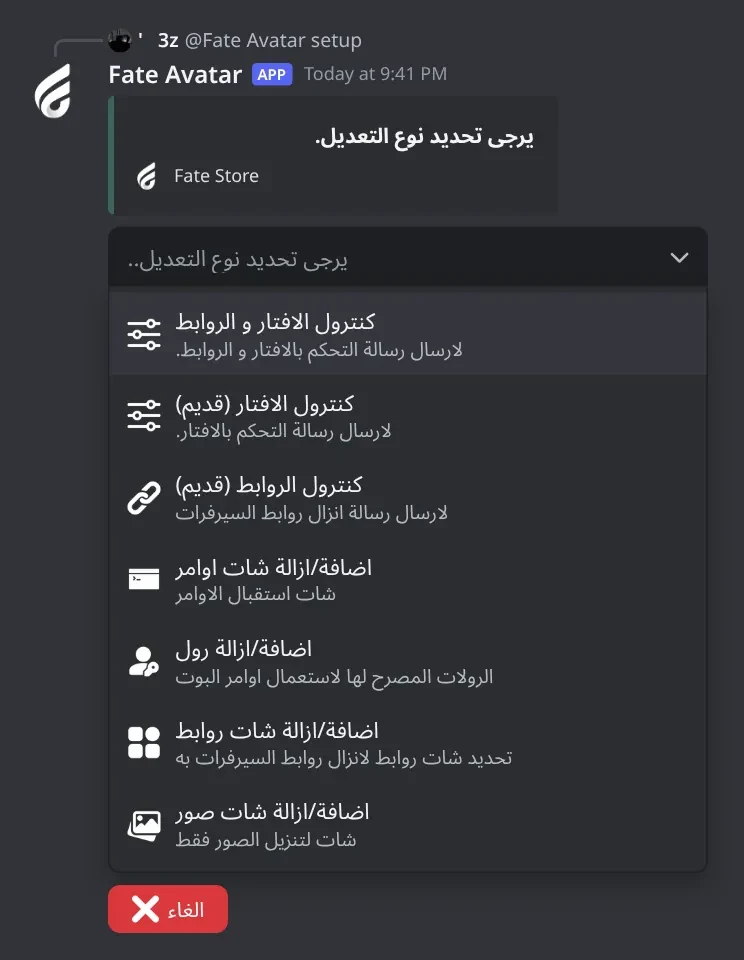
Settings menu. Everything you set up in the Avatar bot: the control panels, command and link channels, allowed roles, the pictures and profile channels.
Settings menu · Everything you set up in the Avatar bot: the control panels, command and link channels, allowed roles, the pictures and profile channels.

What's in it

  • كنترول الافتار و الروابط: sends the main control panel.
  • كنترول الافتار (قديم) and كنترول الروابط (قديم): the older panels.
  • اضافة/ازالة شات اوامر: channels where member commands work.
  • اضافة/ازالة رول: roles allowed to post links.
  • اضافة/ازالة شات روابط: link channels and their type.
  • اضافة/ازالة شات صور: the pictures channel.

How to set it up

  1. Type @bot setup.
  2. Pick an option.
  3. Mention the channel or role, or attach the image, within 60 seconds.

Common mistakes

  • Answering in a different channel. The bot only reads the channel where you opened the menu.
  • Sending a channel that's already set. That removes it; send it again to add it back.

Auto-clear and embed colour

Keep a channel clean automatically and pick the embed colour.

What's in it

  • تفعيل/تعطيل المسح التلقائي: wipes a channel every 2 minutes and re-posts your message or image.
  • لون الامبيد: the colour of picture, profile and card embeds.
  • اعدادات البوت: shows allowed roles, link channels and command channels.

How to set it up

  1. Pick تفعيل/تعطيل المسح التلقائي, mention the channel, then type the text or attach the image to post after each clear.
  2. To turn it off, use $unclear #channel.
  3. For the colour, pick لون الامبيد and type a code like #3e635b, or none.

Common mistakes

  • Turning on auto-clear in a chat channel. Everything there is deleted every 2 minutes, pinned messages too.
  • Typing a colour without # or a broken code like #zzz. Use a full 6-digit code.

Control panel

One message with four menus that members use on their own.

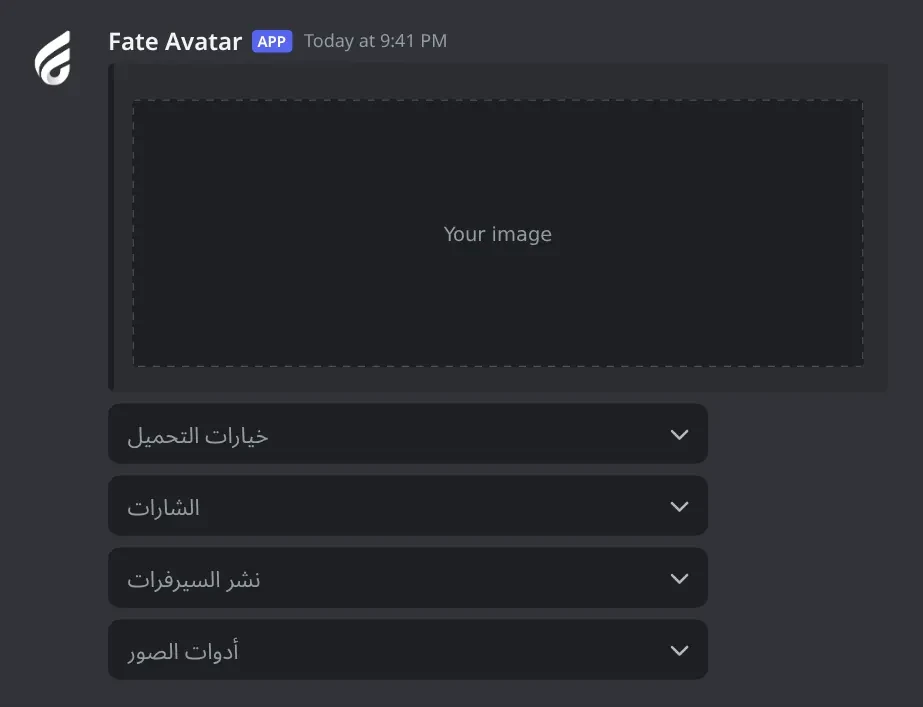
Control panel. The main panel members use: download media, badge cards, share servers and image tools. Everything they get back is shown only to them.
Control panel · The main panel members use: download media, badge cards, share servers and image tools. Everything they get back is shown only to them.

What's in it

  • خيارات التحميل: Instagram, TikTok, Twitter/X and Pinterest downloads.
  • الشارات: boost and Nitro badge cards by member ID.
  • نشر السيرفرات: Share Server, Share Avatar, Share Store.
  • أدوات الصور: Avatar & Banner, Black & White, Remove Background, Add Blur, Change Color.

How to set it up

  1. Type @bot setup and pick كنترول الافتار و الروابط.
  2. Mention the channel.
  3. Attach the image you want on top of the panel.
  4. Or type $avcontrol #channel with the image attached.

Common mistakes

  • Not attaching an image. The panel needs one.
  • No link channel of the right type. Share options answer ❌ نوع النشر غير مفعل.

Pictures channel

Every image posted in this channel is re-posted as an embed with the member's name.

What's in it

  • Optional separator image posted after each picture.
  • Embed colour from لون الامبيد.

How to set it up

  1. Type @bot setup and pick اضافة/ازالة شات صور.
  2. Mention the channel, and attach a separator image in the same message if you want one.
  3. Or type $setpic #channel (with the image). Turn it off with $unpic #channel.

Common mistakes

  • Using it as a chat channel for videos or files. Any message with a file is deleted, even if it's not an image.
  • The bot is missing Attach Files or Manage Messages there.

Profile channel

Members post an avatar and a banner together and get one profile picture.

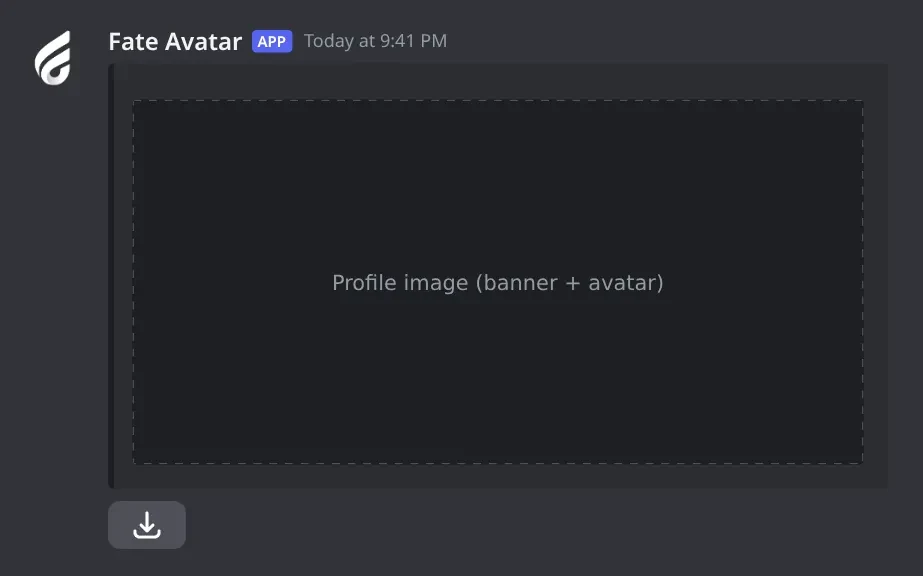
Profile channel. The bot combines the two images into one profile picture. The button sends the original avatar and banner to the member's DMs.
Profile channel · The bot combines the two images into one profile picture. The button sends the original avatar and banner to the member's DMs.

What's in it

  • Profile image with a button that DMs the original avatar and banner.

How to set it up

  1. Type @bot setup and pick اضافة/ازالة شات بروفايل.
  2. Mention the channel.

Common mistakes

  • Posting one image, or the two images in separate messages. Both must be in the same message.

Boost and Nitro badges

Badge cards that show a member's boost or Nitro badge and the time until the next one.

What's in it

  • تفعيل/تعطيل نظام البوست: turns the system on or off.
  • ادخال حساب البوست: adds Fate's badge-reader account to your server.

How to set it up

  1. Type @bot setup and pick تفعيل/تعطيل نظام البوست (✅ تم تفعيل نظام حساب شارة البوست.).
  2. Pick ادخال حساب البوست.
  3. If you get an invite link, add that Fate helper bot with Administrator, then pick ادخال حساب البوست again.
  4. Wait for ✅ تم تفعيل نظام البوست., then try $boost.

Common mistakes

  • Picking ادخال حساب البوست before turning the system on: ❌ نظام البوست غير مفعل.
  • Kicking or banning the badge-reader account. The cards stop working; add it again.
  • Giving the helper bot no Administrator: ❌ البوت لا يمتلك ادمن ستريشن.

Bot Settings panel

Change how the bot looks and who controls it.

What's in it

  • اسم البوت, افتار البوت, بنر البوت: name, avatar and banner.
  • لعب البوت and حالة البوت: activity and status.
  • برفكس البوت: the prefix.
  • اضافة/ازالة اونر and عرض قائمة الاونرات: owners.
  • تغير لون الامبيد: embed colour.
  • ازالة افتار البوت, ازالة بنر البوت, اعادة تشغيل.

How to set it up

  1. Type @bot vip.
  2. Pick an option.
  3. Type or attach your answer within 60 seconds.

Common mistakes

  • Changing the name many times in a row. Discord limits it; wait about 30 minutes.
  • Looking here to move the bot to another server. Use $setserver or the subscriptions control channel in the Fate Store server.

Troubleshooting

Common problems and how to fix them.

The bot doesn't respond to any command

How to fix it

  • Use the prefix $ or mention the bot, for example @bot setup.
  • Make sure the bot can see the channel and send messages in it.
  • Owner commands do nothing for non-owners. Check $ownerlist.

Member commands work in some channels only

How to fix it

  • You set command channels. Member commands only work there.
  • Check them in @bot setup > اعدادات البوت, and add or remove channels with اضافة/ازالة شات اوامر.

$setpic, $avcontrol or $control does nothing

How to fix it

  • These need you to be an owner and to have the Administrator permission. Use @bot setup instead, which only needs owner.

$boost or $nitro doesn't reply

How to fix it

  • The boost system is off. Turn it on in @bot setup > تفعيل/تعطيل نظام البوست, then pick ادخال حساب البوست.
  • ❌ لا تمتلك شارة بوست. means the member isn't boosting any server. ❌ لا تمتلك شارة نيترو. means no Nitro badge.

$link says لم يتم تحديد شاتات الروابط .

How to fix it

  • No link channels yet. Add one in @bot setup > اضافة/ازالة شات روابط.

A member can't use $link

How to fix it

  • You set allowed roles. Only those roles and Administrators can post links. Give them the role or remove the role list.
  • ⏳ يرجى الانتظار ... means that server was posted less than 30 minutes ago.

Posts in the link channels disappear

How to fix it

  • Every $link cleans the link channels: messages with a dead invite, a repeated server or no invite are deleted.

Messages in a channel keep getting deleted

How to fix it

  • That channel is the auto-clear channel. Turn it off with $unclear #channel.
  • Or it's the pictures channel: messages with files are re-posted and deleted. Turn it off with $unpic #channel.

A control panel option says the interaction failed

How to fix it

  • Avatar & Banner: the user ID is wrong. Copy the ID again.
  • Share options: the invite is wrong or expired. Use a working invite.
  • Download: the file can be too big for Discord. Try a shorter clip.

Image tools say ❌ لا يمكنني تحويل الصورة

How to fix it

  • Use a direct image link (it should open just the image). Right-click the image in Discord and copy its link.

The bot left my server

How to fix it

  • The bot only stays in the server your subscription is for.
  • Change the server from the subscriptions control channel in the Fate Store server, or with $setserver <server ID> from the current server.

The prefix changed back to $

How to fix it

  • The prefix resets when the bot is removed from the server and added again. Set it again with @bot prefix <new>.