All bot docs

Backup bot

Saves your server's channels, roles and settings, and restores them in one go.

Getting started

Set up the Backup bot and save your first backup in a few minutes. Do these steps in order.

  1. Invite the bot to the right server

    Invite the bot to the server your subscription is for. Get the invite link from the subscriptions control channel in the Fate Store server: press تعديل, then ارسال الروابط. The bot only works in that server, plus the backup and media servers you choose later. It leaves any other server right away.

  2. Give the bot Administrator and put its role on top

    Restoring a backup deletes and rebuilds channels, roles and emojis, so give the bot's role Administrator. Then, in Server Settings > Roles, drag the bot's role to the very top. The bot can't touch roles that are above its own.

  3. Know the prefix

    The default prefix is +, for example +create. Mentioning the bot also works, for example @bot setup. This is handy if you forget the prefix.

  4. Know who the owners are

    Every command of this bot is for owners only: the subscription owner and the extra owners you add. Add or remove one with @bot vip > اضافة/ازالة اونر. See them with +ownerlist. For anyone else the bot does nothing and shows no error. Owners can wipe the server with +load, so only add people you trust.

  5. Make your first backup

    Type +create. After a moment the bot replies with the Backup ID and how many channels, roles and emojis it saved. Copy the ID and keep it somewhere safe. +list shows all your backups and +info <ID> shows one of them.

  6. Restore a backup when you need it

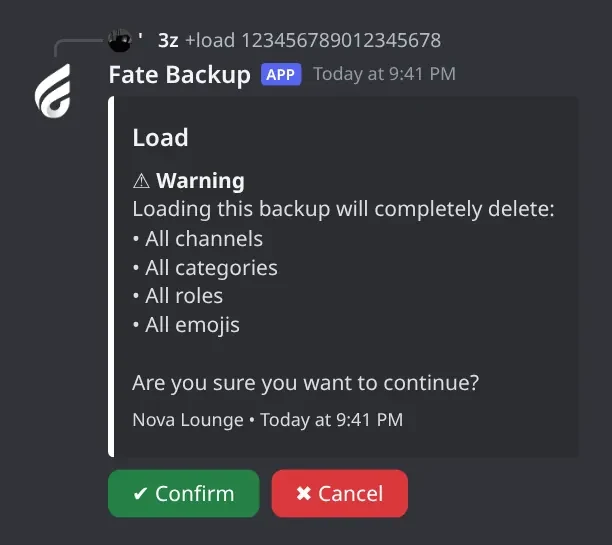
    Type +load <ID>, read the warning and press ✔ Confirm within 15 seconds. The bot deletes every channel, category, role and emoji, then rebuilds the server from the backup. This can't be undone, so make a fresh +create first.

  7. Set up a live backup server (optional)

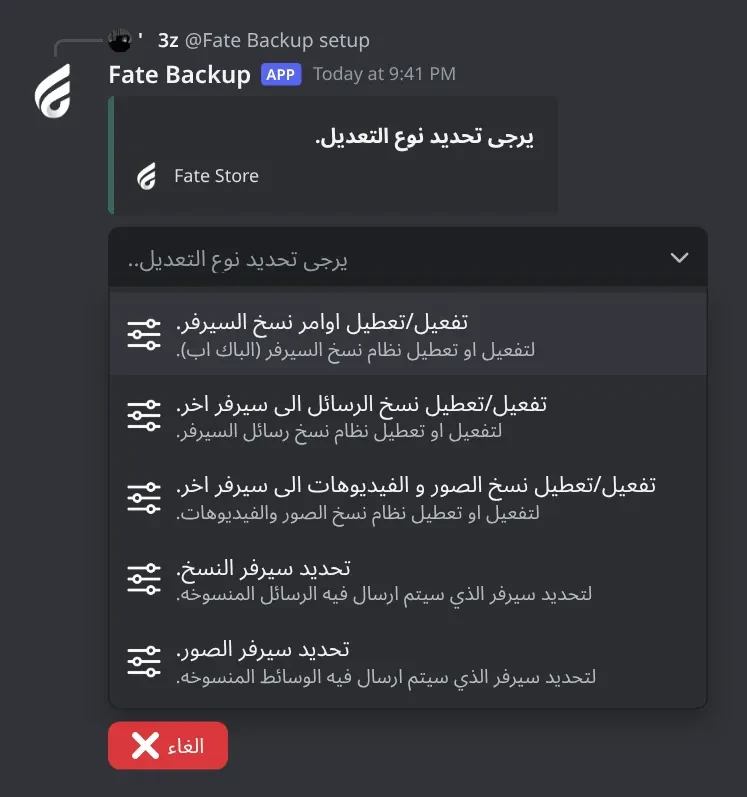
    Make a new, empty server. In your main server type @bot setup, pick تحديد سيرفر النسخ. and type the new server's ID. Then invite your bot to that server with your own invite link and give it Administrator. Set the server before you invite the bot, or it leaves right away. To start with an exact copy, run +load <ID> inside the backup server. From then on, new channels, deleted channels, roles and threads are mirrored there.

  8. Copy messages and media (optional)

    In @bot setup, turn on تفعيل/تعطيل نسخ الرسائل الى سيرفر اخر. to re-post every message in the backup server's channel with the same name. For pictures and videos, set a media server with تحديد سيرفر الصور., invite the bot there, and turn on تفعيل/تعطيل نسخ الصور و الفيديوهات الى سيرفر اخر.. Files go to a pics-and-videos channel there.

Commands

Examples use the default prefix +. If you changed it, type yours instead.

Who can use a command?

Owners only
The subscription owner and the extra owners you add (with setowner or from vip). Being the server owner isn't enough.

Setup1

  • +setup

    Also works assettingssetting
    Who can use it: Owners only

    Opens the setup menu: message copy, media copy and the backup and media servers.

    Usage
    +setup
    Example
    @bot setup

    Also works as +settings or +setting. Run it in your main server. The switches turn on when you pick them and turn off when you pick them again; the bot tells you which. For the two server options, type the server ID or a discord.gg invite in the same channel within 60 seconds. Typing the same server again removes it. The menu stays open for 4 minutes and only the person who opened it can use it.
Backups4

  • +create

    Who can use it: Owners only

    Takes a full backup of the server you type it in and gives you its Backup ID.

    Usage
    +create
    Example
    +create

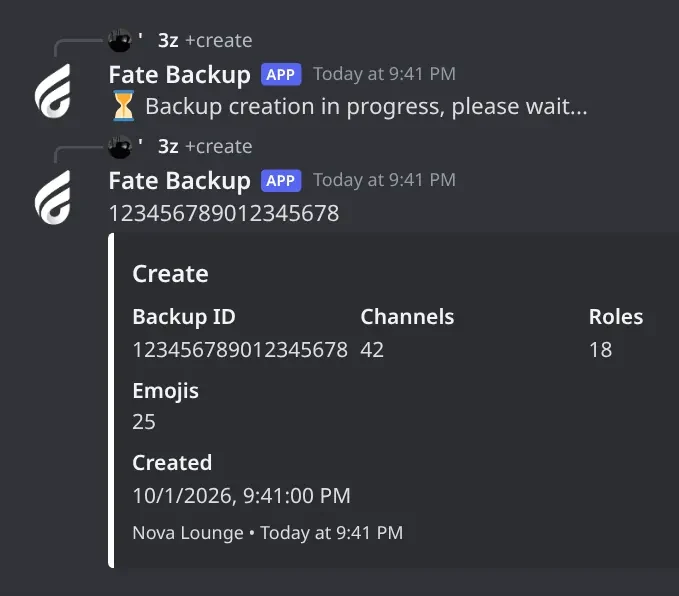
    The bot replies ⏳ Backup creation in progress, please wait..., then posts the Backup ID on its own line plus a Create card with the ID and how many channels, roles and emojis were saved, and the time (Riyadh time). Copy the Backup ID and keep it somewhere safe. You need it for +info and +load. Big servers take longer.

  • +info

    Who can use it: Owners only

    Shows the details of one backup: channels, roles and when it was made.

    Usage
    +info <backup ID>
    Example
    +info 123456789012345678

    Get the ID from +create or +list. Without an ID the bot replies Usage: +info <backupId>. If the ID is wrong you get an error message instead of the Info card.

  • +list

    Who can use it: Owners only

    Shows every backup the bot has made, 5 per page.

    Usage
    +list
    Example
    +list

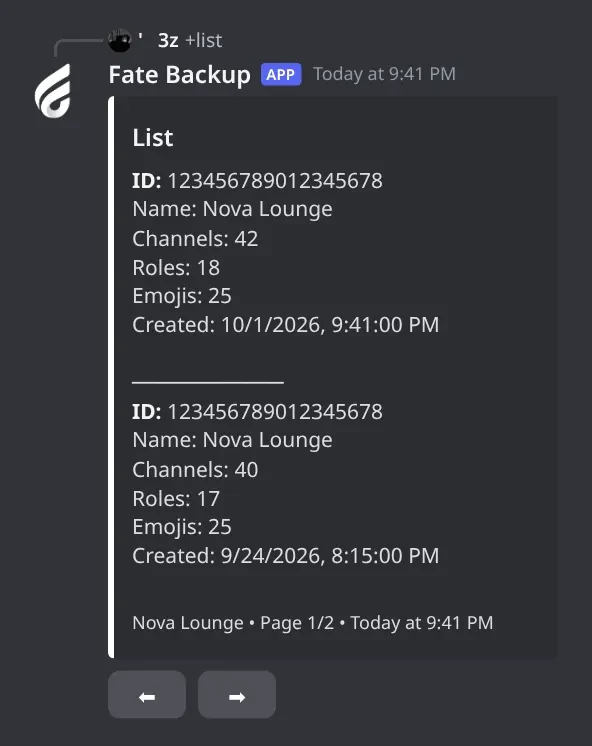
    Each backup shows its ID, the server name, how many channels, roles and emojis it has, and when it was made. With more than 5 backups you get ⬅ and ➡ buttons to change page. Only you can press them, for 2 minutes. If there are none you get No backups found.

  • +load

    Who can use it: Owners only

    Restores a backup into the server you type it in.

    Usage
    +load <backup ID>
    Example
    +load 123456789012345678

    The bot first shows a warning with ✔ Confirm and ✖ Cancel. You have 15 seconds and only you can press them. After Confirm it shows ⏳ Loading backup... and then Backup loaded successfully! when it's done. Cancel shows ❌ Load cancelled.. Give the bot Administrator and put its role at the top of the role list before you load. You can also use it in your backup server to make it a copy of your main server.

    Heads up: This wipes the server first: every channel, category, role and emoji is deleted, then the backup is built in their place. It can't be undone. Check the Backup ID with +info first, and make a fresh +create of the current server in case you want it back. The channel you typed the command in is deleted too, so the success message may not show; check the server itself.

Settings4

  • +setavatar

    Also works assa
    Who can use it: Owners only
    Premium

    Changes the bot's avatar.

    Usage
    +setavatar <image link> (or attach an image)
    Example
    +setavatar https://example.com/avatar.png

    Also +sa. Paste a link or attach an image. The bot reacts ✅ when it's done.

  • +setbanner

    Also works assb
    Who can use it: Owners only
    Premium

    Changes the bot's profile banner.

    Usage
    +setbanner <image link> (or attach an image)
    Example
    +setbanner https://example.com/banner.png

    Also +sb. Paste a link or attach an image. The bot reacts ✅ when it's done.

  • +setname

    Also works assn
    Who can use it: Owners only
    Premium

    Changes the bot's name.

    Usage
    +setname <new name>
    Example
    +setname Nova Backup

    Also +sn. The bot reacts ✅ when it's done. If you change it too often, or the name isn't allowed, you get يرجى الانتظار يتم تغير الاسم بوقت سريع ، او الاسم غير صالح . Wait about 30 minutes and try again.

  • +vip

    Also works aseditfate
    Who can use it: Owners only

    Opens the Bot Settings panel to change the bot's name, avatar, banner, activity, status, prefix and owners, or restart it.

    Usage
    +vip
    Example
    @bot vip

    Also works as +edit or +fate. Mention the bot (@bot vip) if you don't know the prefix. The panel shows the prefix, who the bot is registered to, when the subscription ends and the subscription number. Pick an option, then type or attach your answer in the same channel within 60 seconds. The panel stays open for 4 minutes and only the person who opened it can use it.
Owners3

  • +setserver

    Also works assetguild
    Who can use it: Owners only
    Premium

    Moves the bot to another server.

    Usage
    +setserver <server ID>
    Example
    +setserver <new server ID>

    Also works as +setguild. The bot replies with an invite link for the new server, then leaves the current one. Use that link to add it to the new server. Your backup and media servers stay linked to the old server, so run @bot setup in the new server and set them again. You can also change the server from the subscriptions control channel in the Fate Store server: press تعديل, then تغير السيرفر.

    Heads up: The bot leaves your server right away, with no confirm step. Double-check the server ID, and keep the link it sends.

  • +ownerlist

    Who can use it: Owners only

    Lists the extra owners of the bot in this server.

    Usage
    +ownerlist
    Example
    +ownerlist

    The subscription owner isn't shown, only the owners you added. Members who left the server are removed from the list. If there are none you get قائمة الاونرات فارغة .

  • +restart

    Who can use it: Owners only

    Restarts the bot.

    Usage
    +restart
    Example
    +restart

    The bot reacts 👾 and comes back after a few seconds. Your settings and saved backups are kept.

    Heads up: Don't restart while a backup is being created or loaded. Anything open at that moment (panels, waiting replies) is cancelled.

Panels and guides

What each panel and menu does, and how to set it up.

Setup menu

Turn message and media copying on or off, and choose the backup and media servers.

Setup menu. Turn message and media copying on or off, and choose the backup server and the media server.
Setup menu · Turn message and media copying on or off, and choose the backup server and the media server.

What's in it

  • تفعيل/تعطيل نسخ الرسائل الى سيرفر اخر.: copy every message to the backup server.
  • تفعيل/تعطيل نسخ الصور و الفيديوهات الى سيرفر اخر.: copy every file to the media server.
  • تحديد سيرفر النسخ. and تحديد سيرفر الصور.: choose the backup server and the media server.
  • الغاء: close the menu.

How to set it up

  1. Type @bot setup in your main server.
  2. Pick an option. Switches flip on or off right away and the bot tells you which.
  3. For a server option, type the server ID or a discord.gg invite within 60 seconds.

Common mistakes

  • Running it in the backup server. Settings belong to the server you run it in, and copying only works from your main server.
  • Picking a switch twice and turning it back off. Read the reply: تفعيل means on, تعطيل means off.

Setting the backup or media server

Tell the bot which server gets the mirrored channels and messages, or the copied media.

What's in it

  • Type the server ID, or a discord.gg invite to that server.
  • Type the same server again to remove it.

How to set it up

  1. Make the server first. An empty server is best for the backup server.
  2. In your main server: @bot setup > تحديد سيرفر النسخ. (or تحديد سيرفر الصور.).
  3. Type the ID within 60 seconds. Your message is deleted and the bot confirms.
  4. Invite your Backup bot to that server with your own invite link: pick that server in the list, and give the bot Administrator.

Common mistakes

  • Inviting the bot before setting the server. It leaves any server it doesn't know. Set the server, then invite it again.
  • Typing the server name instead of its ID. Turn on Developer Mode in Discord, right-click the server and copy its ID.

Creating a backup

Save your server's channels, roles and emojis so you can restore them later.

Creating a backup. The bot saves the server and replies with the Backup ID and what it saved.
Creating a backup · The bot saves the server and replies with the Backup ID and what it saved.

What's in it

  • Backup ID: the number you need for +info and +load.
  • Channels, Roles, Emojis: how many were saved.
  • Created: when, in Riyadh time.

How to set it up

  1. Type +create in the server you want to save.
  2. Wait for the reply. Big servers take longer.
  3. Copy the Backup ID from the first line and keep it safe.

Common mistakes

  • Losing the ID. Find it again with +list.

Backups list

Every backup the bot has made, 5 per page.

Backups list. All saved backups, 5 per page, with arrows to change page.
Backups list · All saved backups, 5 per page, with arrows to change page.

What's in it

  • Each entry: ID, server name, channels, roles, emojis and when it was made.
  • ⬅ and ➡: change page. They show with more than 5 backups and work for 2 minutes.

How to set it up

  1. Type +list.
  2. Use the arrows to find the backup you want, then copy its ID.

Common mistakes

  • Pressing the arrows after 2 minutes. Type +list again.

Backup info

Check one backup before you load it.

What's in it

  • Backup ID, Channels, Roles.
  • Created At: shown in the Hijri calendar with Arabic digits.

How to set it up

  1. Type +info <ID>, for example +info 123456789012345678.

Common mistakes

  • Typing +info with no ID. The bot replies Usage: +info <backupId>.
  • Copying the ID with extra spaces or the wrong digits. Copy it from +list.

Loading a backup

Wipe the server and rebuild it from a backup. This can't be undone.

Loading a backup. A last warning before the server is wiped and rebuilt from the backup.
Loading a backup · A last warning before the server is wiped and rebuilt from the backup.

What's in it

  • ✔ Confirm: start the restore.
  • ✖ Cancel: stop; nothing changes.

How to set it up

  1. Make a fresh +create of the server as it is now, just in case.
  2. Check the backup with +info <ID>.
  3. Type +load <ID> and press ✔ Confirm within 15 seconds.
  4. Wait. The bot shows ⏳ Loading backup... and then Backup loaded successfully!.

Common mistakes

  • Loading in the wrong server. It wipes the server you type it in.
  • Waiting more than 15 seconds to press a button. Run +load again.
  • The bot role isn't Administrator or isn't at the top, so some roles or channels stay or fail.
  • Thinking it failed because no success message showed. The channel you typed in is deleted too; check the server.

Message copy

Every message in your main server is re-posted in the backup server, in the channel with the same name.

What's in it

  • The card shows who sent it, the text and the time. Images, videos and files are posted with it.

How to set it up

  1. Set the backup server and invite the bot there.
  2. Make sure the backup server has channels with the same names. The easy way is +load <ID> inside the backup server.
  3. In your main server: @bot setup > تفعيل/تعطيل نسخ الرسائل الى سيرفر اخر..

Common mistakes

  • Renaming a channel in the main server. Channel edits aren't mirrored, so the names no longer match and messages there are skipped. Rename it in the backup server too.
  • Expecting old messages to be copied. Only new messages are copied.

Media copy

Every file posted in your main server is also sent to pics-and-videos in the media server.

What's in it

  • Each post shows Message from <member> | in <channel> with the file attached.

How to set it up

  1. Set the media server with @bot setup > تحديد سيرفر الصور. and invite the bot there.
  2. Turn on تفعيل/تعطيل نسخ الصور و الفيديوهات الى سيرفر اخر..
  3. The bot makes the pics-and-videos channel by itself.

Common mistakes

  • Turning it on without setting a media server. Nothing is copied until the server is set and the bot is in it.

Bot Settings panel

Change how the bot looks and who controls it.

What's in it

  • اسم البوت, افتار البوت, بنر البوت: name, avatar and banner.
  • لعب البوت and حالة البوت: activity and status.
  • برفكس البوت: the prefix.
  • اضافة/ازالة اونر and عرض قائمة الاونرات: owners.
  • ازالة افتار البوت, ازالة بنر البوت, اعادة تشغيل.

How to set it up

  1. Type @bot vip.
  2. Pick an option.
  3. Type or attach your answer within 60 seconds.

Common mistakes

  • Changing the name many times in a row. Discord limits it; wait about 30 minutes.
  • Looking here to move the bot to another server. Use the subscriptions control channel in the Fate Store server (تعديل > تغير السيرفر) or +setserver.

Troubleshooting

Something not working? Check these first.

The bot doesn't respond to any command

How to fix it

  • Use the prefix + or mention the bot, for example @bot setup.
  • Every command is for owners only. For anyone else the bot stays silent. Check +ownerlist.
  • Make sure the bot can see the channel and send messages in it.

The bot left my server or my backup server

How to fix it

  • The bot only stays in the server your subscription is for, plus the backup and media servers set in @bot setup.
  • Set the backup or media server first, then invite the bot there.
  • If you removed a server in the setup menu, the bot leaves it on its next restart.
  • To move the main server, use the subscriptions control channel in the Fate Store server: تعديل > تغير السيرفر.

+load didn't finish, or some channels or roles are missing

How to fix it

  • Give the bot Administrator and drag its role to the top, then load again.
  • The channel you typed in is deleted during the restore, so the success message may not show. Check the server itself.

The Confirm button does nothing

How to fix it

  • You have 15 seconds to press it. Type +load <ID> again.
  • Only the person who typed the command can press it.

I lost my Backup ID

How to fix it

  • Type +list. Every backup shows its ID, server name and date.

Messages aren't copied to the backup server

How to fix it

  • Turn on تفعيل/تعطيل نسخ الرسائل الى سيرفر اخر. in @bot setup, in your main server.
  • Make sure the backup server is set and the bot is inside it.
  • The backup server needs a channel with the same name and type. Run +load <ID> in the backup server to copy all channels at once.
  • Only messages in your main server are copied, and only new ones.

Some changes don't show up in the backup server

How to fix it

  • Mirrored: new channels (with their permissions), deleted channels, new, edited and deleted roles, and threads.
  • Not mirrored: channel edits (renames, topic, order), emojis, stickers and webhooks.
  • To bring the backup server up to date, run +create in the main server and +load <ID> in the backup server.