All bot docs

Broadcast bot

Sends a DM to all your members, or only to some roles.

Getting started

Set up the Broadcast bot in a few minutes. Do these steps in order.

  1. Invite the main bot to the right server

    Invite the main bot to the server your subscription is for. Get the invite link from the subscriptions control channel in the Fate Store server: press تعديل, then ارسال الروابط. The bot only works in that server and leaves any other server right away.

  2. Give the bot a role

    Give the main bot a role with View Channels, Send Messages, Embed Links, Attach Files, Read Message History, Add Reactions and Manage Messages, in the channel where you'll use it. Role position doesn't matter, the bot doesn't give roles. Helper bots need no permissions, they only have to be in the server.

  3. Know the prefix

    The default prefix is #, for example #bc. Mentioning the bot also works, for example @bot vip. This is handy if you forget the prefix or another bot uses #.

  4. Know who the owners are

    Every Broadcast command is for owners only. Owners are the subscription owner and the extra owners you add with #setowner @member. See the extra owners with #owners. For anyone else, the commands do nothing and show no error. Every owner can send broadcasts, so only add people you trust.

  5. Invite all your helper bots

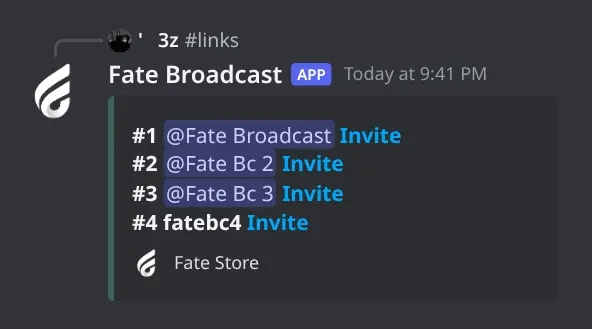
    Your subscription comes with a main bot plus helper bots. Together they send the DMs; each bot handles up to 380 members. Type #links and press Invite next to every bot that isn't a mention yet. Check with #status: every bot should be 🟢, not ⚪.

  6. Register your members

    Type #setuser (or @bot setup). The bot splits your members between the bots and replies 👌 البوت الان جاهز للارسال الى (N). New members are added on their own about once an hour. #info shows how many members are registered and how long a full broadcast takes.

  7. Block who shouldn't get messages (optional)

    Use #block @member or #block @role to skip them in every broadcast. Run it again to undo. See the list with #blocklist.

  8. Send a broadcast

    Type #bc followed by your message. You can use several lines, attach one image, and use [user], [server] and [by]. Pick الكل, الاونلاين or رول محدد from the menu within 30 seconds. The message turns into a live status and shows the final numbers when it's done.

  9. After a broadcast

    You can send the next one after 2 hours (by default). After a broadcast finishes, the bot restarts on its own (about 2 minutes per bot you have), so a short offline time is normal. Change the bots' name, avatar and banner any time from @bot vip.

Commands

Examples use the default prefix #. If you changed it, type yours instead.

Who can use a command?

Owners only
The subscription owner and the extra owners you add (with setowner or from vip). Being the server owner isn't enough.

Broadcast4

  • #bc

    Who can use it: Owners only

    Sends your message to members' DMs, using the main bot and all its helper bots.

    Usage
    #bc <message>  (+ optional image)
    Example
    #bc Hi [user], the [server] giveaway starts tonight at 9 pm!

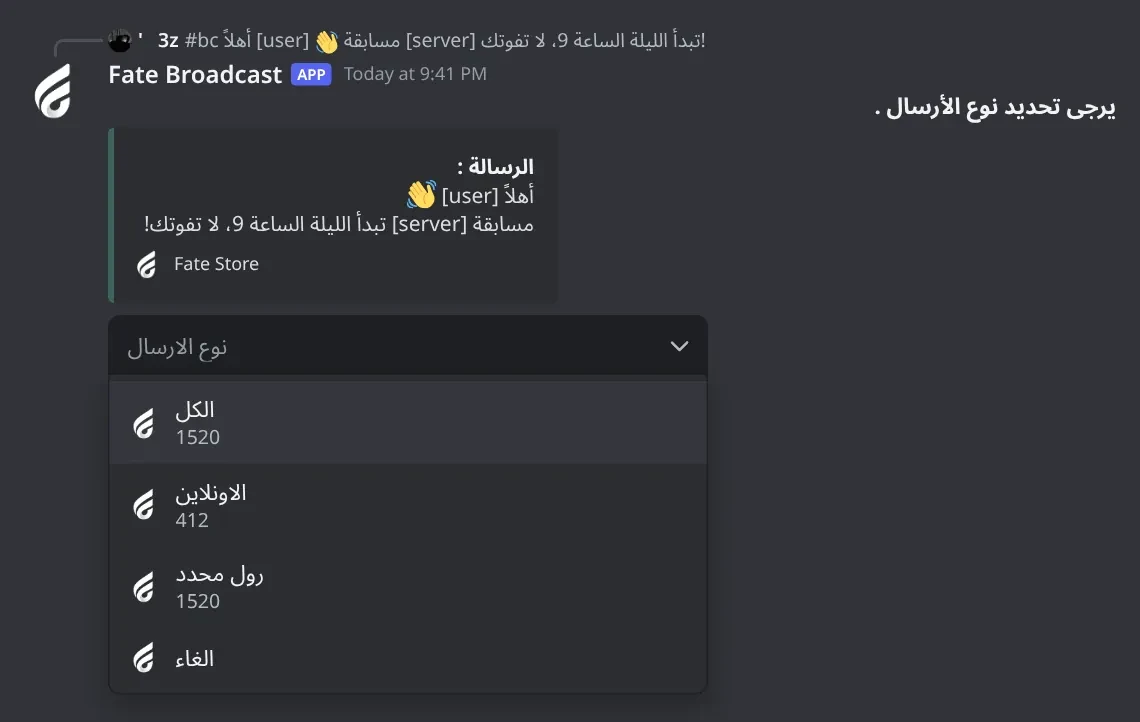
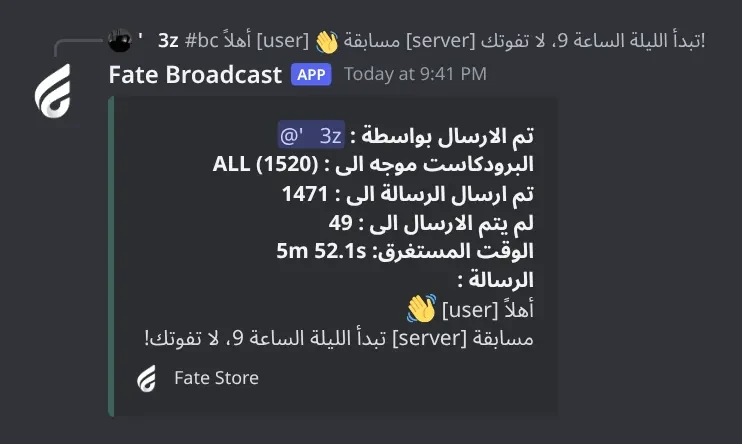
    The bot shows a preview and a menu نوع الارسال with الكل (all registered members), الاونلاين (online members only), رول محدد (members of the roles you mention next, within 30 seconds) and الغاء (cancel). You have 30 seconds to pick. While it sends, the same message turns into a live status: target, estimated time, sent and not sent. When it's done it shows who sent it and how long it took. Your message keeps its line breaks. You can use [server] (server name), [by] (your mention) and [user] (the member's mention); only the first of each is replaced. You can attach one image (png, jpg, jpeg or gif); it's sent with every DM. Members and roles in #blocklist are skipped. Only members already registered with #setuser get the message.

    Heads up: Mass DMs can get your helper bots flagged or limited by Discord, and members can report them as spam. Send only what your members want, and don't send often. After a broadcast you must wait 2 hours (by default) before the next one, and the bot restarts on its own after it finishes (about 2 minutes per bot you have, so 10 bots is about 20 minutes).
  • #info

    Who can use it: Owners only

    Shows how many bots you have, how many members are registered and how long a full broadcast takes.

    Usage
    #info
    Example
    #info

    جميع البوتات is the number of bots. الاعضاء المسجلين is registered members out of the maximum (380 per bot). الاعضاء المستلمين is registered members still in the server. الوقت المتوقع للارسال للكل is the estimated time to send to everyone. Same as معلومات الارسال in #vip.

  • #status

    Who can use it: Owners only

    Checks every bot: 🟢 working, 🔴 not working, ⚪ not in the server.

    Usage
    #status
    Example
    #status

    ⚪ is a link: press it to invite that bot. 🔴 means Discord limited that bot and it can't send DMs. Contact Fate Store support to replace it. Same as فحص البوتات in #vip.

Settings7

  • #help

    Who can use it: Owners only

    Sends you the broadcast command list in a DM.

    Usage
    #help
    Example
    #help

    The DM also has a Support button that opens the Fate Store server. The bot reacts ✅ if the DM was sent and 🔒 if your DMs are closed.

  • #prefix

    Also works assetprefix
    Who can use it: Owners only

    Shows or changes the bot prefix.

    Usage
    #prefix [new prefix | NONE]
    Example
    #prefix !

    Also works as #setprefix. Without a value it shows the current prefix. #prefix NONE (or #prefix اوامر) puts it back to #. Mentioning the bot always works as a prefix, for example @bot prefix.

  • #setbanner

    Also works assb
    Who can use it: Owners only
    Premium

    Changes the profile banner of the main bot and all helper bots.

    Usage
    #setbanner <image link>  (or attach an image)
    Example
    #setbanner https://example.com/banner.png

    Also works as #sb. Paste a link or attach the image to the command. The bot reacts ✅ when it's done.

  • #setecolor

    Who can use it: Owners only
    Premium

    Changes the embed colour of the bot's list replies.

    Usage
    #setecolor <#hex | none>
    Example
    #setecolor #5865f2

    The colour must start with #. none puts back the default colour. It changes the #blocklist and #owners replies. Broadcast panels, #info, #links and #status always use the Fate Store colour.

  • #setgame

    Also works asgame
    Who can use it: Owners only
    Premium

    Changes the main bot's activity text, or its online status.

    Usage
    #setgame <text> | #setgame status
    Example
    #setgame Nova Lounge news

    Also works as #game. With text, the bot asks you to type a number: 1 Playing, 2 Watching, 3 Listening, 4 Streaming, 0 Cancel. With status, the numbers are 1 Online, 2 Idle, 3 Dnd, 4 Invisible, 0 Cancel. You have 60 seconds to answer. Helper bots always stay invisible.

  • #setname

    Also works assn
    Who can use it: Owners only
    Premium

    Changes the name of the main bot and all helper bots.

    Usage
    #setname <name>
    Example
    #setname Nova News

    Also works as #sn. The name must be 2 to 32 characters. If it fails you get يرجى الانتظار يتم تغير الاسم بوقت سريع ، او الاسم غير صالح .. With many helper bots, it takes a while until all of them change.

    Heads up: Discord limits how often a bot can change its name. If it fails, wait about 30 minutes or try another name.

  • #vip

    Also works aseditfate
    Who can use it: Owners only

    Opens the Bot Settings panel: bot links, bot check, broadcast info, name, avatar, banner, activity, status, prefix, owners, embed colour and restart.

    Usage
    #vip
    Example
    @bot vip

    Also works as #edit or #fate. Mention the bot (@bot vip) if you don't know the prefix. The panel shows the prefix, who the bot is registered to, how many of your bots are in the server, when the subscription ends and the subscription number. Name, avatar and banner changes apply to the main bot and all helper bots. Pick an option, then type or attach your answer in the same channel within 60 seconds. The panel stays open for 4 minutes and only the person who opened it can use it.

Owner4

  • #owners

    Who can use it: Owners only

    Lists the extra owners you added.

    Usage
    #owners
    Example
    #owners

    The subscription owner is not shown here. If you haven't added anyone you get قائمة الاونرات فارغة.

  • #restart

    Who can use it: Owners only

    Restarts the bot.

    Usage
    #restart
    Example
    #restart

    The bot reacts 👾 and comes back after a few seconds. Settings, registered members and the block list are kept.

    Heads up: Don't restart while a broadcast is sending. It stops halfway and the rest of the members don't get it.

  • #setowner

    Also works asowner
    Who can use it: Owners only

    Adds or removes an extra bot owner.

    Usage
    #setowner <@member | ID>
    Example
    #setowner @Omar

    Also works as #owner. Owners can use every command, including #bc and #vip. Run it again on the same member to remove them. The bot reacts ✅ when added and ☑️ when removed. Without a member you get يرجى ارفاق منشن العضو او الايدي.

    Heads up: Every owner can send broadcasts to all your members. Only add people you trust.

  • #setserver

    Also works assetguild
    Who can use it: Owners only
    Premium

    Moves the bot to another server.

    Usage
    #setserver <server ID>
    Example
    #setserver <new server ID>

    Also works as #setguild. The bot replies with an invite link for the new server, then leaves the current one. Use that link to add it to the new server, then invite the helper bots with #links and run #setuser there. You can also change the server from the subscriptions control channel in the Fate Store server: press تعديل, then تغير السيرفر.

    Heads up: The bot leaves your server right away, with no confirmation. Double-check the server ID, and keep the link it sends.

Block list3

  • #block

    Who can use it: Owners only

    Stops a member or a role from getting broadcasts. Run it again to undo.

    Usage
    #block <@member | @role | ID>
    Example
    #block @Staff

    The bot reacts ✅ when added and ☑️ when removed. Without a member or role you get يرجى ارفاق منشن العضو او الرول .. See the list with #blocklist. Members who leave and deleted roles are removed from the list on their own.

  • #blocklist

    Who can use it: Owners only

    Shows the members (عضو) and roles (رول) that don't get broadcasts.

    Usage
    #blocklist
    Example
    #blocklist

    If it's empty you get قائمة البلوك فارغة .

  • #sblock

    Who can use it: Owners only

    Turns on or off retrying members who didn't get the last broadcast.

    Usage
    #sblock
    Example
    #sblock

    When it's on (✅), members whose DM failed last time (closed DMs or they blocked that helper bot) are moved to another bot at the next member refresh, so a different bot can try them next time. Run it again to turn it off (☑).

Members2

  • #setnew

    Who can use it: Owners only

    Cleans up the member list and registers members again.

    Usage
    #setnew
    Example
    #setnew

    It removes members that were assigned to bots you no longer have (for example a replaced bot), then registers everyone who's missing, like #setuser. Reply: 👌 البوت الان جاهز للارسال الى (N).. Use it after Fate Store replaces some of your bots.

    Heads up: You can run it once a day, and it also locks #setuser for a day. Use #setuser for normal updates.

  • #setuser

    Also works assetup
    Who can use it: Owners only

    Registers your server members and splits them between the bots, so they can get broadcasts.

    Usage
    #setuser
    Example
    @bot setup

    Also works as #setup. The bot replies ⏳. and then 👌 البوت الان جاهز للارسال الى (N)., where N is the total number of registered members. Each bot takes up to 380 members. Run it after you invite all the bots with #links, and after a big wave of new members. New members are also registered on their own about once an hour, and when the bot joins the server. Bot accounts are never registered, and members already registered keep their bot.

    Heads up: You can run it once every 2 hours. It shares its timer with #setnew, so running #setnew blocks it for a day.

Panels and guides

What each panel and menu does, and how to set it up.

Sending a broadcast

Send one message to your members' DMs.

Broadcast: pick who gets it. The first step of every broadcast. The bot shows your message and asks who should get it. The numbers under each option are how many registered members that is.
Broadcast: pick who gets it · The first step of every broadcast. The bot shows your message and asks who should get it. The numbers under each option are how many registered members that is.
Broadcast: done. The final status: who sent it, the target, sent and not sent, and how long it took.
Broadcast: done · The final status: who sent it, the target, sent and not sent, and how long it took.

What's in it

  • الكل: every registered member.
  • الاونلاين: only members who are online, idle or dnd right now.
  • رول محدد: then mention the roles within 30 seconds.
  • الغاء: cancel.

How to set it up

  1. Type #bc <your message>. Attach an image if you want.
  2. Pick who gets it within 30 seconds.
  3. Watch the live status until it shows تم الارسال بواسطة.
  4. Wait 2 hours before the next broadcast.

Common mistakes

  • Typing #bc with no message. You get يرجى ارفاق الرسالة بعد الامر لارسالها .
  • Sending before #setuser. You get يرحى تحديد الاعضاء لاستعمال الامر .
  • Restarting the bot while it sends. The rest of the members don't get it.

Registering members

Split your members between your bots so they can receive broadcasts.

What's in it

  • #setuser (or #setup): registers members who aren't registered yet. Once every 2 hours.
  • #setnew: cleans out members of bots you no longer have, then registers again. Once a day.
  • #info: registered members and the estimated time.

How to set it up

  1. Invite all bots with #links.
  2. Type #setuser.
  3. Check #info.

Common mistakes

  • Running #setnew for normal updates. It locks #setuser for a day too.
  • Expecting more members than your bots can take. Each bot takes up to 380 members; the rest aren't registered.

Block list

Members and roles that never get broadcasts.

What's in it

  • #block @member or #block @role: add, or remove if already there.
  • #blocklist: show the list.
  • #sblock: on/off. When on, members whose DM failed last time are moved to another bot.

How to set it up

  1. Type #block @Staff.
  2. Check with #blocklist.

Common mistakes

  • Running #block twice on the same member. The second time removes them.

Bot Settings panel

Your bots' links, check and broadcast info, plus their name and look.

What's in it

  • روابط البوتات, فحص البوتات, معلومات الارسال: same as #links, #status, #info.
  • اسم البوت, افتار البوت, بنر البوت: change all your bots at once.
  • لعب البوت and حالة البوت: the main bot's activity and status.
  • برفكس البوت: the prefix.
  • اضافة/ازالة اونر and عرض قائمة الاونرات: owners.
  • تغير لون الامبيد: colour of list replies.
  • ازالة افتار البوت, ازالة بنر البوت, اعادة تشغيل.

How to set it up

  1. Type @bot vip.
  2. Pick an option.
  3. Type or attach your answer within 60 seconds.

Common mistakes

  • Changing the name several times in a row. Discord limits it, wait about 30 minutes.
  • Looking here to move the bot to another server. Use the subscriptions control channel in the Fate Store server (تعديل > تغير السيرفر) or #setserver.

Troubleshooting

Something not working? Check these first.

The bot doesn't respond to any command

How to fix it

  • Use the prefix # or mention the bot, for example @bot vip.
  • Make sure the bot can see the channel and send messages in it.
  • All commands are for owners only. Check #owners.

The bot left my server

How to fix it

  • The bot only stays in the server your subscription is for.
  • Change the server from the subscriptions control channel in the Fate Store server: تعديل > تغير السيرفر.

#bc says يرحى تحديد الاعضاء لاستعمال الامر .

How to fix it

  • No members are registered yet. Type #setuser.

#bc says ⏰ يرجى الانتظار ... قبل الارسال

How to fix it

  • There's a 2-hour wait (by default) after each broadcast. Wait for the time shown.

#bc says ⏰ يرجى الانتظار يوجد عملية ارسال اخرى ... or هناك رسالة اخرى قيد الارسال .

How to fix it

  • Another broadcast is being prepared or sent. Wait 30 seconds, or until the current one finishes.

An orange ⚠️ تنبيه shows before the menu

How to fix it

  • Some of your bots aren't in the server. Pick الغاء, invite them with #links, type #setuser, then send again.

Many members show under لم يتم الارسال الى

How to fix it

  • Those members have DMs from server members turned off, or blocked the bot that sent to them.
  • Make sure every bot is 🟢 in #status.
  • Turn on #sblock so failed members move to another bot next time.

A bot shows 🔴 in #status

How to fix it

  • Discord limited that bot and it can't send DMs. Contact Fate Store support to replace it, then run #setnew.

The bot went offline after a broadcast

How to fix it

  • Normal. It restarts on its own after each broadcast (about 2 minutes per bot you have).

#setuser says to wait much longer than expected

How to fix it

  • #setuser and #setnew share one timer. After #setnew, #setuser is locked for a day.