All bot docs

Events bot

Quick events and contests, with points for winners and hosts.

Getting started

Set up the Events bot in a few minutes. There is no setup panel: you set it up with a few short commands. Do these steps in order.

  1. Invite the bot to the right server

    Invite the bot to the server your subscription is for. Get the invite link from the subscriptions control channel in the Fate Store server: press تعديل, then ارسال الروابط. The bot only works in that server and leaves any other server right away.

  2. Give the bot a role with the right permissions

    The bot posts images, reacts and deletes helper messages, so it needs View Channels, Send Messages, Embed Links, Attach Files, Add Reactions, Read Message History and Manage Messages in your event channels. If one is missing, event commands reply with something like I Dont Have ATTACH_FILES Permissions. Without Send Messages the bot ignores everything.

  3. Know the two prefixes

    The bot prefix is !, for example !fast. Mentioning the bot also works, for example @bot vip. This is handy if you forget the prefix. Custom events start with the events prefix -, for example -flags. All replies are in Arabic.

  4. Know who can do what

    Owners (the subscription owner and the extra owners you add with !setowner @member) can use every command. Members with the Discord Administrator permission can run events and change points. Everyone else needs !allow. Any member can answer events, see !toppoint and use !help. Commands someone isn't allowed to use get no reply at all.

  5. Choose the event channels

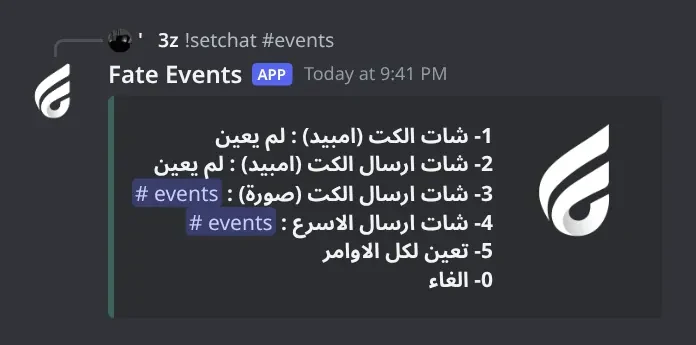
    Type !setchat #events and answer 5. That sets one channel for the cut images, for !fast, !fkk and !ask, and for the cut relay reposts. You can split them later with numbers 2, 3 and 4. Type !setchat alone to check.

  6. Choose where staff type commands (optional)

    Type !setechat #event-staff so !cut, !fast, !fkk and !ask only work in a staff channel. Members then never see a question or an answer before the event is posted.

  7. Let your event team in

    Type !allow @Staff and answer a number: 2 for !cut, 3 for !fast, !fkk and !ask, 4 for points control, 5 for custom events, or 6 for all of them. Check with !list.

  8. Make the events look good

    Without a background the event image is transparent with white text, which is hard to read in light mode. For each event: !setimg with a picture attached, !setcolor #hex for the text colour, !editfont to move and size the text, and !setmsg <text> for a message above the image (like a role ping).

  9. Run your first event

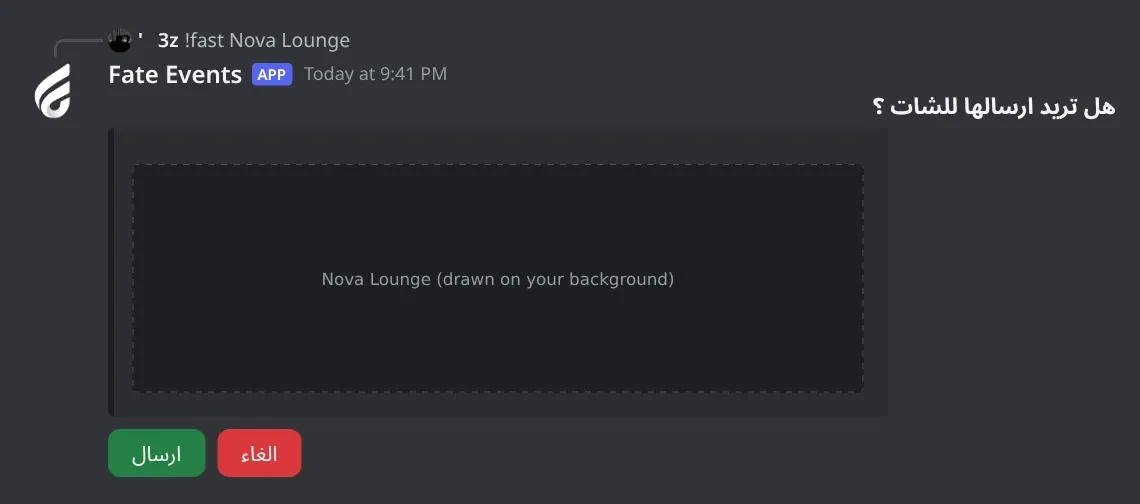
    Type !fast Nova Lounge and press ارسال. The image is posted in the events channel and the first member to type Nova Lounge within 15 seconds gets a point. !fkk <word> asks for the word split letter by letter, !ask <question> asks you for the answer first, and !cut <text> posts a discussion image with no points.

  10. Daily use

    Members check the top 10 with !toppoint (or !نقاط). You fix points with !points @member +5, -5 or 10, and reset with !points reset. !epoints shows how many events each host sent. For your own quizzes, create a custom event with !evedit <name>, fill it with !autoadd, and start it with -<name>.

Commands

Examples use the default prefix !. If you changed it, type yours instead.

Who can use a command?

Everyone
Any member. Some commands only work in the channels or rooms the bot is set to.
Owners only
The subscription owner and the extra owners you add (with setowner or from vip). Being the server owner isn't enough.
Admins
Members with the Administrator permission, and the owners.

Setup5

  • !allow

    Also works asسماح
    Who can use it: Owners only

    Lets a member or role use one group of event commands.

    Usage
    !allow <@member | @role | ID>  (then type a number)
    Example
    !allow @Staff

    Also works as !سماح. Type the number within 60 seconds: 1 cut (embed): post in the cut relay channel, 2 cut (image): !cut, 3 faster: !fast, !fkk and !ask, 4 points control: !points and !epoints, 5 custom events: start -<event name>, 6 all of them, 0 cancel. The bot reacts ✅. Already added: الرول موجود فعلًا بقاعدة البيانات . or الشخص موجود فعلًا بقاعدة البيانات . Owners and members with Administrator don't need this.
  • !deny

    Also works asمنع
    Who can use it: Owners only

    Takes back a permission given with !allow.

    Usage
    !deny <@member | @role | ID>  (then type a number)
    Example
    !deny @Sam

    Also works as !منع. Same numbers as !allow, 60 seconds to type. The bot reacts ✅. If they don't have it: الرول غير موجود بقاعدة البيانات. or الشخص غير موجود بقاعدة البيانات. 6 removes everything.

  • !list

    Also works asقائمه
    Who can use it: Owners only

    Shows who is allowed for each group: cut (embed), cut (image), faster, custom events and points control.

    Usage
    !list
    Example
    !list

    Also works as !قائمه. لم يعين means nobody was added. Members and roles that left the server are skipped.

  • !setchat

    Who can use it: Owners only

    Sets the channels where events are posted, and the two channels of the cut relay.

    Usage
    !setchat [#channel]
    Example
    !setchat #events

    Without a channel it shows the current channels (لم يعين = not set). With a channel it shows a numbered list; type the number within 60 seconds: 1 cut channel (embed): members type cuts here, 2 cut send channel (embed): where those cuts are reposted, 3 cut send channel (image): where !cut posts, 4 faster send channel: where !fast, !fkk and !ask post, 5 sets 2, 3 and 4 to this channel, 0 cancel. The bot reacts ✅. Picking the same channel again for 1, 2 or 3 removes it. Arabic digits (١ ٢ ٣) work too.

  • !setechat

    Who can use it: Owners only

    Makes !cut, !fast, !fkk and !ask work only when typed in this channel.

    Usage
    !setechat <#channel | ID>
    Example
    !setechat #event-staff

    Good for a staff-only channel, so members never see questions or answers early. The bot reacts ✅ when set. Run it again on the same channel to remove it (☑️), and the commands work everywhere again. Typed anywhere else, these commands get no reply. Custom events (-<event name>) are not limited by it. Without a channel you get يرجى ارفاق منشن الروم او الايدي .

Custom events5

  • !auto

    Who can use it: Owners only

    Turns custom events on or off. They are on by default.

    Usage
    !auto
    Example
    !auto

    Each run flips the switch. Turning off replies تم تعطيل الفعاليات المضافة . Turning on replies تم تفعيل الفعاليات المضافة with the events prefix to use (-). While off, -<event name>, !evedit, !autoadd, !autolist and !autoremove do nothing, and custom events are hidden from !help and from the !setimg, !setcolor, !setmsg and !editfont menus.

  • !autoadd

    Who can use it: Owners only

    Adds items to a custom event. The bot picks one at random each time the event starts.

    Usage
    !autoadd <text>  |  !autoadd [answer] + attached pictures
    Example
    !autoadd Paris

    Pick the event from the menu within 30 seconds. Text event without points: every line of your message becomes its own item. Text event with points: your whole text is one item, then the bot asks يرجى كتابة الاجابة الان . and you type the answer within 60 seconds. Picture event without points: attach one or more pictures (png, jpg, jpeg, gif). Picture event with points: attach one picture and write its answer after the command, e.g. !autoadd Paris with a picture of the Eiffel Tower. Errors: قائمة الفعاليات فارغة . (create an event with !evedit first), يرجى ارفاق الصورة او المحتوى ., يرجى ارفاق الصور مع الامر !., يرجى ارفاق المحتوى مع الامر !., يرجى ارفاق الاجابة مع الاامر .

  • !autolist

    Who can use it: Owners only

    Shows the items saved in a custom event, with their numbers.

    Usage
    !autolist
    Example
    !autolist

    Pick the event within 30 seconds. Text events show each item; picture events show a رابط الصورة link per picture. 25 items per page; longer lists get ⬅ ➡ buttons for 2 minutes. Use the number with !autoremove. Empty event: القائمة فارغة .

    Heads up: Numbers are shared by all your custom events, so one event's list may start at 7 instead of 1. That's normal.

  • !autoremove

    Who can use it: Owners only

    Deletes one item from a custom event, by its number in !autolist.

    Usage
    !autoremove <number>
    Example
    !autoremove 7

    Pick the event within 30 seconds. Replies: تم ازالة الصورة ✅ ., تم ازالة المحتوى ✅ ., or لم يتم العثور على المحتوى او الصورة . if that number isn't in the event. Without a number you get يرحى ارفاق رقم الصورة او المحتوى .

  • !evedit

    Who can use it: Owners only

    Creates, deletes or lists your custom events. Members start them with the events prefix, e.g. -flags.

    Usage
    !evedit <event name>
    Example
    !evedit flags

    Three buttons: اضافة فعالية (add), ازالة فعالية (remove) and قائمة الفعاليات (list). Adding asks هل تريد حساب النقاط ؟: حساب gives 1 point to the first correct answer, عدم حساب just posts the item. Then pick the type: صور (pictures you upload) or محتوى (text the bot draws on your background). Each step waits 15 seconds. Then add items with !autoadd. To start the event type -<event name> in any channel: the bot reacts 🎮 and posts a random item there. With points, the first exact answer within 15 seconds wins and gets the top 10; if nobody answers the bot says 🙄 لم يتمكن احد من الاجابة . Owners, Administrators and !allow option 5 can start custom events.

    Heads up: Use one word in lowercase for the name (like flags or اعلام). The bot only reads the first word after - and lowercases it, so Flags or capital cities can never start. Removing an event deletes its pictures too.

Settings11

  • !prefix

    Also works assetprefix
    Who can use it: Owners only

    Shows or changes the bot prefix (default !).

    Usage
    !prefix [new prefix]
    Example
    !prefix ?

    Also works as !setprefix. Without a value it shows دالة البوت : !. Reply: تم تغير دالة البوت : ?. It can't be the same as the events prefix (-). Mentioning the bot always works as a prefix, for example @bot prefix !. You can also change it from @bot vip > برفكس البوت.

  • !setavatar

    Also works assa
    Who can use it: Owners only

    Changes the bot's profile picture.

    Usage
    !setavatar <image link>  (or attach an image)
    Example
    !setavatar https://example.com/avatar.png

    Also works as !sa. Paste a link or attach the image to the command. The bot reacts ✅ when done. If you change it too often you get يرجى الانتظار يتم تغير الاقتار بوقت سريع .

  • !setbanner

    Also works assb
    Who can use it: Owners only

    Changes the bot's profile banner.

    Usage
    !setbanner <image link>  (or attach an image)
    Example
    !setbanner https://example.com/banner.png

    Also works as !sb. Paste a link or attach the image to the command. The bot reacts ✅ when done.

  • !setecolor

    Who can use it: Owners only

    Changes the colour of the bot's embeds (top lists, !setchat, !list and so on).

    Usage
    !setecolor <#hex | none>
    Example
    !setecolor #5865f2

    The colour must start with #. none goes back to the Fate Store colour (#3e635b) and the bot reacts ☑️. The bot reacts ✅ when saved. Errors: اللون يجب ان يبتدأ في #. and اللون غير صالح.

  • !setgame

    Also works asgame
    Who can use it: Owners only

    Changes the bot's activity text, or its online status.

    Usage
    !setgame <text> | !setgame status
    Example
    !setgame Nova Lounge events

    Also works as !game. With text, the bot asks you to type a number: 1 Playing, 2 Watching, 3 Listening, 4 Streaming, 0 Cancel. With status, the numbers are 1 Online, 2 Idle, 3 Dnd, 4 Invisible, 0 Cancel. You have 60 seconds to answer.

  • !setname

    Also works assn
    Who can use it: Owners only

    Changes the bot's username.

    Usage
    !setname <name>
    Example
    !setname Nova Events

    Also works as !sn. The name must be 2 to 32 characters. The bot reacts ✅ when done. If it fails you get يرجى الانتظار يتم تغير الاسم بوقت سريع ، او الاسم غير صالح .

    Heads up: Discord limits how often a bot can change its name. If it fails, wait about 30 minutes or try another name.

  • !vip

    Also works aseditfate
    Who can use it: Owners only

    Opens the Bot Settings panel to change the bot's name, avatar, banner, activity, status, prefix and owners, or restart it.

    Usage
    !vip
    Example
    @bot vip

    Also works as !edit and !fate. Mention the bot (@bot vip) if you don't know the prefix. The panel shows the prefix, who the bot is registered to, when the subscription ends and the subscription number. Pick an option, then type or attach your answer in the same channel within 60 seconds. The panel stays open for 4 minutes and only the person who opened it can use it.

  • !setserver

    Also works assetguild
    Who can use it: Owners only

    Moves the bot to another server.

    Usage
    !setserver <server ID>
    Example
    !setserver <new server ID>

    Also works as !setguild. The bot replies with an invite link for the new server, then leaves the current one. Use that link to add it to the new server. You can also change the server from the subscriptions control channel in the Fate Store server: press تعديل, then تغير السيرفر.

    Heads up: The bot leaves your server right away. Points, channels, backgrounds and custom events are saved per server, so they don't move with it.

  • !ownerlist

    Who can use it: Owners only

    Lists the extra owners you added.

    Usage
    !ownerlist
    Example
    !ownerlist

    The subscription owner is not shown here. If you haven't added anyone you get قائمة الاونرات فارغة.

  • !setowner

    Also works asowners
    Who can use it: Owners only

    Adds or removes an extra bot owner.

    Usage
    !setowner <@member | ID>
    Example
    !setowner @Omar

    Also works as !owners. Owners can use every command: setup, design, custom events, !reset and the bot settings. Run it again on the same member to remove them. The bot reacts ✅ when added and ☑️ when removed.

    Heads up: Extra owners can't post in the cut relay channel unless they have Administrator or !allow option 1.

  • !restart

    Who can use it: Owners only

    Restarts the bot.

    Usage
    !restart
    Example
    !restart

    The bot reacts 👾 and comes back after a few seconds. Points and settings are kept.

    Heads up: A running event or an open menu is cancelled.

Events5

  • !help

    Also works asاوامر
    Who can use it: Everyone

    Sends the command list to your DMs.

    Usage
    !help
    Example
    !help

    Also works as !اوامر. Everyone can use it. Members see the event, setup and points commands. Owners also see the custom events and owner commands. The DM has a الدعم الفني button that opens the Fate Store support server. The bot replies ✅ تم ارسال جميع الاوامر في رساله خاصه in the channel.

  • !cut

    Also works asكت
    Who can use it: Admins

    Turns your text into a Cut Tweet image and posts it in the cut image channel. No answers, no points.

    Usage
    !cut <text>
    Example
    !cut What's the one app you can't live without?

    Also works as !كت. The bot first shows you a preview with ارسال (send) and الغاء (cancel). You have 15 seconds and only you can press. On send, the bot reacts ✅ on your command and posts the image with the cut's attached message (!setmsg) in the channel set with !setchat option 3. You get +1 host point (!epoints). Who can use it: owners, Discord Administrators, and members or roles added with !allow option 2. Others get no reply. If !setechat is set, type it in that channel.

    Heads up: If the cut image channel isn't set you get يرجى تحديد شات الفعاليات . Run !setchat #channel and pick 3 (or 5 for all).

  • !fast

    Also works asاسرع
    Who can use it: Admins

    Fastest typer: posts your text as an image. The first member to type it exactly within 15 seconds wins 1 point.

    Usage
    !fast <word or sentence>
    Example
    !fast Nova Lounge

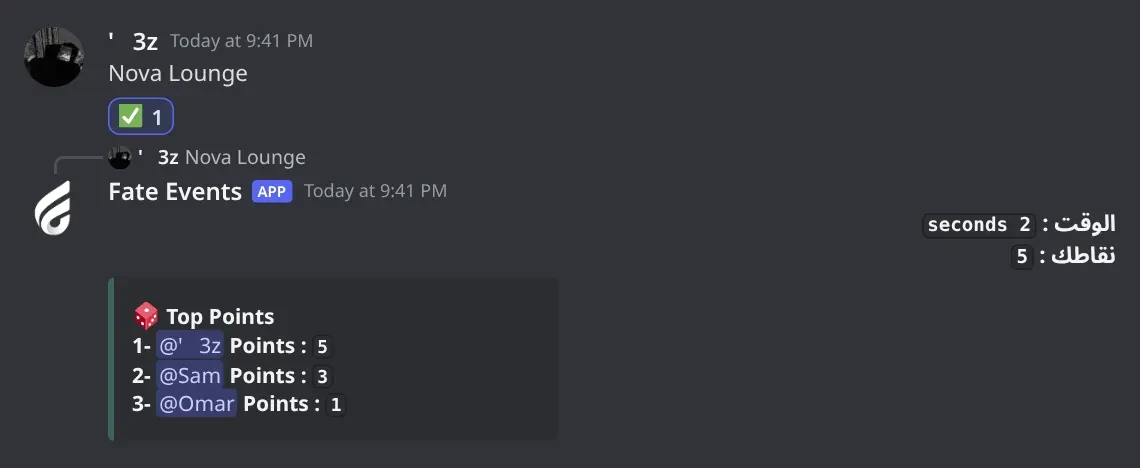
    Also works as !اسرع. You get a preview with ارسال and الغاء (15 seconds). On send, the image goes to the channel set with !setchat option 4 and you get +1 host point. The winner gets ✅ and a reply with the time (الوقت :), their points (نقاطك :) and the top 10 (🎲 Top Points). If nobody answers in 15 seconds the bot replies انتهى وقت الاجابه . Who can use it: owners, Administrators, and members or roles added with !allow option 3.

  • !fkk

    Also works asفككتفكيك
    Who can use it: Admins

    Split the word: posts a word as an image. The first member to type it with a space between every letter wins 1 point.

    Usage
    !fkk <word>
    Example
    !fkk سيرفر

    Also works as !فكك and !تفكيك. For سيرفر the answer is س ي ر ف ر. Same flow as !fast: preview with ارسال / الغاء (15 seconds), posted in the !setchat option 4 channel, 15 seconds to answer, +1 point for the winner and +1 host point for you. Who can use it: owners, Administrators, and !allow option 3.

    Heads up: Use one word.

  • !ask

    Also works asquestionسؤالqus
    Who can use it: Admins

    Posts your question as an image. You type the answer privately first, and the first member to type it within 15 seconds wins 1 point.

    Usage
    !ask <question>  (then type the answer)
    Example
    !ask What is the capital of Japan?

    Also works as !question, !سؤال and !qus. After the command the bot says يرجى كتابة الاجابه الان . Type the answer in the same channel within 60 seconds; the bot deletes it. Then you get the preview with ارسال / الغاء (15 seconds). The question goes to the !setchat option 4 channel. If you don't type an answer you get لم يتم كتابة الاجابه . Who can use it: owners, Administrators, and !allow option 3.

    Heads up: Run the command in a staff channel so members don't see the answer before it's deleted.

Design4

  • !editfont

    Who can use it: Owners only

    Moves the text and changes its size on an event image, with a live preview.

    Usage
    !editfont
    Example
    !editfont

    Pick the event within 30 seconds. The bot shows your background with the sample text Fate Store. ⬅️ ⬆️ ➡️ ⬇️ move it 10 px, ➕ / ➖ change the size by 2 (default 60), 🔄 puts it back in the middle at the default size, ✅ saves. It also saves by itself after 15 minutes. Only you can press the buttons.

    Heads up: In real events the text starts a bit smaller than the preview and shrinks more for long text, so it always fits. Leave some room around it.

  • !setcolor

    Who can use it: Owners only

    Sets the text colour of one event. Default is white.

    Usage
    !setcolor <#hex>
    Example
    !setcolor #ffd166

    The bot shows the event menu in your colour; pick the event within 30 seconds. Reply: ✅ تم تغير لون الخط . Errors: اللون يجب ان يبتدأ في # . and اللون غير صالح . If you don't pick in time: لم يتم التحديد .

  • !setimg

    Who can use it: Owners only

    Sets the background image of one event.

    Usage
    !setimg  (attach an image)
    Example
    !setimg

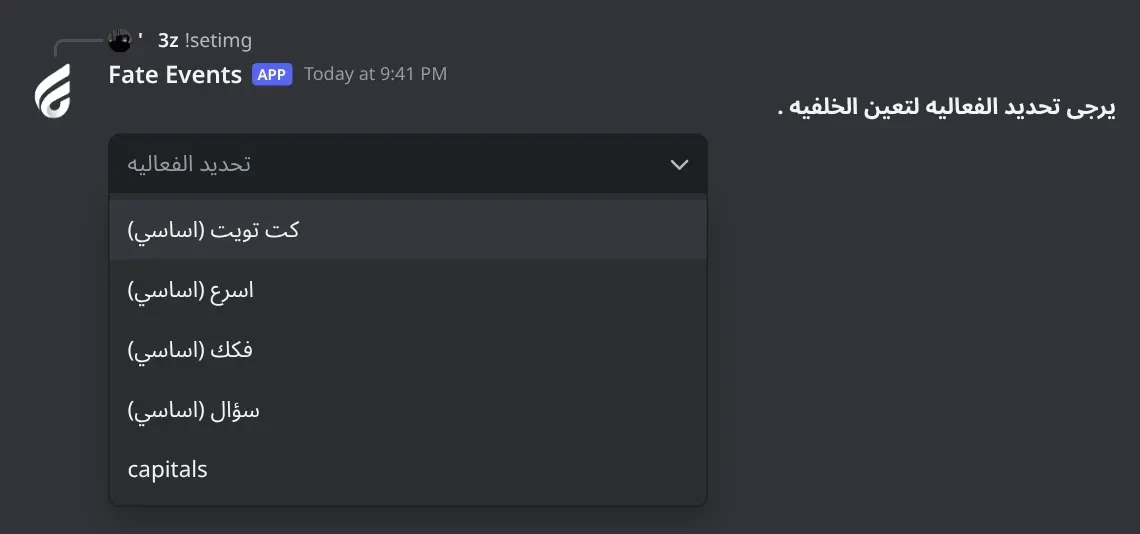
    Attach the image to the command, then pick the event within 30 seconds: كت تويت (اساسي), اسرع (اساسي), فكك (اساسي), سؤال (اساسي), or one of your custom text events. The image is uploaded and the reply becomes ✅ تم تعين الخلفية . For the four built-in events the event image takes the size of your picture. Without an image: يرجى ارفاق الصوره . Upload problem: خطأ اثناء تحميل الصورة .

    Heads up: The text keeps its old position after a new background. Run !editfont and press 🔄, then place it again. Custom text events are always drawn at 700×220, so use a 700×220 image for them or it gets stretched.

  • !setmsg

    Who can use it: Owners only

    Sets the message sent above an event's image, for example a role ping.

    Usage
    !setmsg <text>
    Example
    !setmsg @VIP New event, be quick!

    Pick the event within 30 seconds. Reply: ✅ تم تعين الرسالة المرفقة . Without text: يرجى ارفاق الرساله بعد الامر . To change it, run the command again with the new text.

    Heads up: This message is only used for the event images. Reposts in the cut relay channel don't use it.

Points4

  • !epoints

    Who can use it: Admins

    Host leaderboard: how many events each staff member has sent.

    Usage
    !epoints
    Example
    !epoints

    Every !cut, !fast, !fkk or !ask you send gives you 1 host point. 10 per page; longer lists get ⬅ ➡ buttons for 2 minutes. Your own place shows under Your Points. Use it to reward your event hosts. Reset it with !reset. Who can use it: owners, Administrators, and !allow option 4.

  • !reset

    Who can use it: Owners only

    Resets host points (!epoints) for everyone or for one member.

    Usage
    !reset [@member | ID]
    Example
    !reset @Omar

    Press Yes within 15 seconds to confirm or No to cancel. Replies: ✅ تم تصغير جميع النقاط . / ✅ تم تصغير نقاط <member>, تم الالغاء ., or انتهى وقت الاختيار . Members' event points are not touched; use !points reset for those.

    Heads up: Can't be undone.

  • !points

    Who can use it: Admins

    Sets, adds or removes a member's event points, or resets points.

    Usage
    !points <@member | ID> <N | +N | -N>  |  !points reset [@member]
    Example
    !points @Sam +5

    !points @Sam 10 sets Sam to 10 (must be 1 or more). +5 adds 5. -5 removes 5 (never below 0). !points reset @Sam (or تصفير) clears one member and shows how many points they had. !points reset clears everyone after you press Reset within 15 seconds (Cancel to stop). Reply: ✅ تم تعين النقاط لـ : <member> with the new total. Without arguments it shows these examples to anyone. Who can change points: owners, Administrators, and !allow option 4.

    Heads up: Resets can't be undone.

  • !toppoint

    Also works astop pointstop pointنقاط
    Who can use it: Everyone

    Shows the top 10 members by event points.

    Usage
    !toppoint
    Example
    !نقاط

    Also works as !نقاط. Everyone can use it. Points come from winning !fast, !fkk, !ask and custom events with points (1 per win). If nobody has points yet: قائمة النقاط فارغة .

Panels and guides

What each panel and menu does, and how to set it up.

Event channels

Where each kind of event is posted, and the two channels of the cut relay.

Event channels (setchat). Pick what this channel is used for by typing a number. Run `!setchat` without a channel to only see the current channels.
Event channels (setchat) · Pick what this channel is used for by typing a number. Run !setchat without a channel to only see the current channels.

What's in it

  • 1 cut channel (embed): members type cuts here.
  • 2 cut send channel (embed): where those cuts are reposted.
  • 3 cut send channel (image): where !cut posts.
  • 4 faster send channel: where !fast, !fkk and !ask post.
  • 5 sets 2, 3 and 4 to the same channel. 0 cancels.

How to set it up

  1. Type !setchat #channel.
  2. Type the number within 60 seconds. The bot reacts ✅.
  3. Type !setchat alone to check the result.

Common mistakes

  • Picking the same channel again for 1, 2 or 3 removes it.
  • Option 5 doesn't set the cut channel (1). Set it on its own if you want the relay.

Allow list

Who can run each group of event commands, besides owners and Administrators.

What's in it

  • 1 الكت (امبيد): post in the cut relay channel.
  • 2 الكت (صورة): !cut.
  • 3 اسرع: !fast, !fkk, !ask.
  • 4 التحكم بالنقاط: !points, !epoints.
  • 5 الفعاليات التلقائية: start custom events with -<name>.
  • 6 all of them. 0 cancels.

How to set it up

  1. Type !allow @member or !allow @role (an ID works too).
  2. Type the number within 60 seconds. The bot reacts ✅.
  3. Check with !list. Take a permission back with !deny.

Event look: background, colour, message

!setimg, !setcolor and !setmsg each change one event, picked from the same menu.

Pick an event (setimg, setcolor, setmsg). The same menu opens for the background, the text colour and the attached message. Pick which event to change.
Pick an event (setimg, setcolor, setmsg) · The same menu opens for the background, the text colour and the attached message. Pick which event to change.

What's in it

  • كت تويت (اساسي): the !cut event.
  • اسرع (اساسي): the !fast event.
  • فكك (اساسي): the !fkk event.
  • سؤال (اساسي): the !ask event.
  • Your custom text events are listed after these.

How to set it up

  1. Type !setimg with a picture attached, !setcolor #ffd166, or !setmsg <text>.
  2. Pick the event within 30 seconds.
  3. Wait for the ✅ reply, then run a test event.

Common mistakes

  • Forgetting to attach the picture to !setimg.
  • After a new background the text stays where it was. Run !editfont and press 🔄.
  • Picture events (صور) don't appear in this menu. They use your uploaded pictures as they are.
  • Custom events are hidden while !auto is off.

Text position and size

A live preview to move the text and change its size on an event image.

What's in it

  • ⬅️ ⬆️ ➡️ ⬇️: move the text 10 px.
  • ➕ / ➖: bigger or smaller by 2.
  • 🔄: back to the middle at the default size.
  • ✅: save and close.

How to set it up

  1. Type !editfont and pick the event within 30 seconds.
  2. Move the sample text Fate Store to where you want it.
  3. Press ✅. It also saves by itself after 15 minutes.

Common mistakes

  • Making the text fill the preview. Real events start a bit smaller and long text shrinks to fit.
  • Setting the position before the background. Do !setimg first.

Running a built-in event

Every !cut, !fast, !fkk and !ask shows you a preview first.

Event preview. Every built-in event shows you the image first. Nothing is posted until you press `ارسال`.
Event preview · Every built-in event shows you the image first. Nothing is posted until you press ارسال.

What's in it

  • ارسال: posts the event in its channel and gives you 1 host point.
  • الغاء: cancels it.

How to set it up

  1. Type the command with your text, for example !fast Nova Lounge.
  2. For !ask, type the answer when the bot asks (60 seconds).
  3. Press ارسال within 15 seconds.

Common mistakes

  • Waiting too long: after 15 seconds you get لم يتم اختيار اي شي .
  • Typing the command outside the !setechat channel: no reply.
  • يرجى تحديد شات الفعاليات .: set the channel with !setchat.

Answers and points

How members win !fast, !fkk, !ask and custom events with points.

Winner reply. The winner gets ✅ and a reply with their time, their points and the top 10.
Winner reply · The winner gets ✅ and a reply with their time, their points and the top 10.

What's in it

  • First exact answer within 15 seconds wins 1 point.
  • The winner gets ✅, their time, their points and the top 10.
  • No answer: انتهى وقت الاجابه .

How to set it up

  1. !fast: type the text exactly.
  2. !fkk: type the word with a space between every letter.
  3. !ask: type the answer the host set.

Common mistakes

  • Adding punctuation or extra words. The answer must be exact.
  • !cut never gives points.

Cut relay channel

Allowed members type a cut in one channel and the bot reposts it as a neat embed in another.

What's in it

  • Allowed members get ✅ and their text is reposted with By @member.
  • Others get ❌ and nothing is reposted.

How to set it up

  1. !setchat #cuts-input then 1.
  2. !setchat #cuts then 2.
  3. !allow @Staff then 1. Administrators can post without it.

Common mistakes

  • Setting only one of the two channels. Both are needed.
  • Extra owners without Administrator get ❌ until you give them !allow 1.

Custom events

Create your own events: picture quizzes or text drawn on your background, with or without points.

What's in it

  • اضافة فعالية: create the event named in the command.
  • ازالة فعالية: delete it (its pictures too).
  • قائمة الفعاليات: list your events.
  • حساب / عدم حساب: count points or not.
  • صور / محتوى: pictures or text.

How to set it up

  1. Type !evedit flags and press اضافة فعالية.
  2. Pick حساب or عدم حساب, then صور or محتوى. Each step waits 15 seconds.
  3. Add items with !autoadd.
  4. Start it with -flags.

Common mistakes

  • Names with capitals or spaces. Use one lowercase word, or the event never starts.
  • Running it while !auto is off: no reply.

Adding custom event items

Fill a custom event with items. The bot picks one at random each time.

What's in it

  • Text, no points: each line is one item.
  • Text with points: the text is one item, then type its answer.
  • Pictures, no points: attach one or more pictures.
  • Pictures with points: attach one picture and write its answer after the command.

How to set it up

  1. Type !autoadd with your text or pictures.
  2. Pick the event within 30 seconds.
  3. Check with !autolist. Remove with !autoremove <number>.

Common mistakes

  • Picture with points but no answer: يرجى ارفاق الاجابة مع الاامر .
  • قائمة الفعاليات فارغة .: create the event with !evedit first.

Starting a custom event

Type the events prefix and the event name in any channel.

What's in it

  • 🎮 on your message: the event started.
  • With points: first exact answer in 15 seconds wins and the top 10 is shown.
  • Nobody answered: 🙄 لم يتمكن احد من الاجابة .

How to set it up

  1. Type -flags in the channel where members should play.
  2. Owners, Administrators and !allow 5 can start it.

Common mistakes

  • قائمة المحتوى فارغة .: add items with !autoadd.
  • No reaction at all: check !auto, the name, and your permission.

Points control

Set, add, remove or reset members' event points.

What's in it

  • !points @member 10: set to 10.
  • !points @member +5 / -5: add or remove.
  • !points reset @member: clear one member.
  • !points reset: clear everyone (press Reset).

How to set it up

  1. Type !points to see the examples.
  2. Run the change. The bot replies with the new total.

Common mistakes

  • Setting 0 with !points @member 0. Use !points reset @member.
  • Mixing it up with !reset, which clears host points, not member points.

Host points

How many events each staff member has sent, to reward your event team.

What's in it

  • ⬅ ➡: pages, when there are more than 10 hosts.
  • Your Points: your own place.

How to set it up

  1. Type !epoints.
  2. Reset with !reset (everyone) or !reset @member.

Common mistakes

  • Expecting custom events to count. Only !cut, !fast, !fkk and !ask give host points.

Bot Settings panel

Change the bot's name, avatar, banner, activity, status, prefix and owners, or restart it.

What's in it

  • اسم البوت, افتار البوت, بنر البوت: name and pictures.
  • لعب البوت, حالة البوت: activity and status.
  • برفكس البوت: the bot prefix.
  • اضافة/ازالة اونر: add or remove an owner.
  • ازالة افتار البوت, ازالة بنر البوت, اعادة تشغيل.

How to set it up

  1. Type @bot vip.
  2. Pick an option, then type or attach your answer within 60 seconds.

Troubleshooting

Something not working? Check these first.

The bot doesn't respond to any command

How to fix it

  • Use the prefix ! or mention the bot, for example @bot vip.
  • Make sure the bot can see the channel and send messages in it.
  • Commands you aren't allowed to use get no reply. Ask an owner, or check !list.

!fast, !fkk, !ask or !cut does nothing

How to fix it

  • You need to be an owner, have Administrator, or be in !allow (2 for cut, 3 for the others).
  • If !setechat is set, type the command in that channel.

يرجى تحديد شات الفعاليات .

How to fix it

  • Set the channel: !setchat #channel, then 3 for !cut, 4 for the others, or 5 for all.

Someone typed the right answer but didn't get a point

How to fix it

  • The answer must be exact and within 15 seconds.
  • For !fkk the answer is the word with a space between every letter.
  • Custom events only give points if they were created with حساب.

A custom event doesn't start

How to fix it

  • Check !auto is on (it's on unless someone turned it off).
  • The name must be one lowercase word. Check the exact name with !evedit > قائمة الفعاليات.
  • It needs items: check !autolist.
  • You need to be an owner, have Administrator, or have !allow 5.

Pictures I added don't show in !autolist

How to fix it

  • Use png, jpg, jpeg or gif.

The event text is in the wrong place after a new background

How to fix it

  • Run !editfont, pick the event, press 🔄, then move the text and press ✅.

The event image is hard to read

How to fix it

  • Without a background the image is transparent with white text. Set one with !setimg and pick a contrasting colour with !setcolor.

I didn't get the !help DM

How to fix it

  • Allow DMs from server members and try again.

@bot vip doesn't answer

How to fix it

  • Only owners can open it. Check !ownerlist.

The bot left my server

How to fix it

  • The bot only stays in the server your subscription is for.
  • Change the server from the subscriptions control channel in the Fate Store server: تعديل > تغير السيرفر, or with !setserver <server ID>.

Name or avatar change failed

How to fix it

  • Discord limits these changes. Wait about 30 minutes or try another name.