All bot docs

Groups bot

Member groups with their own chat, room and leader, racing for points.

Getting started

Set up the Groups bot in a few minutes. Do these steps in order.

  1. Invite the bot to the right server

    Invite the bot to the server your subscription is for. Get the invite link from the subscriptions control channel in the Fate Store server: press تعديل, then ارسال الروابط. The bot only works in that server and leaves any other server right away.

  2. Give the bot a role with the right permissions

    The bot makes roles, chats and voice rooms and edits their permissions, so give it a role with Administrator. If you'd rather not, it needs at least View Channels, Send Messages, Embed Links, Attach Files, Add Reactions, Read Message History, Manage Channels, Manage Roles, Manage Messages, Connect, Mute Members, Deafen Members and Move Members. Then, in Server Settings > Roles, drag the bot's role above every group role and above the leader and deputy roles.

  3. Know the prefix

    The default prefix is :, for example :create. Mentioning the bot also works, for example @bot setup. This is handy if you forget the prefix. Group leaders type their commands with no prefix at all, like اضافة @Sam or تحكم.

  4. Know who can do what

    Owners (the subscription owner and owners added with :setowner) can use everything. Groups managers, added with :setmanger @member or :setmanger @role, create, register, delete and view groups and see the top. Each group's leader and deputy manage only their own group. For anyone else, commands do nothing and show no error.

  5. Set the categories

    Type :setgroup and pick كاتوقري القويس, then paste the ID of the category for group voice rooms. Do the same with كاتوقري الشات for group chats. To copy an ID, turn on Developer Mode in Discord and right-click the category. A group can't be created until both are set.

  6. Set the leader and deputy roles

    Make a leader role and a deputy role (for example Leader and Deputy). Set them with :setlrole @Leader and :setrrole @Deputy. The bot gives them out when it creates a group and takes the leader role back when a group is deleted. Place these roles above the group roles so leaders can add members.

  7. Set the log and the announcements

    Set the groups log with :setlog #logs. In :setgroup > شات القروبات الجديده, pick a channel where new groups are announced; attach an image to the same message to show it under each announcement.

  8. Add groups managers

    Add the staff who will create groups with :setmanger @Staff. See them with :mangers. Type :allowc if you want managers to get manage permissions in every new group's chat and voice room.

  9. Post the panels

    Open @bot setup and pick رسالة التحكم بالقروبات للاداره to post the admin panel in a staff channel, رسالة التحكم بالقروب to post the group control panel for leaders, and رسالة توب القروبات to post a top that updates every 3 minutes. You can also use :acontrol #channel, :control #channel and :dash #channel.

  10. Create your first group

    Type :create (or press انشاء قروب on the admin panel) and answer in the same channel within 60 seconds each: the leader, the deputy, the group name, the member limit, and a group bot or none. The bot makes the role, a private chat and a voice room, and posts the leader's commands in the new chat. A leader can only have one group: creating a second one for the same leader deletes the first.

  11. How groups earn points

    Every 2 minutes each group gets 1 point for every member with the group role who sits in the group's voice room, not muted and not deafened. Turn on تفعيل/تعطيل حساب النقاط من كل الرومات in @bot setup to count members in any voice room. Each non-member who joins the group's room counts once as a visitor. See the ranking with :top, :top day or :top week.

  12. What leaders do every day

    Leaders add members with اضافة @member (run it again to remove), see members with اعضاء, see their card with قروبي, and manage the room with تحكم, عقوبه, صلاحيه, منع and سماح. They pick a deputy with مسؤول @member. اوامري lists them all. Leader commands work in the group's own chat and voice room, and in any command chat you add with :cchat.

Commands

Examples use the default prefix :. If you changed it, type yours instead.

Who can use a command?

Owners only
The subscription owner and the extra owners you add (with setowner or from vip). Being the server owner isn't enough.
Managers
The bot's managers list (an owner adds them), and the owners.
Group leader
The group's leader or deputy, in the group's own chat or room.

Setup12

  • :setback

    Who can use it: Owners only

    Sets a custom background for the top pictures or the group card.

    Usage
    :setback <image | none>
    Example
    :setback none

    Attach an image to the command, then pick خلفية التوب 1 (top page 1), خلفية التوب 2 (the next pages) or خلفية قروبي (the group card). Type :setback none and pick one to go back to the default. Use the same size as the default: 720×1280 for top page 1, 887×1280 for the next pages, 2183×897 for the card. Upload error: ❌ حدث خطأ اثناء تحميل الصورة.
  • :setgroup

    Also works assgroupتحديد
    Who can use it: Owners only

    Sets the categories where new group voice rooms and chats are made, and the new groups announcement chat.

    Usage
    :setgroup
    Example
    :setgroup

    Also works as sgroup or تحديد. Pick كاتوقري القويس or كاتوقري الشات and paste the category ID within 60 s (a mention doesn't work for categories). Pick شات القروبات الجديده and send the channel; attach an image to the same message to post it under each announcement as a separator line. Sending the same one again removes it. The menu stays open for 4 minutes.

  • :setlog

    Also works assetlogs
    Who can use it: Owners only

    Sets the groups log channel. Run it again with the same channel to remove it.

    Usage
    :setlog <#channel | ID>
    Example
    :setlog #logs

    Also works as setlogs. The log gets group creation, deletion, role add/remove, deputy changes and every leader edit. The bot reacts ✅ or ☑️.

  • :setlrole

    Who can use it: Owners only

    Sets the role given to every group leader. Run it again with the same role to remove it.

    Usage
    :setlrole <@role> [@role ...]
    Example
    :setlrole @Leader

    Mention several roles in one message to give leaders all of them. The bot reacts ✅ when set and ☑️ when removed. The role is given on :create and taken away on :delete.

  • :setrrole

    Who can use it: Owners only

    Sets the role given to every group deputy. Run it again with the same role to remove it.

    Usage
    :setrrole <@role> [@role ...]
    Example
    :setrrole @Deputy

    Mention several roles to set more than one. The bot reacts ✅ or ☑️. The role is given on :create and moves with the leader's مسؤول command.

  • :allowc

    Who can use it: Owners only

    Turns on or off giving groups managers manage permissions in every new group's chat and voice room.

    Usage
    :allowc
    Example
    :allowc

    When on, each manager (member or role) gets view, send, manage channel and manage permissions on new groups only. The bot reacts ✅ when on and ☑️ when off.

  • :cchat

    Who can use it: Owners only

    Adds a channel where group leaders can use their commands, or removes it if already added.

    Usage
    :cchat <#channel | ID>
    Example
    :cchat #commands

    With no command chats set, leader commands work in any channel. Once you add one, leaders can only use their commands there or in their own group chat and voice room. The bot reacts ✅ or ☑️.

  • :cchatlist

    Who can use it: Owners only

    Lists the command chats for group leaders.

    Usage
    :cchatlist
    Example
    :cchatlist

    Empty: قائمة الشاتات فارغة .

  • :mangers

    Who can use it: Owners only

    Lists the groups managers (members and roles).

    Usage
    :mangers
    Example
    :mangers

    Empty: قائمة المسؤولين فارغة .

  • :reset

    Who can use it: Owners only

    Resets one group's points and visitors, or every group's after a Yes/No question.

    Usage
    :reset [@role | role ID]
    Example
    :reset @Night Owls

    With a role it resets that group right away: ✅ تم تصفير نقاط @role. With no role it asks هل تود تصفير جميع النقاط ؟ for 15 s. Managers can also do both from the admin panel.

    Heads up: Resetting can't be undone.

  • :setmanger

    Who can use it: Owners only

    Adds a groups manager (member or role), or removes them if already added.

    Usage
    :setmanger <@member | @role | ID>
    Example
    :setmanger @Staff

    Managers can create, register, delete and view groups, see the top and use the admin panel. The bot reacts ✅ when added and ☑️ when removed.

  • :set

    Also works assetup
    Who can use it: Owners only

    Opens the groups settings menu: managers, log, channels, panels, roles, backgrounds, command chats and points.

    Usage
    :setup
    Example
    @bot setup

    Also works as :set. Mention the bot (@bot setup) if you don't know the prefix. Pick an option, then type your answer in the same channel within 60 s. Replies are shown only to you. The menu stays open for 4 minutes and only the person who opened it can use it.

Bot settings12

  • :prefix

    Also works assetprefix
    Who can use it: Owners only

    Changes the bot's prefix, or shows the current one if you type nothing.

    Usage
    :prefix [new prefix]
    Example
    :prefix !

    Also works as setprefix. Mentioning the bot always works as a prefix. Leader commands never need a prefix.

  • :setavatar

    Also works assa
    Who can use it: Owners only

    Changes the bot's avatar.

    Usage
    :setavatar <image link | attachment>
    Example
    :setavatar https://example.com/logo.png

    Also works as sa. Attach an image or paste a link.

  • :setbanner

    Also works assb
    Who can use it: Owners only

    Changes the bot's profile banner.

    Usage
    :setbanner <image link | attachment>
    Example
    :setbanner https://example.com/banner.png

    Also works as sb. Attach an image or paste a link.

  • :setecolor

    Who can use it: Owners only

    Changes the embed colour of the :help message.

    Usage
    :setecolor <#hex | none>
    Example
    :setecolor #3e635b

    The colour must start with # (اللون يجب ان يبتدأ في # .). none goes back to the default. Most other Groups messages use a fixed colour.

  • :setgame

    Also works asgame
    Who can use it: Owners only

    Changes the bot's activity text and type, or its online status.

    Usage
    :setgame <text | status>
    Example
    :setgame Nova Lounge

    Also works as game. Type the text, then reply with a number within 60 s: 1 Playing, 2 Watching, 3 Listening, 4 Streaming, 0 cancel. Type :setgame status to pick 1 Online, 2 Idle, 3 Dnd or 4 Invisible.

  • :setname

    Also works assn
    Who can use it: Owners only

    Changes the bot's username.

    Usage
    :setname <name>
    Example
    :setname Nova Groups

    Also works as sn. Discord limits name changes; if you change it too often you get يرجى الانتظار يتم تغير الاسم بوقت سريع ، او الاسم غير صالح .

  • :vip

    Also works aseditfate
    Who can use it: Owners only

    Opens the Bot Settings panel to change the bot's name, avatar, banner, activity, status, prefix and owners, or restart it.

    Usage
    :vip
    Example
    @bot vip

    Also works as :edit or :fate. Mention the bot (@bot vip) if you don't know the prefix. The panel shows the prefix, who the bot is registered to, when the subscription ends and the subscription number. Pick an option, then type or attach your answer in the same channel within 60 seconds. The panel stays open for 4 minutes and only the person who opened it can use it.

  • :setserver

    Also works assetguild
    Who can use it: Owners only

    Moves the bot to another server.

    Usage
    :setserver <server ID>
    Example
    :setserver 123456789012345678

    Also works as setguild. The bot replies with an invite link for the new server and leaves the current one right away. Invite it to the new server with that link.

    Heads up: The bot leaves this server immediately. Settings and groups are tied to the old server.

  • :ownerlist

    Who can use it: Owners only

    Lists the extra owners added to the bot.

    Usage
    :ownerlist
    Example
    :ownerlist

    Empty: قائمة الاونرات فارغة.

  • :setowner

    Also works asowners
    Who can use it: Owners only

    Adds an extra bot owner, or removes them if they already are one.

    Usage
    :setowner <@member | ID>
    Example
    :setowner @Omar

    Also works as owners. Owners can use every command. The bot reacts ✅ when added and ☑️ when removed.

  • :restart

    Who can use it: Owners only

    Restarts the bot.

    Usage
    :restart
    Example
    :restart

    The bot reacts 👾 and comes back in a few seconds. Settings and points are kept.

  • :help

    Who can use it: Owners only

    Shows the manager and owner command list with a Support button.

    Usage
    :help
    Example
    :help

    Group leader commands aren't in this list. Leaders see theirs with اوامري in their group chat.

Group leaders12

  • ازالة

    Also works asremoveازاله
    Who can use it: Group leader

    Takes your group's role away from a member.

    Usage
    ازالة <@member | ID>
    Example
    ازالة @Sam

    Also works as remove or ازاله, with no prefix. The bot reacts ☑️ and posts it in the groups log. The same role-position rules as اضافة apply.

  • اضافة

    Also works asaddاضافه
    Who can use it: Group leader

    Gives your group's role to a member, or takes it away if they already have it.

    Usage
    اضافة <@member | ID>
    Example
    اضافة @Sam

    Also works as add or اضافه, with no prefix. The bot reacts ✅ when it adds the role and ☑️ when it removes it, and posts it in the groups log. When the group is full you get ❌ لقد وصلت الى الحد الاقصى من الاعضاء. (the member limit is set when the group is created, 200 by default). Your highest role must be above the group role (الرول المطلوب اعلى منك .) and so must the bot's role (الرول المطلوب اعلى مني .).

  • اعضاء

    Also works asmembers
    Who can use it: Group leader

    Lists your group's members, 15 per page, with the deputy first.

    Usage
    اعضاء [page]
    Example
    اعضاء 2

    Also works as members. Only works in your group's own chat. With more than 15 members you get arrow buttons for 2 minutes, or type a page number. If nobody has the role you get لا يوجد اي عضو يملك هذا الرول .

  • اوامري

    Who can use it: Group leader

    Shows the list of group leader commands.

    Usage
    اوامري
    Example
    اوامري

    Only works in your group's own chat. The same list is posted in the group chat when the group is created.

  • تحكم

    Also works aseditgroup
    Who can use it: Group leader

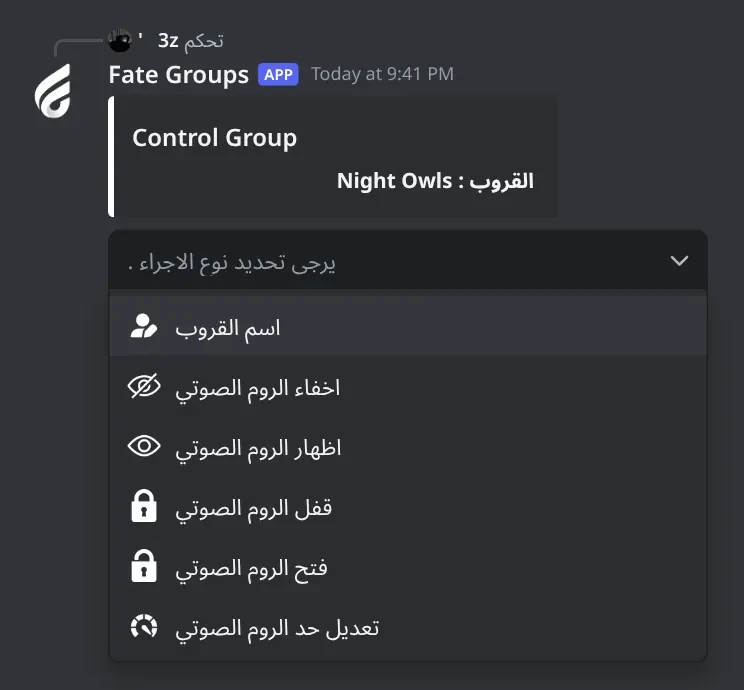
    Opens a menu to rename your group, hide or show its voice room, lock or unlock it, or change its user limit.

    Usage
    تحكم
    Example
    تحكم

    Also works as editgroup. Renaming changes the role, the chat and the voice room together; type the new name within 60 s. For the user limit type a number within 60 s (0 means no limit). Every change goes to the groups log. The menu works for 2 minutes and only for you.

  • تعديل

    Also works asعقوبهتعين
    Who can use it: Group leader

    Opens a penalty menu for one member: hide or show the voice room, or lock or unlock it.

    Usage
    تعديل
    Example
    عقوبه

    Also works as عقوبه or تعين. Pick an action, then send the member's mention or ID within 60 s. The menu works for 2 minutes.

  • :allow

    Also works asسماحاسمح
    Who can use it: Group leader

    Lets a member join your group's voice room again after منع.

    Usage
    سماح <@member | ID>
    Example
    سماح @Sam

    Also works as allow or اسمح, with no prefix. The bot reacts ✅.

  • صلاحيه

    Also works asصلاحياتصلاحية
    Who can use it: Group leader

    Opens a menu to give or take a member's mute, deafen, move (kick) or clear-messages permission in your group.

    Usage
    صلاحيه
    Example
    صلاحيه

    Also works as صلاحيات or صلاحية. Mute, deafen and move apply to the voice room, clear applies to the group chat. Pick an option, then send the member's mention or ID within 60 s. The menu works for 2 minutes.

  • قروبي

    Also works asرومي
    Who can use it: Group leader

    Shows your group's card: name, leader, deputy, points, rank, members and visitors.

    Usage
    قروبي
    Example
    قروبي

    Also works as رومي. Only works in your group's own chat. The picture uses the group role's icon if it has one, otherwise the server icon. Change the background with :setback.

  • مسؤول

    Also works asgmanger
    Who can use it: Group leader

    Makes a member your group's deputy, or removes them if they already are.

    Usage
    مسؤول <@member | ID>
    Example
    مسؤول @Sam

    Also works as gmanger. A group has one deputy: setting a new one replaces the old one. The deputy role (:setrrole) moves with it. The deputy can use every group leader command. You can't pick the leader. The change goes to the groups log.

  • مسح

    Also works asclear
    Who can use it: Group leader

    Deletes recent messages in your group's chat, up to 100.

    Usage
    مسح [count]
    Example
    مسح 20

    Also works as clear. Only works in your group's own chat. With no number it deletes 100. Arabic numbers work. More than 100 gives لا يمكنك مسح اكثر من 100 رسالة . Messages older than 14 days can't be deleted.

  • :deny

    Also works asمنعامنع
    Who can use it: Group leader

    Stops a member from joining your group's voice room.

    Usage
    منع <@member | ID>
    Example
    منع @Sam

    Also works as deny or امنع, with no prefix. The bot reacts ✅. Undo it with سماح.

Managers6

  • :gadd

    Also works asrenew
    Who can use it: Managers

    Registers a group that already exists in your server (role, chat and voice room you made yourself).

    Usage
    :renew
    Example
    :renew

    Also works as gadd, or with the اضافة قروب button on the admin panel. Answer within 60 s each: the leader, the deputy, the member limit, the voice room, the text chat, then the role (or none for a group without a role). You get ✅ تم اضافة القروب. and it is announced in the new groups chat as Add Old Group. The bot doesn't change the channels' permissions.

    Heads up: A group without a role gets no points and can't use اضافة, ازالة or اعضاء.

  • :cgroup

    Also works asnewgroupcreategroupnewcreate
    Who can use it: Managers

    Creates a new group step by step: leader, deputy, name, member limit and an optional group bot.

    Usage
    :create
    Example
    :create

    Also works as cgroup, new, newgroup or creategroup, or with the انشاء قروب button on the admin panel. Answer each question in the same channel within 60 s: the leader's mention or ID, the deputy's mention or ID, the group name, the member limit (no number means 200), then a bot's mention or ID or none. The bot makes a role, a private text chat and a voice room that everyone sees but only the group can join, gives the leader the group role and the leader role, gives the deputy the deputy role, posts the leader commands in the new chat, and announces it in the new groups chat. If you give a group bot, it gets the role, access to the room and the group name as nickname. Needs the voice and text categories set first (❌ يرجى تحديد كاتوقري الفويس).

    Heads up: One leader can only have one group. If the leader already leads another group, that old group (its role, chat and voice room) is deleted.

  • :gcheck

    Also works ascheck
    Who can use it: Managers

    Lists a group's members: leader, deputy, then everyone with the role.

    Usage
    :check <@role | role ID> [page]
    Example
    :check @Night Owls

    Also works as gcheck. 15 per page, with arrow buttons for 2 minutes, or add a page number.

  • :توب

    Also works astopقروبات
    Who can use it: Managers

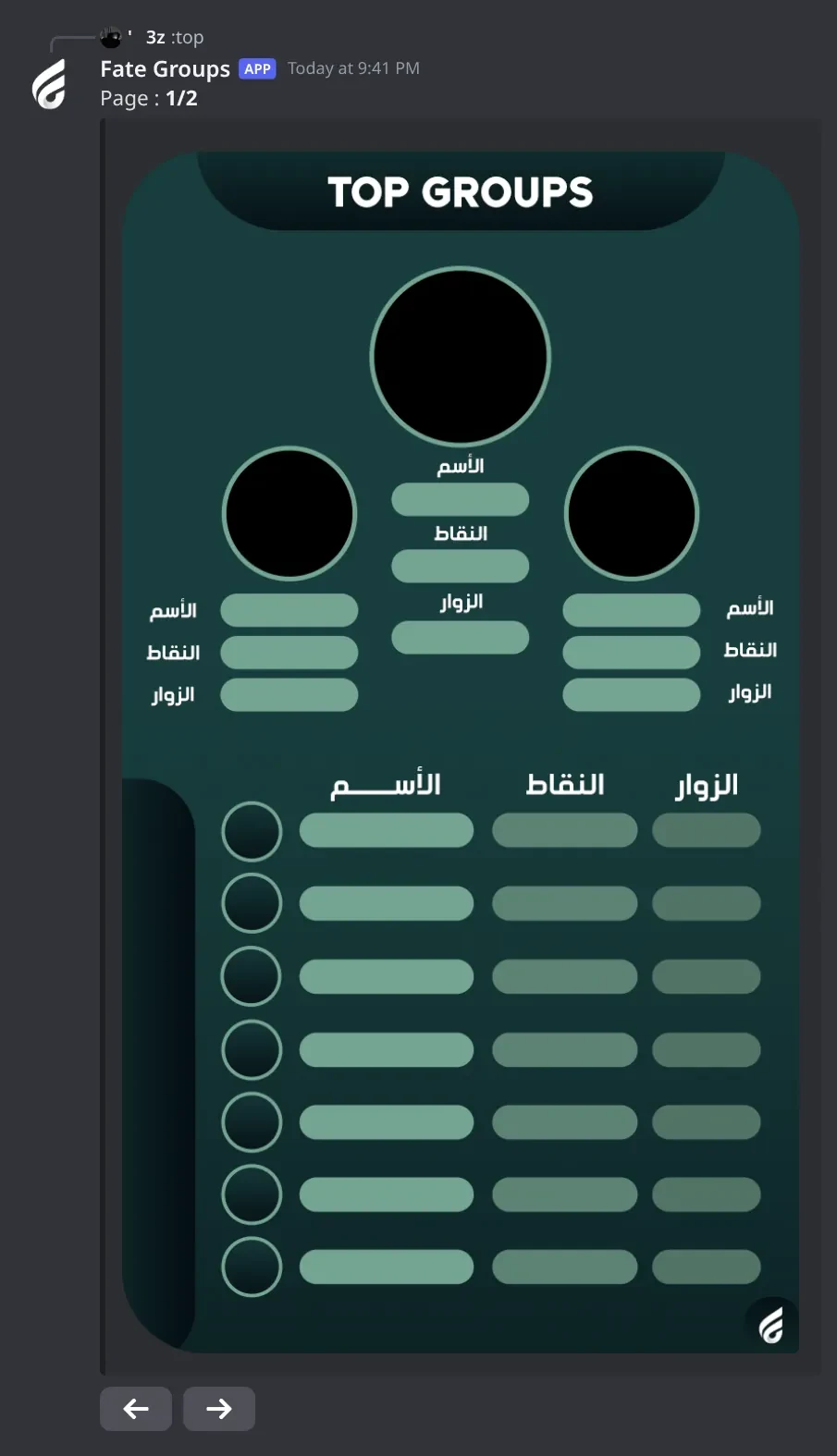
    Shows the top groups picture: name, points and visitors, 10 groups per page.

    Usage
    :top [day | week | page]
    Example
    :top week

    Also works as توب or قروبات. day (يوم) and week (اسبوع) show today's and this week's points (first page only). With more than 10 groups you get arrow buttons for 2 minutes. Page 1 uses the خلفية التوب 1 background and the next pages use خلفية التوب 2. Empty: قائمة التوب فارغة .

  • :dgroup

    Also works asdeletegroupحذفdelete
    Who can use it: Managers

    Deletes a group: its role, chat, voice room and saved data.

    Usage
    :delete <@role | role ID | #voice room>
    Example
    :delete @Night Owls

    Also works as dgroup, deletegroup or حذف, or with the حذف قروب button on the admin panel. The leader loses the leader role and the deputy loses the deputy role. The bot reacts ✅ and posts it in the groups log. Not found: لا يمكنني العثور على القروب.

    Heads up: This can't be undone.

  • :ginfo

    Also works asinfogroupinfoمعلومات
    Who can use it: Managers

    Shows a group's card plus its leader, deputy, voice room, chat and role.

    Usage
    :info <@role | role ID | #voice room>
    Example
    :info @Night Owls

    Also works as ginfo, infogroup or معلومات, or with the معلومات قروب button on the admin panel.

Panels3

  • :acontrol

    Who can use it: Owners only

    Posts the admin panel, where groups managers create, register, delete, view and reset groups with buttons.

    Usage
    :acontrol [#channel] [text]
    Example
    :acontrol #staff-panel

    Your command message is deleted. With no channel it posts in the current one. Text after the channel is posted above the buttons, and an image attached to the command is posted with it. Post it in a staff-only channel, because managers type their answers there. Also in @bot setup > رسالة التحكم بالقروبات للاداره.

  • :control

    Who can use it: Owners only

    Posts the group control panel, where leaders and deputies manage their own group with buttons.

    Usage
    :control [#channel] [text]
    Example
    :control #group-control

    Your command message is deleted. With no channel it posts in the current one. Text after the channel replaces the default للتحكم بالقروب الضغظ على الازرار. Also in @bot setup > رسالة التحكم بالقروب.

    Heads up: Only the latest panel works. Posting a new one makes the old one stop answering.

  • :dash

    Who can use it: Owners only

    Posts the top groups picture that updates itself every 3 minutes.

    Usage
    :dash [#channel]
    Example
    :dash #top-groups

    With no channel it posts in the current one. If there are no groups yet it posts ⏳ and fills in later. With more than 10 groups it shows arrows to flip pages. Only one auto-top per server: posting a new one replaces the old one. Also in @bot setup > رسالة توب القروبات.

    Heads up: If you delete the top message, the bot stops updating it. Post it again with :dash.

Panels and guides

What each panel and menu does, and how to set it up.

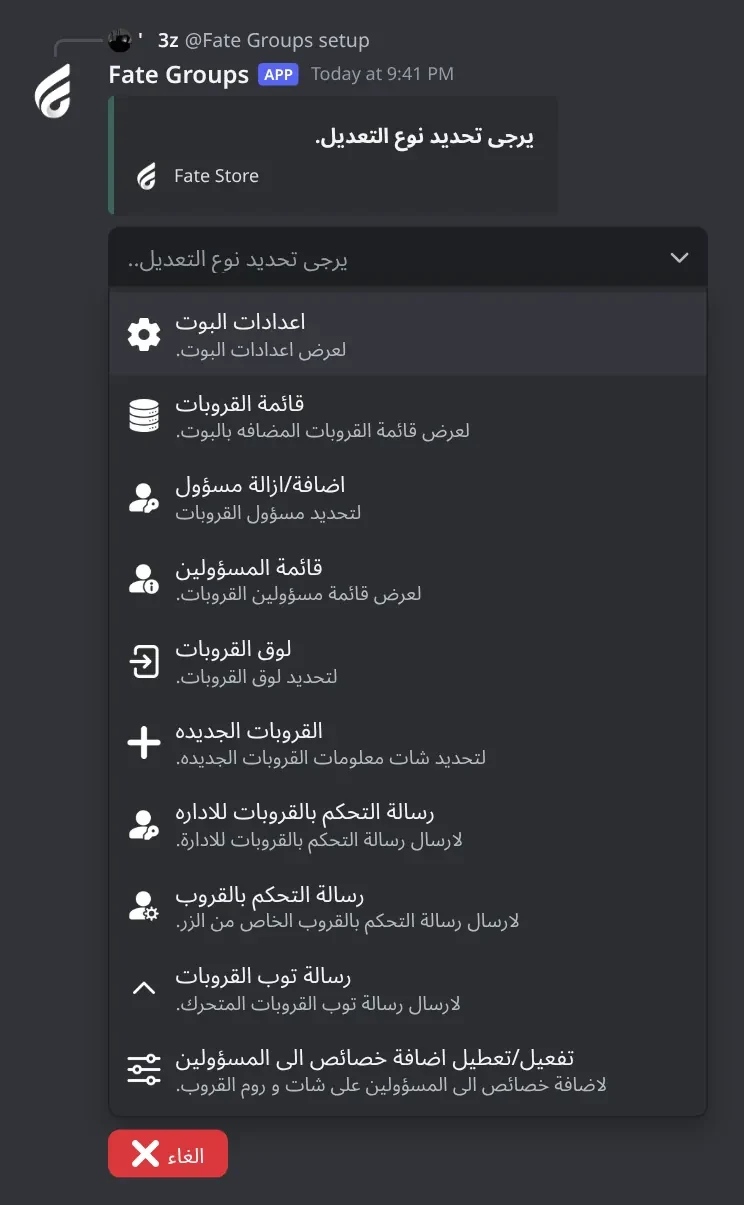
Settings menu

The main groups settings: managers, log, announcements and the panels you can post.

Groups settings menu. The main settings menu: managers, log, announcement chat and the three panels you can post.
Groups settings menu · The main settings menu: managers, log, announcement chat and the three panels you can post.

What's in it

  • اعدادات البوت: an overview of every setting, only for you.
  • اضافة/ازالة مسؤول and قائمة المسؤولين: add, remove and list groups managers.
  • لوق القروبات: the groups log channel.
  • القروبات الجديده: the channel where new groups are announced, with an optional separator image.
  • رسالة التحكم بالقروبات للاداره, رسالة التحكم بالقروب and رسالة توب القروبات: post the admin panel, the leader control panel or the auto-updating top in a channel.
  • تفعيل/تعطيل اضافة خصائص الى المسؤولين: give managers manage permissions in new groups.

How to set it up

  1. Type @bot setup.
  2. Pick an option from the menu.
  3. Type your answer (a mention or an ID) in the same channel within 60 seconds.
  4. Wait for the ✅ reply, then pick the next option.

Common mistakes

  • Taking more than 60 seconds to answer. Pick the option again.
  • Sending the channel or member that's already set. That removes it (☑️). Send it again to set it back.

Settings menu: more options

Points counting, backgrounds, categories, leader and deputy roles, and command chats.

What's in it

  • تفعيل/تعطيل حساب النقاط من كل الرومات: count group members in any voice room, or only in their group's room.
  • تعديل خلفيات القروب: change the top and group card backgrounds.
  • تحديد كاتوقري القروبات: the voice and text categories for new groups.
  • لتحديد رول ليدر القروب and لتحديد رول مسؤول القروب: the leader and deputy roles.
  • اضافة/ازالة شات مصرح له, اضافة/ازالة شات محظور استحدام الامر and قائمة الشاتات: where leaders can and can't use their commands.

How to set it up

  1. Type @bot setup and open the menu.
  2. Scroll down to the option.
  3. Answer in the same channel within 60 seconds. For backgrounds and categories, a second menu follows for 15 seconds.

Common mistakes

  • Adding a command chat and then wondering why leaders can't use commands elsewhere. Once one is set, only those chats and each group's own chat and room work.
  • Typing a category mention. Paste the category ID.

Categories and new groups chat

Where new group rooms and chats are made, and where new groups are announced.

What's in it

  • كاتوقري القويس: the category for new voice rooms.
  • كاتوقري الشات: the category for new group chats.
  • شات القروبات الجديده: the announcement channel.

How to set it up

  1. Type :setgroup.
  2. Pick كاتوقري القويس and paste the category ID within 60 seconds.
  3. Pick كاتوقري الشات and paste the other category ID.
  4. Pick شات القروبات الجديده and send the channel, with an image attached if you want a separator.

Common mistakes

  • Using the same category for many groups until it holds 50 channels. Make a new category and set it.
  • Pasting a channel ID instead of a category ID: ❌ لم يتم العثور على الكاتوقري.

Backgrounds

Use your own design for the top pictures and the group card.

What's in it

  • خلفية التوب 1: first top page, 720×1280.
  • خلفية التوب 2: next top pages, 887×1280.
  • خلفية قروبي: the group card, 2183×897.

How to set it up

  1. Type :setback and attach your image to the same message.
  2. Pick which background it's for.
  3. To go back to the default, type :setback none and pick the background.

Common mistakes

  • Using a different layout. The bot writes text at fixed spots, so keep the default layout.
  • Sending :setback with no image: يرجى ارفاق الصوره .

Admin panel

Buttons for groups managers to create, register, delete, view and reset groups.

What's in it

  • انشاء قروب and اضافة قروب: start the create or register questions.
  • حذف قروب, معلومات قروب and تصفير القروب: ask for the group's role within 30 seconds.
  • تصفير الكل: reset every group after a Yes/No.

How to set it up

  1. Type :acontrol #staff-panel (add text after the channel if you want).
  2. Managers press a button and type their answers in that channel.

Common mistakes

  • Posting it in a channel managers can't type in. They answer there, so they need Send Messages.
  • Members who aren't managers press the buttons. Nothing happens for them.

Creating a group

Five questions, then the bot makes the role, chat and voice room.

What's in it

  • Leader: mention or ID.
  • Deputy: mention or ID.
  • Name: becomes the role, chat and voice room name.
  • Member limit: a number, or anything else for 200.
  • Group bot: a bot's mention or ID, or none.

How to set it up

  1. Type :create or press انشاء قروب.
  2. Answer each question within 60 seconds in the same channel.
  3. Wait for تم انشاء القروب ✅.

Common mistakes

  • Creating a group for someone who already leads one. Their old group is deleted.
  • Not setting the categories first: ❌ يرجى تحديد كاتوقري الفويس.
  • Typing a wrong mention. The questions stop; start again.

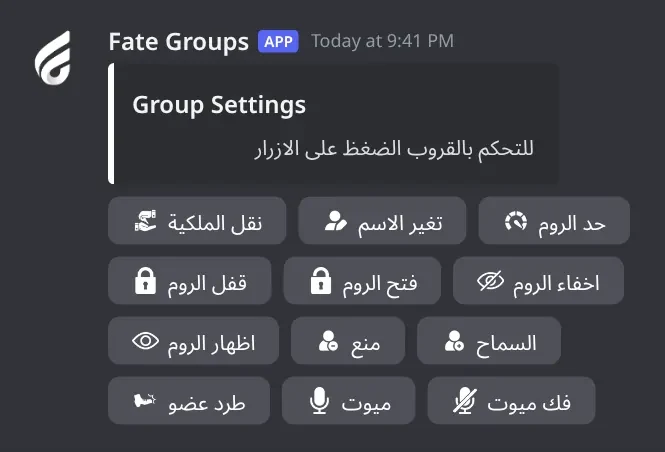
Group control panel

Buttons for each leader and deputy to manage their own group.

Group control panel. Buttons where each leader or deputy manages their own group: ownership, name, limit, lock, hide and members.
Group control panel · Buttons where each leader or deputy manages their own group: ownership, name, limit, lock, hide and members.

What's in it

  • نقل الملكية: give the group to another member.
  • تغير الاسم and حد الروم: rename the group or set the voice room limit.
  • قفل الروم, فتح الروم, اخفاء الروم and اظهار الروم: lock or hide the voice room for everyone.
  • منع and السماح: hide the room from one member, or undo it.
  • طرد عضو, ميوت and فك ميوت: act on a member in the group's voice room.

How to set it up

  1. Type :control #group-control (or use @bot setup > رسالة التحكم بالقروب).
  2. Leaders and deputies press a button. When asked, they mention the member within 30 seconds.

Common mistakes

  • Posting a second panel and using the old one. Only the latest works.
  • Setting the limit to 0 here. It's refused; use تحكم > تعديل حد الروم الصوتي and type 0.
  • Transferring ownership and forgetting the leader role. Move it by hand.

Group edit menu

تحكم: rename the group and lock, hide or limit its voice room.

Group edit menu. Rename the group, hide or show, lock or unlock its voice room, or change its user limit.
Group edit menu · Rename the group, hide or show, lock or unlock its voice room, or change its user limit.

What's in it

  • اسم القروب
  • اخفاء الروم الصوتي and اظهار الروم الصوتي
  • قفل الروم الصوتي and فتح الروم الصوتي
  • تعديل حد الروم الصوتي (0 = no limit)

How to set it up

  1. Type تحكم in your group chat.
  2. Pick an option. For the name or limit, type it within 60 seconds.

Common mistakes

  • Typing it in a chat that isn't your group chat or a command chat. The bot ignores it.

Penalty menu

عقوبه: hide or lock the voice room for one member.

What's in it

  • اخفاء الروم عن شخص and اظهار الروم عن شخص
  • قفل الروم عن شخص and فتح الروم عن شخص

How to set it up

  1. Type عقوبه.
  2. Pick an action, then send the member's mention or ID within 60 seconds.

Permissions menu

صلاحيه: let a trusted member mute, deafen, move or clear in your group.

What's in it

  • صلاحية الميوت, صلاحية الدفن, صلاحية الطرد, صلاحية المسح
  • The four ازالة ... options take them back.

How to set it up

  1. Type صلاحيه.
  2. Pick a permission, then send the member's mention or ID within 60 seconds.

Common mistakes

  • Expecting it to work in other rooms. These permissions are only on your group's voice room and chat.

Top groups

The ranking picture by points, with visitors.

Top groups. The ranking picture: name, points and visitors for each group, 10 per page.
Top groups · The ranking picture: name, points and visitors for each group, 10 per page.

What's in it

  • :top: all-time points.
  • :top day and :top week: today's and this week's points.
  • :dash #channel: a top that refreshes every 3 minutes.

How to set it up

  1. Type :top, or post an auto top with :dash #top-groups.

Common mistakes

  • Deleting the :dash message. It stops updating; post it again.
  • Expecting groups without a role to show points. They never earn points.

Bot Settings panel

Change the bot's name, avatar, banner, activity, status, prefix and owners, or restart it.

What's in it

  • اسم البوت, افتار البوت, بنر البوت
  • لعب البوت, حالة البوت
  • برفكس البوت
  • اضافة/ازالة اونر
  • اعادة تشغيل

How to set it up

  1. Type @bot vip.
  2. Pick an option and answer in the same channel within 60 seconds.

Common mistakes

  • Changing the name too often. Discord makes you wait about 30 minutes.

Troubleshooting

Something not working? Check these first.

The bot doesn't answer any command

How to fix it

  • Use the prefix : or mention the bot, for example @bot setup.
  • Make sure the bot can see the channel and send messages there.
  • Owner commands do nothing for non-owners. Check :ownerlist. Manager commands need :setmanger.

The bot left my server

How to fix it

  • The bot only stays in the server your subscription is for.
  • Change the server from the subscriptions control channel in the Fate Store server: تعديل > تغير السيرفر.

:create says to set the category

How to fix it

  • Set both categories with :setgroup (كاتوقري القويس and كاتوقري الشات), using the category IDs.
  • If you get وصل الى الحد الاقصى, the category has 50 channels. Make a new one and set it.

A leader's commands don't respond

How to fix it

  • Only the group's leader and deputy can use them.
  • They must type them in the group's own chat or voice room chat, or in a command chat from :cchat. If you added command chats, other channels stop working.
  • اعضاء, قروبي, مسح and اوامري only work in the group's own chat.
  • If the group's role, chat or voice room was deleted by hand, the bot forgets the group. Create it again or register it with :renew.

اضافة says الرول المطلوب اعلى منك . or الرول المطلوب اعلى مني .

How to fix it

  • The leader's highest role must be above the group role. Put the leader role above the group roles.
  • The bot's role must be above the group role too. Drag it to the top.

A leader's old group disappeared

How to fix it

  • Creating a new group for someone who already leads one deletes the old group. One leader, one group.

A group gets no points

How to fix it

  • Members need the group role and must be in the group's voice room (or any room, if counting from all rooms is on).
  • Muted or deafened members don't count.
  • Groups registered with none as the role never get points.

The control panel buttons do nothing

How to fix it

  • Only the latest panel from :control works. Use that one or post a new one.
  • Only group leaders and deputies can use it.