All bot docs

Rank bot

Counts voice, text and reaction activity, with leaderboards and promotions.

Getting started

Set up the Rank bot in a few minutes. It counts voice, text and reaction activity, shows leaderboards and can suggest promotions by voice time.

  1. Invite the bot to the right server

    Invite the bot to the server your subscription is for. Get the invite link from the subscriptions control channel in the Fate Store server: press تعديل, then ارسال الروابط. The bot only works in that server and leaves any other server right away.

  2. Give the bot a role with the right permissions

    The bot needs View Channels, Send Messages, Embed Links, Attach Files, Read Message History, Add Reactions and Manage Messages (it deletes the answers you type in menus). For promotions it also needs Manage Roles, and its role must be above every promotion role in Server Settings > Roles. Administrator is the easy way.

  3. Know the prefix

    The default prefix is !, for example !top. Mentioning the bot also works, for example @bot settings. The Events bot also uses !, so if you have both, change one prefix with !prefix or from @bot vip.

  4. Know who the owners are

    Owners are the subscription owner and the extra owners you add with !setowner @member. Only owners can use !settings, !upgrade, !reset, !setcpoints and @bot vip. For anyone else these commands do nothing and show no error.

  5. Choose who is counted

    Type !settings and pick اضافة/ازالة رول لحساب التفاعل, then send a role. Once you add roles, only members with one of them earn points, show in the top and can use the top commands. If you add none, everyone is counted. Members with Administrator can always use the top commands.

  6. Choose the channels

    Still in !settings: اضافة/ازالة شات اوامر limits the top commands to some channels, and اضافة/ازالة شات تخطي الاوامر blocks them in others. اضافة/ازالة شات حساب نقاط التكست limits text points to some channels; with none, every channel counts.

  7. Reaction points (optional)

    Turn on تفعيل/تعطيل حساب الرياكشن and add at least one channel with اضافة/ازالة شات حساب الرياكشن. To move reactions out of !top into their own !react command, turn on تفعيل/تعطيل فصل الرياكشن بامر لوحده.

  8. Voice points per category (optional)

    Voice rooms give 4 points by default. To change it for one category, use !setcpoints <category ID> <points>. Check your rules with !cpointslist.

  9. Set up promotions (optional)

    Type !upgrade. Set the promotions channel with تحديد شات الترقيات and a log with تحديد لوق الترقيات (mention the channels with #). Add roles with اضافة رول الى قائمة التفاعل and a time like 10h each. Then turn it on with تفعيل/تعطيل ترقية العضو. Keep the promotions channel staff-only.

  10. Daily use

    Members check !top, !top week, !id and !mypoints. Points reset every day and every week for the day and week tops; all-time points stay. Staff accept or reject promotion requests in the promotions channel. You reset points with !reset and check a role with !check @role.

Commands

Examples use the default prefix !. If you changed it, type yours instead.

Who can use a command?

Everyone
Any member. Some commands only work in the channels or rooms the bot is set to.
Owners only
The subscription owner and the extra owners you add (with setowner or from vip). Being the server owner isn't enough.
Admins
Members with the Administrator permission, and the owners.

Setup2

  • !settings

    Who can use it: Owners only

    Opens the activity settings menu: counted roles, text and reaction chats, command chats, rank card background and no-prefix mode.

    Usage
    !settings
    Example
    @bot settings

    Pick an option, then type the channel or role (mention or ID) in the same channel within 60 seconds. Sending the same channel or role again removes it. On/off options switch each time you pick them (✅ on, ☑️ off). The menu stays open for 4 minutes and only works for the person who opened it. Replies are shown only to you.
  • !upgrade

    Who can use it: Owners only

    Opens the promotions menu: promotion roles with the voice time each one needs, the requests channel, the log and the block list.

    Usage
    !upgrade
    Example
    @bot upgrade

    You can add up to 20 promotion roles. Times are a number plus m (minutes) or h (hours), like 30m or 10h. When a member's voice time reaches a role's time, the bot posts a request in the promotions channel with قبول, رفض and نزول buttons. Typed answers are read from the same channel (30 to 60 seconds each). The menu stays open for 4 minutes.

    Heads up: Pressing رفض on a request wipes that member's voice points and voice time completely.

Settings11

  • !help

    Who can use it: Owners only

    Shows the main owner and member commands with a Support button.

    Usage
    !help
    Example
    @bot help

    The list covers top, mypoints, id, reset, settings, upgrade, setname, setavatar, setbanner and owners, written with your current prefix. The Support button opens the Fate Store server.

  • !prefix

    Also works assetprefix
    Who can use it: Owners only

    Shows or changes the bot prefix.

    Usage
    !prefix [new prefix]
    Example
    !prefix ?

    Also works as !setprefix. Without a value it shows دالة البوت : !. With a value you get تم تغير دالة البوت : ?. Mentioning the bot always works as a prefix, for example @bot prefix !. You can also change it from @bot vip > برفكس البوت.

    Heads up: The Events bot also uses ! by default. If you have both, give one of them another prefix so they don't both answer.

  • !setavatar

    Also works assa
    Who can use it: Owners only

    Changes the bot's profile picture.

    Usage
    !setavatar <image link>  (or attach an image)
    Example
    !setavatar https://example.com/avatar.png

    Also works as !sa. Paste a link or attach the image to the command. The bot reacts ✅ when done. If you change it too often you get يرجى الانتظار يتم تغير الاقتار بوقت سريع .

  • !setbanner

    Also works assb
    Who can use it: Owners only

    Changes the bot's profile banner.

    Usage
    !setbanner <image link>  (or attach an image)
    Example
    !setbanner https://example.com/banner.png

    Also works as !sb. Paste a link or attach the image to the command. The bot reacts ✅ when done.

  • !setecolor

    Who can use it: Owners only

    Sets the colour of the leaderboard and stats embeds.

    Usage
    !setecolor <#hex | none>
    Example
    !setecolor #3e635b

    Used by !top, !react, !mypoints, !etop and !cpointslist. By default they are white. The colour must start with #; none puts it back to white. The bot reacts ✅ when saved, ☑️ when removed. Settings menus always keep the Fate Store colour.

  • !setgame

    Also works asgame
    Who can use it: Owners only

    Changes the bot's activity text, or its online status.

    Usage
    !setgame <text> | !setgame status
    Example
    !setgame Nova Lounge top

    Also works as !game. With text, the bot asks you to type a number: 1 Playing, 2 Watching, 3 Listening, 4 Streaming, 0 Cancel. With status, the numbers are 1 Online, 2 Idle, 3 Dnd, 4 Invisible, 0 Cancel. You have 60 seconds to answer.

  • !setname

    Also works assn
    Who can use it: Owners only

    Changes the bot's username.

    Usage
    !setname <name>
    Example
    !setname Nova Rank

    Also works as !sn. The name must be 2 to 32 characters. If it fails you get يرجى الانتظار يتم تغير الاسم بوقت سريع ، او الاسم غير صالح .

    Heads up: Discord limits how often a bot can change its name. If it fails, wait about 30 minutes or try another name.

  • !vip

    Also works aseditfate
    Who can use it: Owners only

    Opens the Bot Settings panel to change the bot's name, avatar, banner, activity, status, prefix and owners, or restart it.

    Usage
    !vip
    Example
    @bot vip

    Also works as !edit and !fate. Mention the bot (@bot vip) if you don't know the prefix. The panel shows the prefix, who the bot is registered to, when the subscription ends and the subscription number. Pick an option, then type or attach your answer in the same channel within 60 seconds. The panel stays open for 4 minutes and only the person who opened it can use it.

  • !setserver

    Also works assetguild
    Who can use it: Owners only

    Moves the bot to another server.

    Usage
    !setserver <server ID>
    Example
    !setserver 123456789012345678

    Also works as !setguild. The bot replies with an invite link for the new server, then leaves the current one. Use that link to add it to the new server. You can also change the server from the subscriptions control channel in the Fate Store server: press تعديل, then تغير السيرفر.

    Heads up: The bot leaves your server right away. Points and settings are saved per server, so they don't move with it.

  • !setowner

    Also works asowners
    Who can use it: Owners only

    Adds or removes an extra bot owner.

    Usage
    !setowner <@member | ID>
    Example
    !setowner @Omar

    Also works as !owners. Owners can use !settings, !upgrade, !reset, !setcpoints, @bot vip and the other owner commands. Run it again on the same member to remove them. The bot reacts ✅ when added and ☑️ when removed.

    Heads up: Owners can reset everyone's points. Only add people you trust.

  • !restart

    Who can use it: Owners only

    Restarts the bot.

    Usage
    !restart
    Example
    !restart

    The bot reacts 👾 and comes back after a few seconds. Points and settings are kept.

    Heads up: Open menus and leaderboard page buttons stop working.

Evaluation2

  • !etop

    Who can use it: Admins

    Shows the staff evaluation points leaderboard for one task or for all tasks together.

    Usage
    !etop
    Example
    !etop

    Pick a task from the menu, or مجموع for the total. Lists members with an evaluation role, 10 per page. Only useful on servers with the evaluation feature; otherwise you get ❌ لا يوجد مهام مضافه.

  • !تقييم

    Who can use it: Admins

    Staff evaluation: a staff member reports a task they did, and it goes to the evaluation log to be accepted for points.

    Usage
    !تقييم
    Example
    !تقييم

    Only on servers where Fate Store turned the evaluation feature on; otherwise the setup options don't exist and you get ❌ لم يتم تحديد شات التقييم or ❌ لا يوجد مهام مضافه. Pick the task, then attach a proof image or type لا to skip, within 60 seconds. The request is posted in the evaluation log with ✅ and ❌ buttons; ✅ adds the task's points. Usable by evaluation roles and members with Administrator.

Admin5

  • !send

    Also works asابلاغ
    Who can use it: Owners only

    Sends a private message (DM) from the bot to a member.

    Usage
    !send <@member | ID>
    Example
    !ابلاغ @Sam

    Also works as !ابلاغ. The bot asks يرجى كتابة محتوى الرساله الان..; type the message and/or attach a file within 60 seconds. Then you get ✅ تم ارسال الرسالة الى الشخص. or ❌ غير قادر على ارسال الرسالة الى الشخص. (their DMs are closed). If you don't answer in time the bot reacts ❌.

  • !setcpoints

    Who can use it: Owners only

    Sets how many voice points the rooms of one category give, instead of the default 4.

    Usage
    !setcpoints <category ID> <points> [member limit]
    Example
    !setcpoints 123456789012345678 6

    Send the category ID, then the points. The optional limit is a member count: rooms in that category give points only when they have more members than the limit. Running the command again on the same category removes its rule (the bot reacts ☑️). ✅ means saved. Errors: يرجى ارفاق منشن الكاتوقري او الايدي . (not a category), يرجى ارفاق عدد النقاط ., يرجى ارفاق اللميت .

  • !cpointslist

    Who can use it: Owners only

    Lists the categories with custom voice points and their member limit.

    Usage
    !cpointslist
    Example
    !cpointslist

    Each line shows the category, its points and Limit (n). If there are none you get قائمة الكاتوقري فارغة.

  • !reset

    Who can use it: Owners only

    Resets points for one member, every member of a role, or everyone.

    Usage
    !reset [@member | @role | ID]
    Example
    !reset @Sam

    Pick the type within 15 seconds: Voice, Text, React or All. With a member or role it resets right away. Without one, it asks هل تود تصفير جميع النقاط ؟ and you press Yes within 15 seconds; it then shows how many records were cleared.

    Heads up: Resets can't be undone. A voice reset also clears voice time, levels, joined-rooms count and last seen.

  • !check

    Who can use it: Admins

    Lists every member of a role with their voice, muted, deafened and text points.

    Usage
    !check [text] <@role | role ID | role name>
    Example
    !check text @Staff

    Sorted by voice points; add text first to sort by text points. The bot reacts ⏳ while it loads, then sends plain text lines like 1- @Sam Voice : 120 Xp Mute : 8 Xp Deafan : 0 Xp Text : 64 Xp. Needs the Discord Administrator permission. Errors: يرجى ارفاق منشن للرول او الايدي ., لا يوجد اي عضو يملك الرول .

Members4

  • !id

    Also works asrank
    Who can use it: Everyone

    Sends a rank card image with the member's voice and text level, XP bar and rank.

    Usage
    !id [@member | ID]
    Example
    !id @Sam

    Also works as !rank. Without a member it shows your own card. The card shows: avatar and name, voice level with XP / next XP and rank, text level with XP / next XP and rank, deafened rank (Def), muted rank (Mute) and how many voice rooms they joined (Channels). The next level needs level × 500 + 250 XP (750 for level 2). Change the background from !settings > تعديل خلفية الايدي.

  • !mypoints

    Also works asتواجديتفاعلي
    Who can use it: Everyone

    Shows a member's activity stats: text, voice, muted and deafened ranks with time and XP.

    Usage
    !mypoints [@member | ID]
    Example
    !تفاعلي

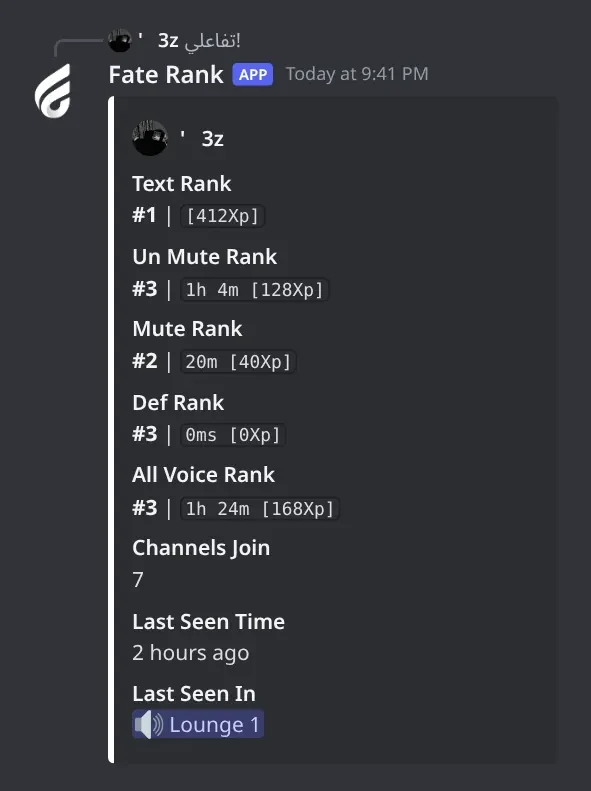
    Also works as !تواجدي and !تفاعلي. Without a member it shows yours. Fields: Text Rank, Un Mute Rank, Mute Rank, Def Rank, All Voice Rank (all three voice states together), Channels Join. If the member is in voice it shows Voice Channel; if not, Last Seen Time and Last Seen In.

  • !react

    Who can use it: Everyone

    Shows the reaction points leaderboard, when reactions have their own command.

    Usage
    !react [react] [@role | role ID]
    Example
    !react react

    Plain !react shows the top 10 and adds your rank under it. !react react shows the full list, 10 per page. Add a role mention or ID to show only that role. It only answers when both تفعيل/تعطيل حساب الرياكشن and تفعيل/تعطيل فصل الرياكشن بامر لوحده are on in !settings. Otherwise use !top react.

  • !top

    Also works asتوبتفاعل
    Who can use it: Everyone

    Shows the activity leaderboard: voice XP and text XP, all time, today or this week.

    Usage
    !top [day | week] [voice | text | mute | def | react] [@role | role ID]
    Example
    !top week voice

    Also works as !توب and !تفاعل. Plain !top shows the top 5 in voice and the top 5 in text side by side; if you're not in the top 5, your own rank is added under each list. Add day (يوم) or week (اسبوع) to use today's or this week's points. Add a type to get the full list, 10 per page with ⬅ ➡ buttons for 2 minutes: voice (unmuted voice), text, mute (muted in voice), def (deafened in voice) or react (reaction points). Add a role mention or ID at the end to show only members of that role. Members with 0 points aren't listed. A third React Xp column shows up in plain !top when reaction points are on and not split into their own command.

    Heads up: Top commands only answer members with a counted role (or Administrator), and only in the allowed command chats. Anyone else gets no reply at all.

Panels and guides

What each panel and menu does, and how to set it up.

Activity settings

Who earns points, where text and reaction points count, where the top commands answer, and the rank card background.

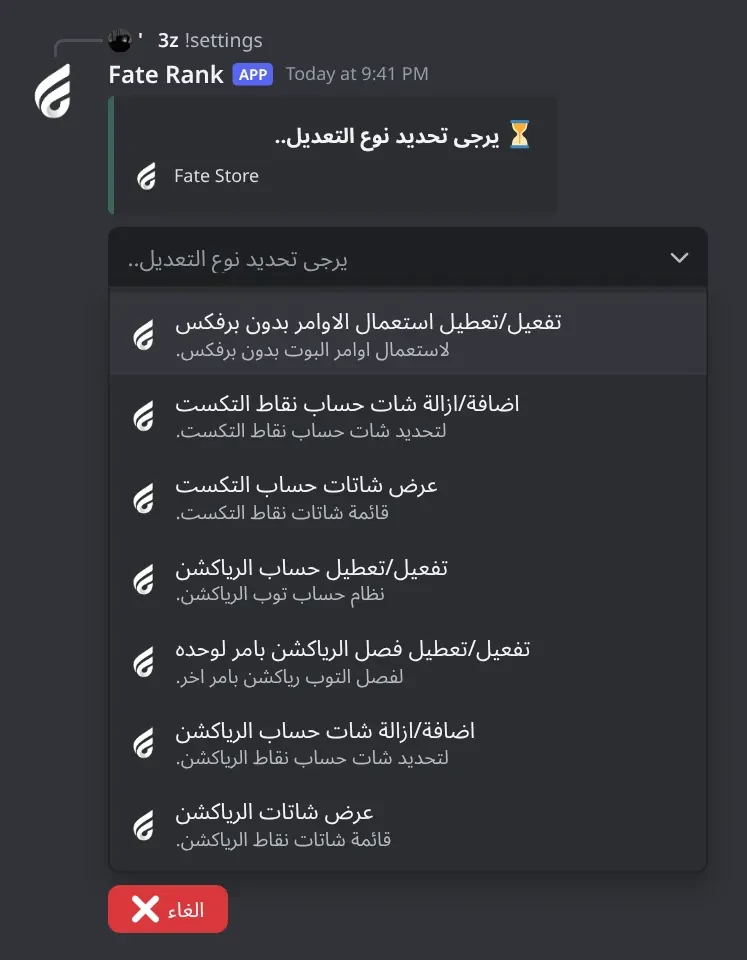
Activity settings. Who earns points, where text and reaction points count, where the top commands answer, and the rank card background. The menu has 13 options; this image shows the first 7.
Activity settings · Who earns points, where text and reaction points count, where the top commands answer, and the rank card background. The menu has 13 options; this image shows the first 7.

What's in it

  • تفعيل/تعطيل استعمال الاوامر بدون برفكس: top commands without !.
  • اضافة/ازالة شات حساب نقاط التكست and عرض شاتات حساب التكست: text points channels.
  • تفعيل/تعطيل حساب الرياكشن, تفعيل/تعطيل فصل الرياكشن بامر لوحده, اضافة/ازالة شات حساب الرياكشن, عرض شاتات الرياكشن: reaction points.
  • اضافة/ازالة رول لحساب التفاعل and عرض قائمة الرولات: counted roles.
  • اضافة/ازالة شات اوامر, اضافة/ازالة شات تخطي الاوامر, عرض شاتات الاوامر: where the top commands answer.
  • تعديل خلفية الايدي: background of the !id card.

How to set it up

  1. Type !settings (or @bot settings).
  2. Pick an option.
  3. Type the channel or role mention or ID in the same channel within 60 seconds, or attach the image.
  4. Read the reply (only you see it), then pick the next option. Send the same channel or role again to remove it.

Common mistakes

  • Adding a counted role nobody has yet. Then nobody earns points and the top commands go silent for everyone without Administrator.
  • Adding a command channel and then testing in another channel. The top commands stay silent outside the command channels.
  • Turning on reaction points but adding no reaction channel. Nothing is counted.
  • Sending a link for the card background. Attach the image file instead.

Promotions settings

Promotion roles with the voice time each one needs, the requests channel, the log and the block list.

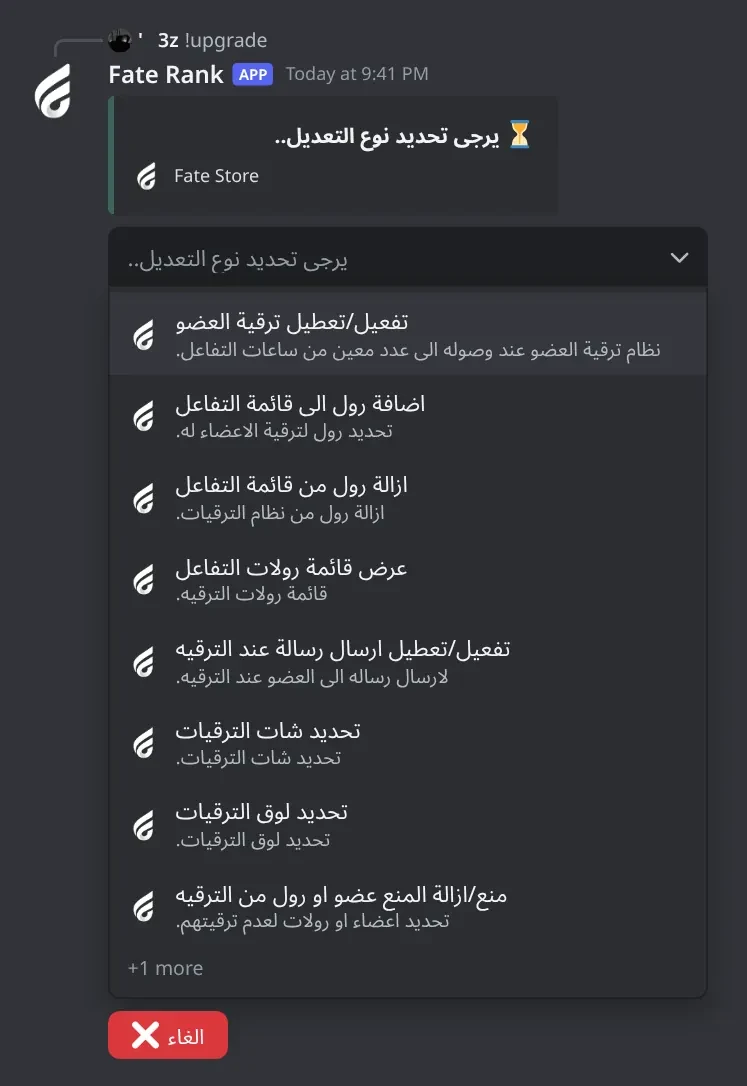
Promotions settings. Set the promotion roles and the voice time each one needs, the requests channel, the log and the block list.
Promotions settings · Set the promotion roles and the voice time each one needs, the requests channel, the log and the block list.

What's in it

  • تفعيل/تعطيل ترقية العضو: promotion system on/off.
  • اضافة رول الى قائمة التفاعل, ازالة رول من قائمة التفاعل, عرض قائمة رولات التفاعل: up to 20 promotion roles.
  • تحديد شات الترقيات: where requests are posted.
  • تحديد لوق الترقيات: where decisions are logged.
  • منع/ازالة المنع عضو او رول من الترقيه and قائمة الممنوعين: members and roles that are never promoted.

How to set it up

  1. Type !upgrade.
  2. Pick تحديد شات الترقيات and mention a staff-only channel, like #promotions.
  3. Pick تحديد لوق الترقيات and mention the log channel.
  4. Pick اضافة رول الى قائمة التفاعل, choose a free slot, then type the role, the time (30m, 10h) and the DM text or none, 30 seconds each.
  5. Repeat for each role, from the lowest time to the highest.
  6. Pick تفعيل/تعطيل ترقية العضو until you get ✅ تم تفعيل نظام الترقيه.

Common mistakes

  • Typing the time as a plain number or in days (1d). Only m and h work, so write 24h.
  • Leaving the bot's role under the promotion roles. Accepting then can't give the role.

Promotion requests

When a member in voice reaches a role's time, the bot posts a request in the promotions channel with three buttons.

What's in it

  • قبول: gives the new role and removes the other promotion roles, then sends the role's DM.
  • رفض: wipes the member's voice points and voice time.
  • نزول: moves the member one promotion role down.

How to set it up

  1. Wait for a request in the promotions channel.
  2. Press one button. The buttons disappear and a By field shows who decided.
  3. Check the log channel for the record.

Common mistakes

  • Pressing رفض to mean "not yet". It resets the member's voice to zero.
  • Leaving the promotions channel open to members. Anyone who sees it can press the buttons.

Activity top

Leaderboards for voice, text and reactions: all time, today or this week, optionally for one role.

What's in it

  • !top: top 5 voice and text.
  • !top voice | text | mute | def | react: full list, 10 per page.
  • !top day / !top week: today's or this week's points.
  • @role at the end: only that role.

How to set it up

  1. Type !top in a command channel.
  2. Add a type, a period or a role as needed, like !top week voice @Staff.
  3. Use ⬅ ➡ to change pages within 2 minutes.

Common mistakes

  • Expecting muted time in !top voice. Muted and deafened time count separately in !top mute and !top def.
  • Using the command outside the command channels, or without a counted role.

Member stats

A member's ranks, time and points in text and every voice state, joined rooms and last seen.

Member stats. A member's ranks, time and XP in text and in every voice state, plus joined rooms and last seen.
Member stats · A member's ranks, time and XP in text and in every voice state, plus joined rooms and last seen.

What's in it

  • !mypoints, !تواجدي or !تفاعلي.
  • Add a member mention or ID to see someone else.

How to set it up

  1. Type !تفاعلي or !mypoints @Sam.

Common mistakes

  • Expecting Last Seen while the member is in voice. Then it shows Voice Channel instead.

Rank card

An image with voice and text levels, XP bars and ranks.

Rank card. An image with the member's avatar and name, voice and text levels with XP bars and ranks, deafened and muted ranks, and joined rooms.
Rank card · An image with the member's avatar and name, voice and text levels with XP bars and ranks, deafened and muted ranks, and joined rooms.

What's in it

  • !id or !rank, with an optional member.
  • Background: !settings > تعديل خلفية الايدي.

How to set it up

  1. Type !id.
  2. To change the background, pick تعديل خلفية الايدي in !settings and attach an image (1000×400 works best).

Common mistakes

  • Using a light background. The card text is white and hard to read.

Reset points

Reset voice, text or reaction points for one member, one role or everyone.

What's in it

  • Voice, Text, React, All buttons.
  • Yes / No when resetting everyone.

How to set it up

  1. Type !reset, !reset @Sam or !reset @Staff.
  2. Pick the type within 15 seconds.
  3. For everyone, press Yes within 15 seconds.

Common mistakes

  • Waiting too long. After 15 seconds nothing is reset; run it again.
  • Forgetting that resets can't be undone.

Staff evaluation

A special feature Fate Store turns on for some servers only: staff report tasks and get points when approved.

What's in it

  • !تقييم: report a task with a proof image or لا.
  • ✅ / ❌ in the evaluation log.
  • !etop: evaluation leaderboard.

How to set it up

  1. Ask Fate Store if your server has the feature. Without it, the options don't show in !settings.
  2. In !settings, set the evaluation roles, the tasks with their points and the evaluation log.
  3. Staff type !تقييم, pick the task and attach proof.

Bot Settings panel

Name, avatar, banner, activity, status, prefix, owners and restart.

What's in it

  • Bot commands, name, avatar, banner, activity, status, prefix.
  • Add/remove owner.
  • Remove avatar or banner, restart.

How to set it up

  1. Type @bot vip.
  2. Pick an option and answer in the same channel within 60 seconds.

Troubleshooting

Common problems and how to fix them.

The bot doesn't respond to any command

How to fix it

  • Use the prefix ! or mention the bot, for example @bot settings.
  • Make sure the bot can see the channel and send messages in it.
  • Owner commands do nothing for non-owners and show no error.
  • If the Events bot answers instead, give one of them another prefix.

The top commands don't answer

How to fix it

  • The member needs a counted role (!settings > عرض قائمة الرولات) or Administrator.
  • If you added command channels, use one of them (عرض شاتات الاوامر). Channels marked [Deny] never answer.
  • !react only answers when reaction points and فصل الرياكشن بامر لوحده are both on.

Members don't get points

How to fix it

  • If you set counted roles, members need one of them.
  • Voice points are added only while the member is in a voice room; muted and deafened time go to !top mute and !top def.
  • Text points need messages longer than 5 characters that aren't the same as the member's last message, in a text points channel if you set any.
  • Reaction points need reaction channels.

No promotion requests appear

How to fix it

  • Check that تفعيل/تعطيل ترقية العضو is on and the promotions channel is set.
  • Check the roles and times in عرض قائمة رولات التفاعل.
  • The member must be in voice when they reach the time. Blocked members, and members who already hold a higher promotion role, are skipped.
  • Each role is proposed only once per member.

The promotion time is rejected

How to fix it

  • Write a number plus m or h, like 90m or 24h. Days (1d) and plain numbers give ❌ يرجى ارفاق وقت صحيح.

A member lost all their voice points

How to fix it

  • Someone pressed رفض on a promotion request. That wipes voice points and time, and it can't be undone.
  • Keep the promotions channel staff-only.

Accepting a promotion doesn't give the role

How to fix it

  • Give the bot Manage Roles and move its role above all promotion roles.

The day or week top is empty

How to fix it

  • Day points reset every day at 00:00 UTC (3 AM Saudi time) and week points reset once a week. Use plain !top for all-time points.

Evaluation options are missing

How to fix it

  • Evaluation is a special feature Fate Store turns on for some servers only. Ask Fate Store support.

The bot left my server

How to fix it

  • The bot only stays in the server your subscription is for.
  • Change the server from the subscriptions control channel in the Fate Store server: تعديل > تغير السيرفر.