All bot docs

Records bot

Records a voice room and posts it as an MP3 in your channel.

Getting started

The Records bot records a voice channel. An allowed member joins the channel and presses Start on the control message; when they press Stop (or the time limit is reached) the bot posts the recording as an MP3 file in your recordings channel. Do these steps in order.

  1. Invite the bot to the right server

    Invite the bot to the server your subscription is for. Get the invite link from the subscriptions control channel in the Fate Store server. The bot only works in that server and leaves any other server right away.

  2. Give the bot a role with the right permissions

    Give the bot View Channels, Send Messages, Embed Links, Attach Files and Manage Messages in text channels, and View Channel and Connect on the voice channels you want to record. Attach Files is needed to post the recordings; Manage Messages lets it delete your typed answers during setup. Administrator is the easy way.

  3. Know the prefix

    The default prefix is +, for example +setup. Mentioning the bot also works, for example @bot setup. This is handy if you forget the prefix or change it.

  4. Know who the owners are

    Every command is for owners: the subscription owner and the extra owners you add with +setowner @member. See them with +ownerlist. For anyone else, commands do nothing and show no error. Owners still need to be on the allowed list (or have Administrator) to press Start and Stop.

  5. Open the setup menu

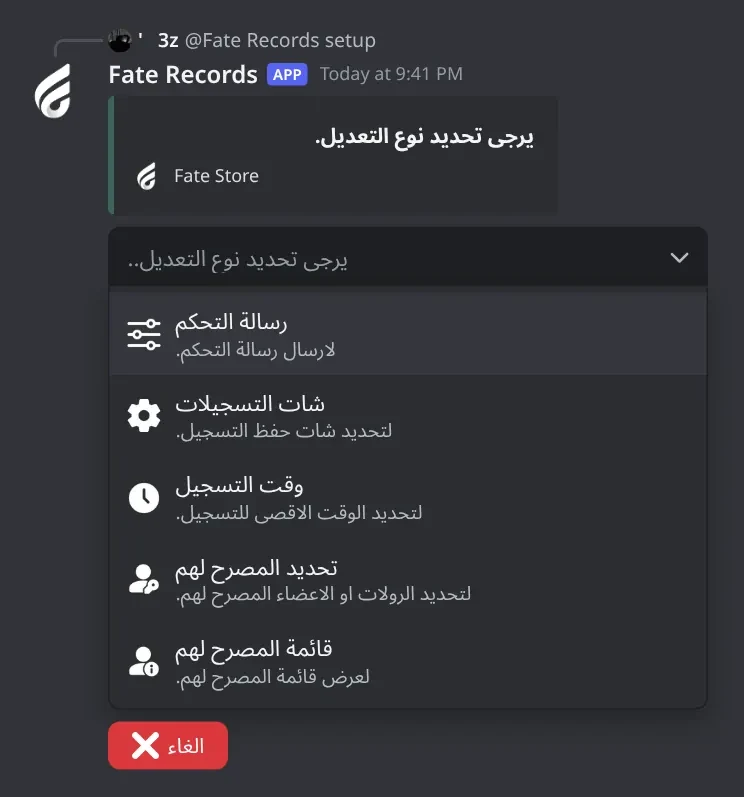
    Type @bot setup (or +setup). Pick an option, then type your answer in the same channel within 60 seconds. The menu stays open for 4 minutes.

  6. Set the recordings channel

    Pick شات التسجيلات and mention the channel. Use a private staff channel: everyone who can see it can play and download the recordings. Without this channel, recordings are thrown away.

  7. Set the time limit (optional)

    Pick وقت التسجيل and type the minutes, 20 at most. The default is 10. When the limit is reached the bot stops and posts the file on its own.

  8. Choose who may record

    Pick تحديد المصرح لهم and mention a member or role. Add each one separately. Members with Administrator can always record. Check the list with قائمة المصرح لهم.

  9. Send the control message

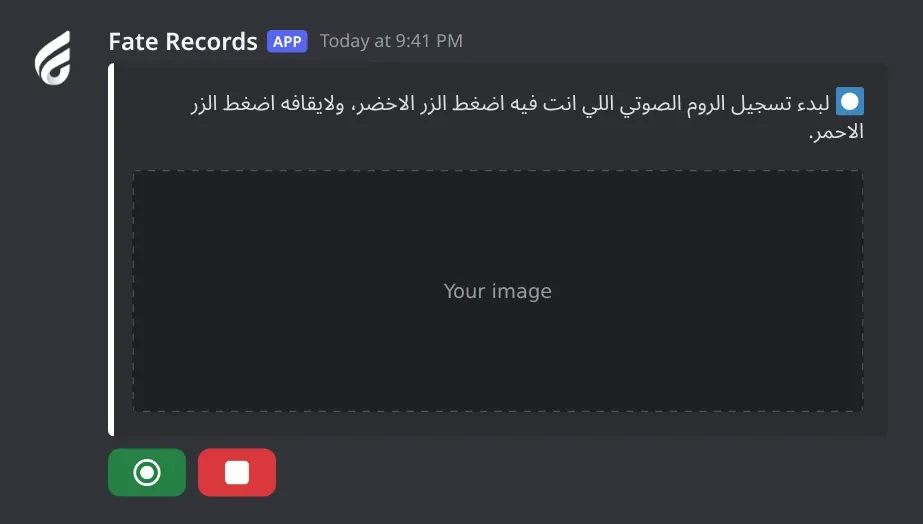
    Pick رسالة التحكم, mention the channel, then type the text and/or attach an image. The bot posts it there with a green Start button and a red Stop button.

  10. Tell your members

    The bot doesn't warn the people in the voice channel that they're being recorded: the Start reply is shown only to the person who pressed it, and the only sign is the bot joining the channel. Let members know yourself, for example in the control message text or the voice channel's name.

  11. Record

    Join a voice channel and press the green button: ⏺️ تم بدء التسجيل بالروم الصوتي .... Press the red button to stop. The file shows up in the recordings channel with who started it and which channel. One recording at a time.

Commands

Examples use the default prefix +. If you changed it, type yours instead.

Who can use a command?

Owners only
The subscription owner and the extra owners you add (with setowner or from vip). Being the server owner isn't enough.

Setup1

  • +setup

    Also works assettingssetting
    Who can use it: Owners only

    Opens the setup menu: the control message with the Start/Stop buttons, the recordings channel, the maximum recording time and who may record.

    Usage
    +setup
    Example
    @bot setup

    Also works as +settings or +setting. Pick an option, then type your answer in the same channel within 60 seconds; your message is deleted and the bot answers only to you. Typing the recordings channel again removes it, and typing a member or role that's already allowed removes it. The time is in whole minutes, 20 at most; without it the limit is 10 minutes. The menu stays open for 4 minutes and only the person who opened it can use it.
Settings6

  • +prefix

    Also works assetprefix
    Who can use it: Owners only

    Shows the current prefix, or changes it.

    Usage
    +prefix [new prefix]
    Example
    +prefix !

    Also +setprefix. Without a value the bot replies دالة البوت : +. With a value it replies تم تغير دالة البوت : !. Mentioning the bot always works, whatever the prefix.

  • +setavatar

    Also works assa
    Who can use it: Owners only
    Premium

    Changes the bot's avatar.

    Usage
    +setavatar <image link> (or attach an image)
    Example
    +setavatar https://example.com/avatar.png

    Also +sa. Paste a link or attach an image. The bot reacts ✅ when it's done. If you change it too often you get يرجى الانتظار يتم تغير الاقتار بوقت سريع .

  • +setbanner

    Also works assb
    Who can use it: Owners only
    Premium

    Changes the bot's profile banner.

    Usage
    +setbanner <image link> (or attach an image)
    Example
    +setbanner https://example.com/banner.png

    Also +sb. Paste a link or attach an image. The bot reacts ✅ when it's done.

  • +setgame

    Also works asgame
    Who can use it: Owners only
    Premium

    Changes the bot's activity text, or its online status.

    Usage
    +setgame <text | status>
    Example
    +setgame Fate Store

    Also +game. With a text, the bot shows 1- Playing, 2- Watching, 3- Listening, 4- Streaming, 0- Cancel; type the number within 60 seconds. With status, it shows 1- Online, 2- Idle, 3- Dnd, 4- Invisible, 0- Cancel. Arabic digits work too. The bot reacts ✅ when it's done.

  • +setname

    Also works assn
    Who can use it: Owners only
    Premium

    Changes the bot's name.

    Usage
    +setname <new name>
    Example
    +setname Nova Recorder

    Also +sn. The bot reacts ✅ when it's done. If you change it too often, or the name isn't allowed, you get يرجى الانتظار يتم تغير الاسم بوقت سريع ، او الاسم غير صالح . Wait about 30 minutes and try again.

  • +vip

    Also works aseditfate
    Who can use it: Owners only

    Opens the Bot Settings panel to change the bot's name, avatar, banner, activity, status, prefix and owners, or restart it.

    Usage
    +vip
    Example
    @bot vip

    Also works as +edit or +fate. Mention the bot (@bot vip) if you don't know the prefix. The panel shows the prefix, who the bot is registered to, when the subscription ends and the subscription number. Pick an option, then type or attach your answer in the same channel within 60 seconds. The panel stays open for 4 minutes and only the person who opened it can use it.
Owners4

  • +setserver

    Also works assetguild
    Who can use it: Owners only
    Premium

    Moves the bot to another server.

    Usage
    +setserver <new server ID>
    Example
    +setserver 123456789012345678

    Also works as +setguild. The bot replies with the new server and an invite link for it, then leaves the current server right away. Use the link to add it to the new server, then run @bot setup there: the channels and the allowed list belong to the old server.

    Heads up: There's no confirmation. Double-check the ID. You can also change the server from the subscriptions control channel in the Fate Store server.

  • +ownerlist

    Who can use it: Owners only

    Shows the extra owners.

    Usage
    +ownerlist
    Example
    +ownerlist

    The subscription owner isn't shown, only the owners you added. Members who left the server are removed from the list. If there are none you get قائمة الاونرات فارغة.

  • +setowner

    Also works asowners
    Who can use it: Owners only

    Adds or removes an extra owner.

    Usage
    +setowner <@member | ID>
    Example
    +setowner @Omar

    Also works as +owners. Run it again on the same member to remove them. ✅ means added, ☑️ means removed. Owners can use every command, including @bot setup and @bot vip. Being an owner doesn't let someone press Start or Stop: for that they need to be on the allowed list in @bot setup or have Administrator.

  • +restart

    Who can use it: Owners only

    Restarts the bot.

    Usage
    +restart
    Example
    +restart

    The bot reacts 👾 and comes back after a few seconds. Settings are kept, and the Start/Stop buttons keep working.

    Heads up: Don't restart during a recording. The recording in progress is lost and nothing is posted.

Panels and guides

What each panel and menu does, and how to set it up.

Setup menu

Everything the bot needs: the control message, the recordings channel, the time limit and who may record.

Setup menu. Send the control message with the Start/Stop buttons, pick the recordings channel, set the maximum recording time and choose who may record.
Setup menu · Send the control message with the Start/Stop buttons, pick the recordings channel, set the maximum recording time and choose who may record.

What's in it

  • رسالة التحكم: posts the Start/Stop message in a channel.
  • شات التسجيلات: where recordings are posted.
  • وقت التسجيل: maximum minutes per recording.
  • تحديد المصرح لهم: members and roles that may press Start and Stop.
  • قائمة المصرح لهم: shows that list.
  • الغاء: closes the menu.

How to set it up

  1. Type @bot setup.
  2. Pick an option.
  3. Type your answer in the same channel within 60 seconds.

Common mistakes

  • Waiting too long. After 60 seconds you get an error; pick the option again.
  • Someone else trying to use your menu. Only the person who opened it can.

Control message

Post the message with the Start and Stop buttons in any channel.

What's in it

  • First prompt: the channel (mention or ID).
  • Second prompt: the text, an image, or both.

How to set it up

  1. Type @bot setup and pick رسالة التحكم.
  2. Mention the channel.
  3. Type the text and/or attach an image.

Common mistakes

  • Expecting the old message to stop working after you send a new one. Every control message keeps working; delete the ones you don't want.
  • A channel where the bot can't send. Give it Send Messages there first.

Recordings channel

The channel where finished recordings are posted.

What's in it

  • A channel mention or ID. The same channel again removes it.

How to set it up

  1. Type @bot setup and pick شات التسجيلات.
  2. Mention a private staff channel.

Common mistakes

  • Leaving it empty. The recording is made but thrown away.
  • Using a public channel. Everyone who can see it can listen to the recordings.
  • Sending the same channel again to check it. That removes it (☑️).

Recording time

The longest one recording can run, from 1 to 20 minutes. Default 10.

What's in it

  • A whole number of minutes, 20 at most.

How to set it up

  1. Type @bot setup and pick وقت التسجيل.
  2. Type the minutes, for example 10.

Common mistakes

  • Typing more than 20: ❌ الحد الأقصى للوقت هو 20 دقيقة فقط.
  • Typing 10m or 10 دقايق. Type the number only.
  • Setting 20 minutes on a server without boosts. A long file may be too big to upload, and then nothing is posted.

Allowed members and roles

Who may press Start and Stop, besides members with Administrator.

What's in it

  • A member or role mention, or an ID.
  • قائمة المصرح لهم shows the list.

How to set it up

  1. Type @bot setup and pick تحديد المصرح لهم.
  2. Mention the member or role.
  3. Repeat for each one.

Common mistakes

  • Expecting bot owners to be allowed automatically. They aren't, unless they have Administrator.

Start and Stop buttons

The green button starts recording the voice channel you're in; the red one stops it and posts the file.

Control message. Your text and image with a green Start button and a red Stop button. Allowed members join a voice channel and press Start to record it.
Control message · Your text and image with a green Start button and a red Stop button. Allowed members join a voice channel and press Start to record it.

What's in it

  • Green ⏺: start. You must be in a voice channel.
  • Red ⏹: stop. You must be in a voice channel (any one).

How to set it up

  1. Join the voice channel.
  2. Press the green button.
  3. Press the red button when you're done.

Common mistakes

  • Pressing Start while not in voice: ❌ يجب ان تتواجد بروم صوتي.
  • Pressing Start while another recording is running. Stop it first; the bot records one channel at a time.
  • Members not on the allowed list pressing the buttons. Nothing happens.

While recording

Who is recorded and what members see.

What's in it

  • Only the person who pressed Start sees ⏺️ تم بدء التسجيل بالروم الصوتي ....
  • The bot joins the voice channel and stays there until the recording stops.

How to set it up

  1. Everyone in the channel is recorded, plus anyone who joins and talks later.
  2. Other bots in the channel (a music bot, for example) are recorded too.

Common mistakes

  • Assuming members are told. The bot posts no notice in the channel; tell them yourself.
  • Moving or disconnecting the bot from the voice channel. Press Stop right away to get what was recorded so far.

Posted recording

The MP3 file the bot posts in the recordings channel, with who started it and which voice channel.

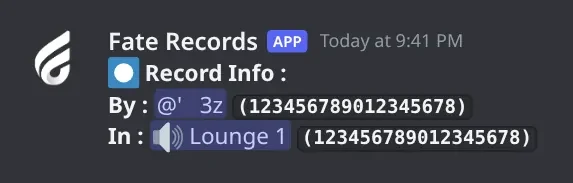
Posted recording. When the recording stops, the bot posts it in the recordings channel as an MP3 file, with who started it and which voice channel.
Posted recording · When the recording stops, the bot posts it in the recordings channel as an MP3 file, with who started it and which voice channel.

What's in it

  • By: the member who pressed Start.
  • In: the voice channel.
  • The MP3 file, playable in Discord.

How to set it up

  1. Set the recordings channel first.
  2. Press Stop, or wait for the time limit.

Common mistakes

  • Deleting the message. The bot keeps no copy.

Bot Settings panel

Change how the bot looks and who controls it.

What's in it

  • اسم البوت, افتار البوت, بنر البوت: name, avatar and banner.
  • لعب البوت and حالة البوت: activity and status.
  • برفكس البوت: the prefix.
  • اضافة/ازالة اونر: add or remove an owner.
  • ازالة افتار البوت, ازالة بنر البوت, اعادة تشغيل.

How to set it up

  1. Type @bot vip.
  2. Pick an option.
  3. Type or attach your answer within 60 seconds.

Common mistakes

  • Changing the name many times in a row. Discord limits it; wait about 30 minutes.
  • Restarting during a recording. The recording is lost.
  • Looking here to move the bot to another server. Use +setserver or the subscriptions control channel in the Fate Store server.

Troubleshooting

Common problems and how to fix them.

The bot doesn't respond to any command

How to fix it

  • Use the prefix + or mention the bot, for example @bot setup.
  • Make sure the bot can see the channel and send messages in it.
  • Every command is for owners. Check +ownerlist.

Nothing happens when I press Start or Stop

How to fix it

  • You're not on the allowed list. Add yourself or your role in @bot setup > تحديد المصرح لهم, or use an account with Administrator.
  • Being a bot owner isn't enough; owners need to be on the list too.

Nothing was posted after the recording

How to fix it

  • Set the recordings channel in @bot setup > شات التسجيلات. Without it the recording is thrown away.
  • Give the bot Send Messages and Attach Files in that channel.
  • The file may be too big for your server's upload limit (about 1 MB a minute). Lower وقت التسجيل to 10 minutes or less.
  • A restart during the recording loses it.

❌ حدث خطا اثناء بدء التسجيل.

How to fix it

  • Give the bot View Channel and Connect on that voice channel.
  • If the channel is full, the bot can't join; give it Move Members or raise the user limit.

⏺️ يوجد تسجيل فعال بالروم الصوتي ...

How to fix it

  • A recording is already running in the channel shown. Press Stop first. The bot records one channel at a time.

Do members know they're being recorded?

How to fix it

  • Not from the bot. It posts no notice and the Start reply is only shown to the person who pressed it. Members can only see the bot in the voice channel.
  • Tell them yourself: put a notice in the control message text, the voice channel name or your server rules.
  • Keep the recordings channel private; anyone who can see it can listen.

The bot left my server

How to fix it

  • The bot only stays in the server your subscription is for.
  • Change the server from the subscriptions control channel in the Fate Store server, or with +setserver <server ID> from the current server.

The prefix changed back to +

How to fix it

  • The prefix resets when the bot is removed from the server and added again.