All bot docs

Roles bot

Private roles that members manage themselves, ranked by voice activity.

Getting started

Set up the Roles bot in a few minutes. It gives members their own private roles that they manage themselves, and ranks the roles by voice activity.

  1. Invite the bot to the right server

    Invite the bot to the server your subscription is for. Get the invite link from the subscriptions control channel in the Fate Store server: press تعديل, then ارسال الروابط. The bot only works in that server and leaves any other server right away.

  2. Give the bot a role with the right permissions

    The bot creates, edits and deletes roles, so it needs Manage Roles. It also needs Send Messages (in the role's server-wide permissions, or it ignores every command), View Channels, Embed Links, Attach Files, Add Reactions, Read Message History and Manage Messages (it deletes the answers you type in menus). Administrator is the easy way. Then, in Server Settings > Roles, drag the bot's role above every private role, or it can't give, rename or recolour them.

  3. Know the prefix

    The default prefix is -, for example -create. Mentioning the bot also works, for example @bot setup. This is handy if you forget the prefix or changed it. Change it with -prefix or from @bot vip.

  4. Know who can do what

    Owners (the subscription owner and owners added with -setowner) can use everything. Roles managers, added with -setmanger @member or -setmanger @role, create, add, delete, edit and reset private roles and see the top. Each role's owner controls only their own role with -رولي or the control button. For anyone else, commands do nothing and show no error.

  5. Set the log and the announcements

    Type @bot setup and pick لوق الرولات, then mention your log channel; every create, delete, owner change and member change goes there. Pick الرولات الجديده and mention a channel where new roles are announced; attach an image to the same message to show it under each announcement. You can also use -setlog #logs and -setnew #new-roles.

  6. Add roles managers

    Add the staff who will hand out private roles with -setmanger @Staff (or @bot setup > اضافة/ازالة مسؤول). See them with -mangers.

  7. Post the panels

    In @bot setup, pick رسالة التحكم بالرولات للاداره to post the admin panel in a staff channel, and رسالة التحكم بالرول to post the control button where role owners can press it. You can also use -acontrol #channel and -control #channel.

  8. Limit where -رولي works (optional)

    By default role owners can type -رولي in any channel. Add allowed chats with -cchat #commands (or اضافة/ازالة شات مصرح له in setup) to limit it to those chats, or block chats with اضافة/ازالة شات محظور استحدام الامر. The control button always works in its own channel.

  9. Create your first private role

    Type -create (or press انشاء رول on the admin panel) and answer in the same channel within 60 seconds each: the owner, the member limit (a number), and the role name. The bot creates the role, gives it to the owner and announces it. To add a role you already have, use -old @role @owner.

  10. How roles earn points

    Every minute the bot checks the voice channels. If at least one member with a private role is in voice, not muted and not deafened, that role gets about a minute of voice time; it doesn't matter how many members are in. Every 3 minutes of voice time gives the role 1 XP. -top and -list sort roles by voice time.

  11. Daily use

    Role owners type -رولي or press the control button to add or remove members, rename the role, change its colour or icon and see its members. Staff use -settings @role to transfer ownership or fix a role, -info @role to check one, -top for the most active roles, and -reset to start points over.

Commands

Examples use the default prefix -. If you changed it, type yours instead.

Who can use a command?

Everyone
Any member. Some commands only work in the channels or rooms the bot is set to.
Owners only
The subscription owner and the extra owners you add (with setowner or from vip). Being the server owner isn't enough.
Managers
The bot's managers list (an owner adds them), and the owners.

Setup9

  • -acontrol

    Who can use it: Owners only

    Posts the admin panel, where roles managers create, delete, view and reset private roles with buttons.

    Usage
    -acontrol [#channel] [text]
    Example
    -acontrol #staff-panel

    Your command message is deleted. With no channel it posts in the current one. Text after the channel is posted above the buttons, and an image attached to the command is posted with it. Post it in a staff-only channel, because managers type their answers there. Also in -setup > رسالة التحكم بالرولات للاداره.
  • -cchat

    Who can use it: Owners only

    Adds a chat where members can type -رولي, or removes it if already added.

    Usage
    -cchat <#channel | ID>
    Example
    -cchat #commands

    With no chats added, -رولي works everywhere. Once you add one, it only works in the added chats. The bot reacts ✅ when added and ☑️ when removed. Also in -setup > اضافة/ازالة شات مصرح له.

  • -cchatlist

    Who can use it: Owners only

    Lists the chats where -رولي is allowed.

    Usage
    -cchatlist
    Example
    -cchatlist

    Empty: قائمة الشاتات فارغة . (then it works in every chat). Denied chats aren't shown here; see -setup > قائمة الشاتات.

  • -control

    Who can use it: Owners only

    Posts the button members press to control their private role.

    Usage
    -control <#channel | ID>
    Example
    -control #my-role

    The message says للتحكم بالرول الخاص بك الضغط على الزر. Pressing the button opens the same menu as -رولي, only for the member who pressed it. Role owners type their answers in that channel, so let them send messages there. The bot reacts ✅. Also in -setup > رسالة التحكم بالرول.

  • -mangers

    Who can use it: Owners only

    Lists the roles managers, members and roles.

    Usage
    -mangers
    Example
    -mangers

    Empty: قائمة المسؤولين فارغة . Also in -setup > قائمة المسؤولين.

  • -setlog

    Also works assetlogs
    Who can use it: Owners only

    Sets the roles log, or removes it if it's already that channel.

    Usage
    -setlog <#channel | ID>
    Example
    -setlog #logs

    Also works as setlogs. The log gets every create, delete, owner change, member added or removed, rename, colour change and points reset. The bot reacts ✅ when set and ☑️ when removed. Also in -setup > لوق الرولات.

  • -setmanger

    Who can use it: Owners only

    Adds a member or role as a roles manager, or removes them if already added.

    Usage
    -setmanger <@member | @role | ID>
    Example
    -setmanger @Staff

    Managers can create, add, delete, view, edit and reset private roles and use the admin panel. The bot reacts ✅ when added and ☑️ when removed. Also in -setup > اضافة/ازالة مسؤول.

  • -setnew

    Who can use it: Owners only

    Sets the channel where new private roles are announced, or removes it if it's already that channel.

    Usage
    -setnew <#channel | ID> [image]
    Example
    -setnew #new-roles

    Attach an image to the command to post it under each announcement (for example a separator line). Each new role posts New Role with the owner (Leader), who made it and the role. The bot reacts ✅ when set and ☑️ when removed. Also in -setup > الرولات الجديده.

  • -set

    Also works assetup
    Who can use it: Owners only

    Opens the settings menu: roles list, managers, roles log, new roles chat, control panels and command chats.

    Usage
    -setup
    Example
    @bot setup

    Also works as -set. Pick an option, then type the channel, member or role (mention or ID) in the same channel within 60 seconds. Sending the same channel or member again removes it. The menu stays open for 4 minutes and only works for the person who opened it. Replies are shown only to you.

Bot settings10

  • -prefix

    Also works assetprefix
    Who can use it: Owners only

    Changes the bot's prefix, or shows the current one if you type nothing.

    Usage
    -prefix [new prefix]
    Example
    -prefix !

    Also works as setprefix. With nothing after it, the bot shows the current prefix. Mentioning the bot always works as a prefix, for example @bot prefix.

  • -setavatar

    Also works assa
    Who can use it: Owners only

    Changes the bot's avatar.

    Usage
    -setavatar <image link | attachment>
    Example
    -setavatar https://example.com/logo.png

    Also works as sa. Attach an image or paste a link.

  • -setbanner

    Also works assb
    Who can use it: Owners only

    Changes the bot's profile banner.

    Usage
    -setbanner <image link | attachment>
    Example
    -setbanner https://example.com/banner.png

    Also works as sb. Attach an image or paste a link.

  • -setname

    Also works assn
    Who can use it: Owners only

    Changes the bot's username.

    Usage
    -setname <name>
    Example
    -setname Nova Roles

    Also works as sn. Discord limits name changes; if you change it too often you get يرجى الانتظار يتم تغير الاسم بوقت سريع ، او الاسم غير صالح .

  • -vip

    Also works aseditfate
    Who can use it: Owners only

    Opens the Bot Settings panel to change the bot's name, avatar, banner, activity, status, prefix and owners, or restart it.

    Usage
    -vip
    Example
    @bot vip

    Also works as -edit or -fate. Mention the bot (@bot vip) if you don't know the prefix. The panel shows the prefix, who the bot is registered to, when the subscription ends and the subscription number. Pick an option, then type or attach your answer in the same channel within 60 seconds. The panel stays open for 4 minutes and only the person who opened it can use it.

  • -setserver

    Also works assetguild
    Who can use it: Owners only

    Moves the bot to another server.

    Usage
    -setserver <server ID>
    Example
    -setserver 123456789012345678

    Also works as setguild. The bot replies with an invite link for the new server and leaves the current one right away. Invite it to the new server with that link.

    Heads up: The bot leaves this server immediately. Private roles, managers and settings stay tied to the old server.

  • -ownerlist

    Who can use it: Owners only

    Lists the extra owners added to the bot.

    Usage
    -ownerlist
    Example
    -ownerlist

    Empty: قائمة الاونرات فارغة .

  • -setowner

    Also works asowners
    Who can use it: Owners only

    Adds an extra bot owner, or removes them if they already are one.

    Usage
    -setowner <@member | ID>
    Example
    -setowner @Omar

    Also works as owners. Owners can use every command. The bot reacts ✅ when added and ☑️ when removed.

  • -restart

    Who can use it: Owners only

    Restarts the bot.

    Usage
    -restart
    Example
    -restart

    The bot reacts 👾 and comes back in a few seconds. Settings, roles and points are kept.

  • -help

    Who can use it: Owners only

    Shows the main manager and owner commands with a Support button.

    Usage
    -help
    Example
    -help

    The list is short: it leaves out -setup, -vip, -old, -control, -acontrol and a few more. The full list is on this page.

Managers8

  • -delete

    Also works asحذف
    Who can use it: Managers

    Deletes a private role from the server and from the bot.

    Usage
    -delete <@role | role ID | name>
    Example
    -delete @Night Owls

    Also works as -حذف, or with حذف رول on the admin panel. Only roles added to the bot can be deleted; others get لا يمكنني العثور على الرول . The bot reacts ✅ and writes حذف رول in the roles log. It needs Manage Roles (I Dont Have MANAGE_ROLES Permissions).

    Heads up: The role is deleted for good, with its points.

  • -info

    Also works asبحثاستعراض
    Who can use it: Managers

    Shows a private role's name, owner, member count and voice time.

    Usage
    -info <@role | role ID | name>
    Example
    -info @Night Owls

    Also works as -بحث or -استعراض, or with معلومات رول on the admin panel. Roles that aren't in the bot get لا يمكنني العثور على الرول .

  • -list

    Who can use it: Managers

    Lists every private role with its owner, voice time and XP, 10 per page.

    Usage
    -list [page]
    Example
    -list 2

    Sorted by voice time. With more than 10 roles you get arrow buttons for 2 minutes, or type a page number. Roles deleted by hand are removed from the bot when you run it. Empty: قائمة الرولات فارغة .

  • -new

    Also works asانشاءرولكcreate
    Who can use it: Managers

    Creates a new private role and gives it to its owner.

    Usage
    -create
    Example
    -create

    Also works as -new, -انشاء or -رولك, or with انشاء رول on the admin panel. Answer three questions in the same channel, 60 seconds each: the owner (mention or ID), the member limit (a number; anything else means 200), and the role name. The bot creates the role with only Send Messages, gives it to the owner, writes انشاء رول in the roles log and posts New Role in the new roles chat.

    Heads up: If the bot says ❌ حدث خطأ اثناء انشاء الرول., give the bot Manage Roles. A server can have at most 250 roles.

  • -old

    Who can use it: Managers

    Adds a role that already exists to the bot as a private role, with its owner.

    Usage
    -old <@role | role ID> <@owner | owner ID> [limit]
    Example
    -old @VIP @Sam 50

    The limit is optional (200 if left out). The bot reacts ✅ and posts Add Old Role in the new roles chat. If the role was already added, this replaces its owner and limit; its points stay.

  • -settings

    Also works asاعدادات
    Who can use it: Managers

    Opens the staff menu for one private role: transfer ownership, reset points, remove it from the bot, delete it, add or remove members, rename, colour and icon.

    Usage
    -settings <@role | role ID | name>
    Example
    -settings @Night Owls

    Also works as -اعدادات. A name only works if it is one word; use a mention or ID otherwise. If the role isn't in the bot yet, it asks ⏳ لم يتم العثور على الرول , هل تود اضافة الرول ؟ with Yes/No (15 s). Yes adds it with no owner; run the command again and pick نقل الملكية to set one. Typed answers are read from the same channel within 60 seconds (colour 5 minutes). The menu stays open for 4 minutes. نقل الملكية only changes who controls the role; it doesn't give the role to the new owner or take it from the old one.

    Heads up: حذف الرول deletes the role from the server right away, with no confirmation.

  • -reset

    Who can use it: Managers

    Resets one role's voice time and XP, or every role's after a Yes/No question.

    Usage
    -reset [@role | role ID]
    Example
    -reset @Night Owls

    With a role: ✅ تم تصفير نقاط @role. With no role it asks هل تود تصفير جميع النقاط ؟; press Yes within 15 seconds (✅ تم تصفير جميع النقاط .). No or no answer shows انتهى وقت الاختيار . Also on the admin panel as تصفير رول and تصفير الكل.

    Heads up: Resetting can't be undone.

  • -توب

    Also works astop
    Who can use it: Managers

    Shows the most active private roles by voice time, with their XP, 10 per page.

    Usage
    -top [page]
    Example
    -top

    Also works as -توب. With more than 10 roles you get arrow buttons for 2 minutes, or type a page number. Empty: قائمة التوب فارغة .

Members1

  • -رولي

    Also works asmyrole
    Who can use it: Everyone

    Opens the control menu for your own private role: add or remove members, rename it, change its colour or icon, and list its members.

    Usage
    -رولي
    Example
    -myrole

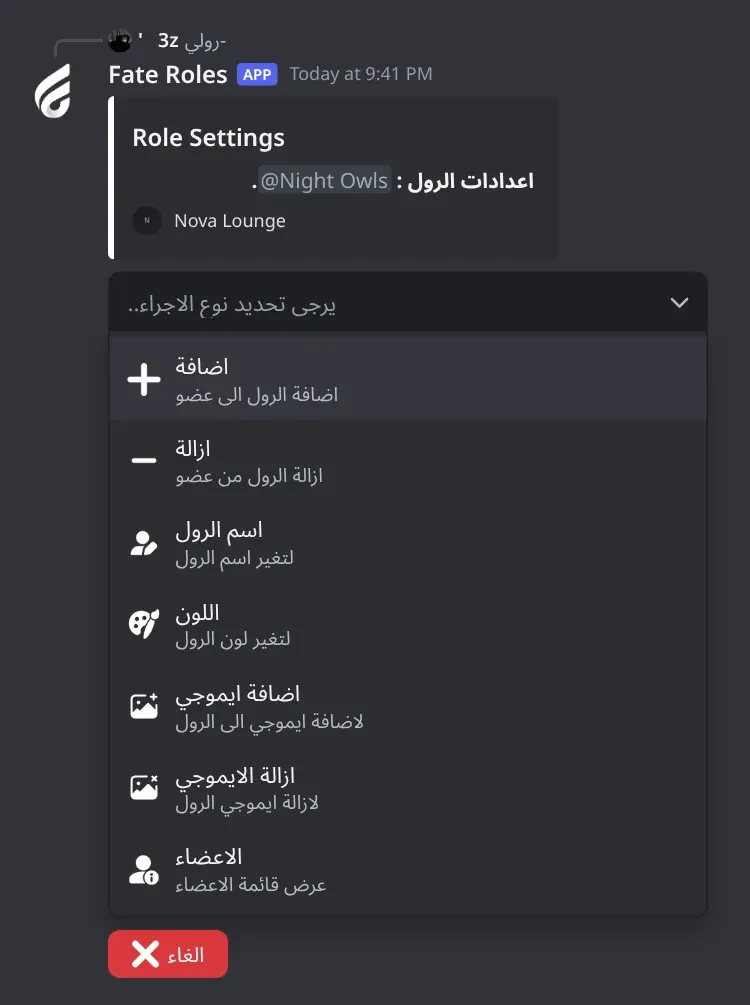
    Also works as -myrole, or with the button from -control. Only members who own a private role can use it; everyone else gets لا تمتلك رول خاص. If you own more than one role, pick one first. Pick an action, then type your answer in the same channel: members as mentions or IDs (several at once, separated by spaces) within 60 seconds, a colour code like #ff8800 within 5 minutes. اضافة ايموجي takes a custom emoji or an attached image. The menu stays open for 4 minutes and every change goes to the roles log.

    Heads up: The typed command only answers in allowed command chats (if you set any) and never in denied chats. The button works in its own channel.

Panels and guides

What each panel and menu does, and how to set it up.

Roles settings menu

Managers, roles log, new roles chat, the two panels and the command chats, all in one menu.

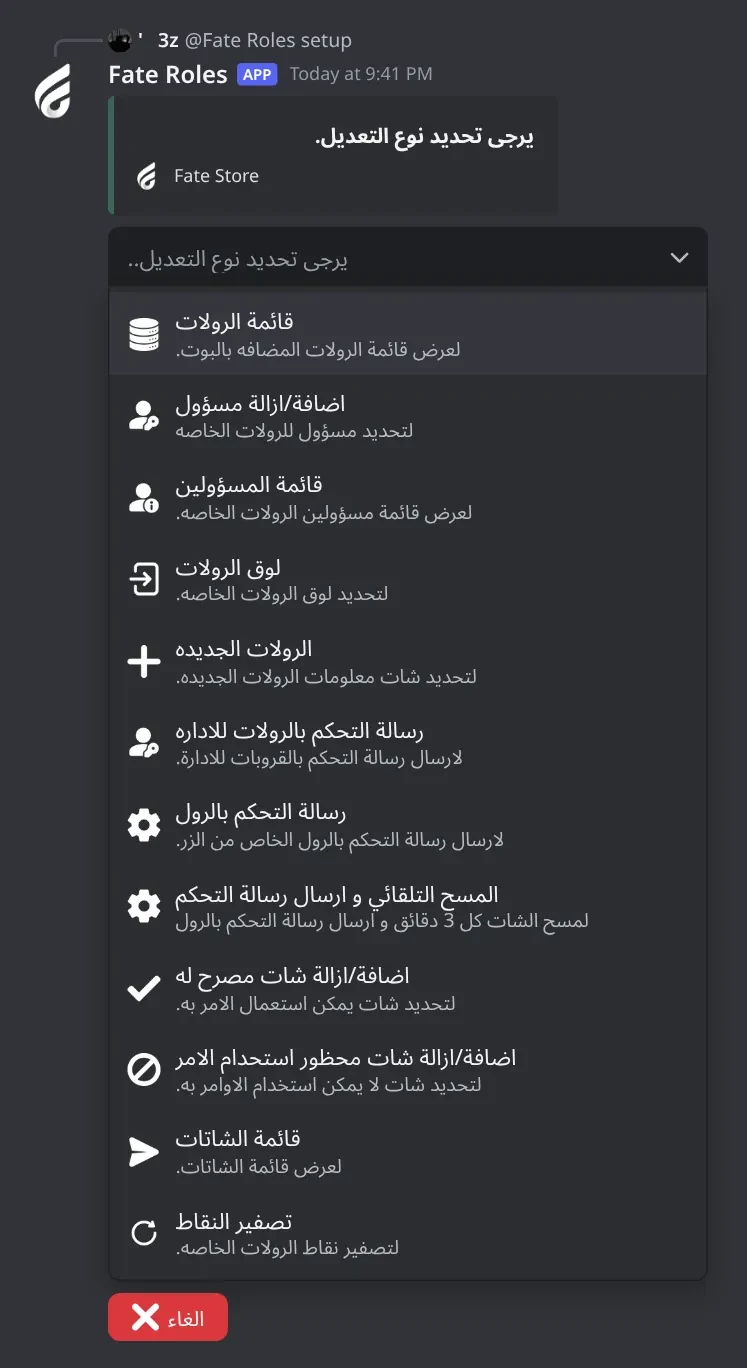
Roles settings menu. The main settings menu: managers, roles log, new roles chat, the two panels you can post and the command chats.
Roles settings menu · The main settings menu: managers, roles log, new roles chat, the two panels you can post and the command chats.

What's in it

  • قائمة الرولات: every private role (same as -list).
  • اضافة/ازالة مسؤول and قائمة المسؤولين: roles managers.
  • لوق الرولات: the roles log channel.
  • الرولات الجديده: where new roles are announced, with an optional image.
  • رسالة التحكم بالرولات للاداره: posts the admin panel.
  • رسالة التحكم بالرول: posts the member control button.
  • اضافة/ازالة شات مصرح له, اضافة/ازالة شات محظور استحدام الامر, قائمة الشاتات: where -رولي works.

How to set it up

  1. Type @bot setup (or -setup).
  2. Pick an option.
  3. Type the channel, member or role mention or ID in the same channel within 60 seconds.
  4. Read the reply (only you see it), then pick the next option. Send the same channel or member again to remove it.

Common mistakes

  • Adding an allowed chat and then testing -رولي somewhere else. It stays silent outside the allowed chats.

Bot Settings panel

The bot's name, avatar, banner, activity, status, prefix and owners, plus your subscription details.

What's in it

  • اسم البوت, افتار البوت, بنر البوت: the bot's profile.
  • لعب البوت, حالة البوت: activity and online status.
  • برفكس البوت: the prefix.
  • اضافة/ازالة اونر: extra owners.
  • ازالة افتار البوت, ازالة بنر البوت, اعادة تشغيل.

How to set it up

  1. Mention the bot and type vip: @bot vip.
  2. Pick an option.
  3. Type or attach your answer in the same channel within 60 seconds.

Common mistakes

  • Looking for a server option here. Move the bot from the subscriptions control channel in the Fate Store server.

Admin panel

Buttons for roles managers to create, delete, view and reset private roles without typing commands.

What's in it

  • انشاء رول: same as -create.
  • حذف رول: deletes a role.
  • معلومات رول: shows a role's info.
  • تصفير رول, تصفير الكل: reset points.

How to set it up

  1. Type -acontrol #staff-panel (or @bot setup > رسالة التحكم بالرولات للاداره).
  2. Managers press a button and answer in the same channel (30 seconds per answer, 60 for create).

Common mistakes

  • Posting it in a public channel. Members can't use it, but managers type role mentions there.

Create a private role

Three questions, then the role is created, given to its owner and announced.

What's in it

  • Owner: a mention or ID.
  • Limit: a number (anything else means 200).
  • Name: the role's name.

How to set it up

  1. Type -create.
  2. Mention the owner.
  3. Type the member limit.
  4. Type the role name.
  5. Check the new roles chat and the log.

Common mistakes

  • Answering after 60 seconds. Start again with -create.
  • Seeing ❌ حدث خطأ اثناء انشاء الرول.. The bot has no Manage Roles permission.

Role settings (staff)

Everything staff can do to one private role.

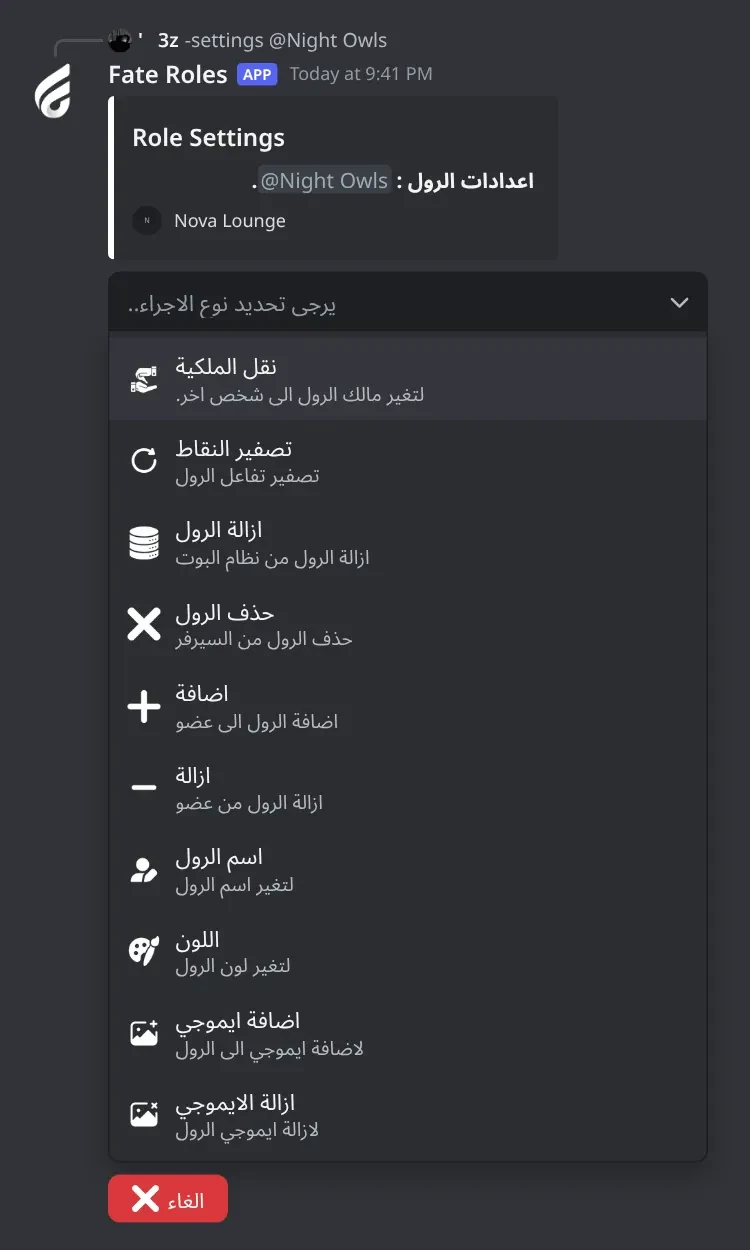
Role settings (staff). Everything staff can do to one private role: owner, points, remove, delete, members, name, colour and icon.
Role settings (staff) · Everything staff can do to one private role: owner, points, remove, delete, members, name, colour and icon.

What's in it

  • نقل الملكية: change the owner.
  • تصفير النقاط: reset this role's points.
  • ازالة الرول: remove it from the bot, keep it in the server.
  • حذف الرول: delete it from the server.
  • اضافة, ازالة: give or take the role.
  • اسم الرول, اللون, اضافة ايموجي, ازالة الايموجي.

How to set it up

  1. Type -settings @role.
  2. If the role isn't added yet, press Yes, then run the command again.
  3. Pick an action and answer in the same channel.

Common mistakes

  • Expecting نقل الملكية to move the role itself. Give the role to the new owner with اضافة if they need it.
  • Picking حذف الرول by mistake. It deletes the role right away with no confirmation.
  • Typing a role name with spaces. Use a mention or ID instead.

My role menu

Where each role owner manages their own private role.

My role menu. The role owner's menu: add or remove members, name, colour, icon and members list.
My role menu · The role owner's menu: add or remove members, name, colour, icon and members list.

What's in it

  • اضافة, ازالة: give or take the role (several members at once).
  • اسم الرول: rename.
  • اللون: colour code like #ff8800.
  • اضافة ايموجي, ازالة الايموجي: role icon.
  • الاعضاء: who has the role.

How to set it up

  1. Type -رولي (or -myrole), or press the control button.
  2. If you own several roles, pick one.
  3. Pick an action and answer in the same channel.

Common mistakes

  • Typing -رولي outside the allowed chats. Nothing happens.
  • Adding an icon on a server without boost level 2. You get ❌ غير قادر على تعديل ايموجي الرول.
  • Typing a colour name instead of a code. Use a hex code like #ff8800.

Role control button

A button role owners press instead of typing -رولي.

What's in it

  • The gear button: opens the role owner's menu, only for whoever pressed it.

How to set it up

  1. Type -control #my-role (or @bot setup > رسالة التحكم بالرول).
  2. Let members send messages in that channel, because they type their answers there.

Common mistakes

  • Posting it in a channel where members can't send messages. They can open the menu but can't answer.

Top roles

The most active private roles by voice time.

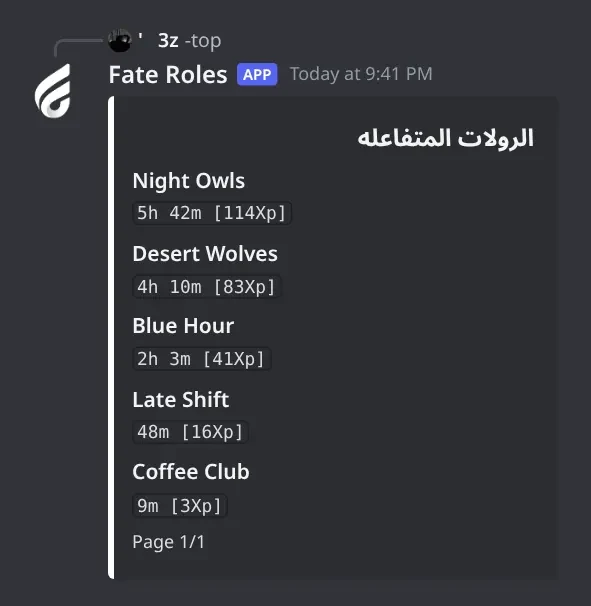
Top roles. Private roles ranked by voice time, with their XP, 10 per page.
Top roles · Private roles ranked by voice time, with their XP, 10 per page.

What's in it

  • Each role shows its voice time and XP.
  • Arrows: more pages, when there are more than 10 roles.

How to set it up

  1. Type -top (managers and owners).
  2. Type -top 2 for page 2.

Common mistakes

  • Expecting more members in voice to mean faster points. A role gets the same time whether one member or ten are in voice.
  • Members sitting muted or deafened. They don't count.

Troubleshooting

Something not working? Check these first.

The bot doesn't answer any command

How to fix it

  • Use the prefix - or mention the bot, for example @bot setup.
  • Make sure the bot's role has Send Messages in its server-wide permissions and can see the channel.
  • Owner commands do nothing for non-owners; check -ownerlist. Manager commands need -setmanger.

The bot left my server

How to fix it

  • The bot only stays in the server your subscription is for.
  • Change the server from the subscriptions control channel in the Fate Store server: تعديل > تغير السيرفر.

-رولي does nothing or says لا تمتلك رول خاص.

How to fix it

  • Only the registered owner of a private role can use it. Check with -info @role, and fix it with -settings @role > نقل الملكية.
  • If you added allowed chats with -cchat, it only works there, and never in denied chats. Or use the control button.
  • If the role was deleted by hand, the bot forgets it.

Adding members shows ❌, or the name or colour doesn't change

How to fix it

  • The bot needs Manage Roles, and its role must be above the private role in Server Settings > Roles.
  • Members are mentions or IDs separated by spaces.

The role icon won't change

How to fix it

  • Role icons need server boost level 2. Without it you get ❌ غير قادر على تعديل ايموجي الرول.
  • Send a custom emoji or attach an image. Normal emojis like 😀 don't work. In -settings, the emoji must be from your server.

A role gets no points

How to fix it

  • The role must be a private role in the bot (-create, -old or -settings).
  • At least one member with the role must be in voice, not muted and not deafened.