All bot docs

Music bot

Music bots that sit in your voice rooms and play 24/7.

Getting started

Set up your music bots in a few minutes. A music subscription gives you several bots. Each bot sits in its own voice room and plays for the members in that room. Do these steps in order.

  1. Get your bots' invite links

    Type #mp in your server or in the Fate Store server, then pick the first option, روابط البوتات. The bot sends you the invite link of every bot. You can also go to the subscriptions control channel in the Fate Store server, press تعديل and pick ارسال الروابط. If you get fewer links than the bots you bought, the support team will check it for you.

  2. Invite every bot to the right server

    Open each link and add the bot to the server your subscription is for. Each bot works in one server only; if you invite it anywhere else, it leaves right away. To move bots: @bot vip → سيرفر البوت for one bot, #mp → سيرفر البوتات for all bots, or the subscriptions control channel → تعديل → تغير السيرفر. Type checkchannelall to see which bots are still outside your server.

  3. Give the bots a role with the right permissions

    The invite links give the bots no permissions, so give them a role. #mp → اعطاء رول لكل البوتات adds a role to every bot at once. In voice rooms the bots need View Channel, Connect and Speak. In text channels they need Send Messages, Embed Links, Attach Files and Read Message History. Without a role, a bot won't join the room.

  4. Know how a command reaches the right bot

    Music bots have no shared prefix. There are three ways to talk to a bot. 1) Join the bot's voice room and type the bare command in the room's chat, for example play blinding lights. Only the bot in your room answers. 2) Use the bot's own number: on first start the bots get the prefixes 0, 1, 2… so 1play blinding lights calls bot number 1 to your room. 3) Mention the bot: @bot play blinding lights. Mentioning always works, so use it for settings when you don't know the prefix. The music shortcuts (p, شغل, s…) can't be changed.

  5. Pin the bots to rooms 24/7

    One bot: join the room and type @bot come, or @bot setup to also rename the bot to the room's name. @bot leave takes it out. All bots: setupall spreads them over the voice rooms (one per room) and renames them, comeall puts them all in one room, and #mp → ادخال البوتات الغير مثبته بالرومات pins every bot that has no room yet, to one room or across a category. Pinned bots go back to their room after a restart.

  6. Change one bot with @bot vip, all bots with #mp

    @bot vip opens the settings of that one bot: name, avatar, banner, activity, status, server, owners, embed colour and more. Every bot has its own panel, so repeat it for each bot. To change the prefix of one bot use @bot prefix. #mp (or #vipall) changes all your bots at once, so any change from it applies to every bot. Use #mp only when you want them all the same.

  7. Know who can use what

    Members in the bot's room can use the music commands. Members with Administrator can also use come, leave, prefix, chat and settings. Owners can use everything. The subscription owner is an owner of all bots. Add an owner for one bot with @bot addowner @member or @bot vip, and for all bots with addownerall @member or #mp.

  8. Set the language

    Music bots reply in English until you change it. Type langall ar to switch every bot to Arabic, or use #mp → تعديل اللغه. For one bot use @bot lang ar.

  9. Optional: embed, buttons, commands chat and logs

    Turn on embed replies (embedall on) and control buttons (buttonsall on) for a cleaner look. Set one commands chat for all bots with chatall #channel. Pick a logs chat in @bot vip or #mp → تعديل شات اللوق. Type help in a bot's room to get the full command list in your DMs.

Commands

Music commands are typed without a prefix, in the voice room where the bot is. Settings for one bot use @bot.

Who can use a command?

Everyone
Any member. Some commands only work in the channels or rooms the bot is set to.
Owners only
The subscription owner and the extra owners you add (with setowner or from vip). Being the server owner isn't enough.
Admins
Members with the Administrator permission, and the owners.
Owner of all bots
The owner of every bot in the music subscription (set with addownerall or #mp).

Admin5

  • @bot come

    Also works asjoinafk
    Who can use it: Admins

    Pins the bot to a voice room 24/7.

    Usage
    @bot come [voice channel]
    Example
    @bot come

    Without a channel, the bot uses the room you are in. You can also give a channel mention, ID, or a one-word channel name. The bot goes back to this room after restarts and disconnects. It needs View Channel, Connect and Speak in the room. The bot reacts with ✅. Remove it with leave. Aliases: join, afk.
  • @bot leave

    Also works asleleft
    Who can use it: Admins

    Takes the bot out of voice and turns off 24/7.

    Usage
    @bot leave
    Example
    @bot leave

    The bot reacts with ☑️. Aliases: le, left.

  • @bot prefix

    Also works assetprefix
    Who can use it: Admins

    Shows or changes this bot's prefix.

    Usage
    @bot prefix [new prefix | none]
    Example
    @bot prefix 1

    Each bot has its own prefix. When the bots start for the first time they get numbers in order: 0, 1, 2… none removes the prefix; then only a mention (@bot play) or a bare command in the bot's room works. The prefix must be 3 characters or less. Alias: setprefix.

  • @bot chat

    Also works assetchat
    Who can use it: Admins

    Sets the only text channel where this bot accepts music commands.

    Usage
    @bot chat <#channel>
    Example
    @bot chat #commands

    Music commands then work only in that channel and in the voice room's own chat. Anywhere else the bot ignores them. Run the same command with the same channel again to remove it (☑️). Alias: setchat.

  • @bot settings

    Also works assettingاعدادات
    Who can use it: Admins

    Shows this bot's settings.

    Usage
    @bot settings
    Example
    @bot settings

    Shows the Subscription ID, prefix, 24/7 voice room, commands chat, bot server, embed, play-in-room and platform. Aliases: setting, اعدادات.

All bots21

  • addownerall

    Who can use it: Owner of all bots

    Makes a member an owner of all your bots in this server.

    Usage
    addownerall <@member | ID>
    Example
    addownerall @Sam

    All-bots owners can use #mp and the all-bots commands too.

  • avatarall

    Who can use it: Owners only

    Changes the profile picture of every bot you own.

    Usage
    avatarall <image link | attached image>
    Example
    avatarall https://example.com/logo.png

    Each bot reacts ✅ when it changes, or 🔴 if it can't.

  • bannerall

    Who can use it: Owners only

    Changes the profile banner of every bot you own.

    Usage
    bannerall <image link | attached image>
    Example
    bannerall https://example.com/banner.png

    Each bot reacts ✅ when it changes, or 🔴 if it can't.

  • buttonsall

    Who can use it: Owner of all bots

    Turns the control buttons under play replies on or off for all bots.

    Usage
    buttonsall <on | off>
    Example
    buttonsall on
  • checkchannelall

    Who can use it: Owner of all bots

    Checks every bot: not in the server, in no voice room, or in a room.

    Usage
    checkchannelall [voice channel]
    Example
    checkchannelall

    🔴 means the bot isn't in the server, with its invite link. ⏳ means it is in the server but not in voice. 🎶 shows the room it is in. If you add a voice channel, bots that have no 24/7 room get that channel.

  • comeall

    Also works asjoinallafkall
    Who can use it: Owners only

    Makes every bot join one voice room and stay there 24/7.

    Usage
    comeall [voice channel]
    Example
    comeall

    Without a channel it uses the room you are in. Each bot reacts 🎶 when it joins, or 🔴 if it lacks permission in the room. Aliases: joinall, afkall.

  • setecolorall

    Also works asecolorall
    Who can use it: Owner of all bots

    Changes the embed colour and reply icons of all bots.

    Usage
    ecolorall <#hex>
    Example
    ecolorall #ff5500

    The colour must start with #. The bot reacts ⏳ while it works, then ✅. Alias: ecolorall.

  • embedall

    Who can use it: Owner of all bots

    Turns embed-style replies on or off for all bots.

    Usage
    embedall <on | off>
    Example
    embedall on
  • langall

    Who can use it: Owner of all bots

    Changes the reply language of all bots.

    Usage
    langall <ar | en>
    Example
    langall ar
  • #mp

    Also works as#vipall#mybots
    Who can use it: Owner of all bots

    Opens the settings panel for all your music bots at once.

    Usage
    #mp
    Example
    #mp

    Shows who the subscription is registered to, when it ends, the Subscription ID and the number of bots. The first option, روابط البوتات, sends the invite links of all your bots. Other options: bots outside the server, bots not pinned to rooms, pin unpinned bots, give a role to all bots, number the bots' nicknames, and change every bot's name, avatar, banner, activity, status, server, owners, embed, colour, buttons, language, platform, commands chat and logs chat, or restart them all. Any change here applies to every bot. You can type it in your server or in the Fate Store server. The panel stays open for 4 minutes. Aliases: #vipall, #mybots.

    Heads up: Changes apply to every bot. To change one bot only, use @bot vip.

  • nameall

    Who can use it: Owners only

    Changes the name of every bot you own.

    Usage
    nameall <new name>
    Example
    nameall Fate Music

    Each bot reacts ✅ when it changes, or 🔴 if it can't (changed too fast or name taken).

  • platformall

    Who can use it: Owner of all bots

    Sets where all bots search when you play a song by name.

    Usage
    platformall <youtube | soundcloud>
    Example
    platformall youtube
  • playinvcall

    Who can use it: Owner of all bots

    Turns play-in-room on or off for all bots.

    Usage
    playinvcall <on | off>
    Example
    playinvcall off

    When on, any message typed in a bot's voice room chat is played as a song.

  • removeownerall

    Who can use it: Owner of all bots

    Removes a member from the owners of all bots.

    Usage
    removeownerall <@member | ID>
    Example
    removeownerall @Sam
  • restartall

    Who can use it: Owner of all bots

    Restarts all your music bots.

    Usage
    restartall
    Example
    restartall

    Settings are kept. The bots go back to their 24/7 rooms.

    Heads up: Music stops on every bot for a few seconds.

  • chatall

    Also works assetchatall
    Who can use it: Owner of all bots

    Sets one commands chat for all bots.

    Usage
    chatall <#channel | none>
    Example
    chatall #commands

    Music commands then work only in that chat and in each voice room's own chat. none lets commands work in every chat again. Alias: setchatall.

  • setgameall

    Also works asgameallsgall
    Who can use it: Owner of all bots

    Sets the activity text of all bots, then you pick the type from a menu.

    Usage
    gameall <activity text>
    Example
    gameall Fate Store

    Types: Playing, Watching, Listening, Streaming. The menu waits 30 seconds. The bots update within about 2 minutes. Aliases: gameall, sgall.

  • setstatusall

    Also works asstatusall
    Who can use it: Owner of all bots

    Opens a menu to set the status of all bots.

    Usage
    statusall
    Example
    statusall

    Pick Online, Idle, Dnd or Invisible. None removes the activity text. The menu waits 30 seconds. The bots update within about 2 minutes. Alias: statusall.

  • settempall

    Who can use it: Owner of all bots

    Lets bots follow members into temporary rooms in a category without being pulled back to their 24/7 room.

    Usage
    settempall <category ID | none>
    Example
    settempall 123456789012345678

    Use it with the Temp Rooms bot: set the music room in the Temp Rooms bot, then give this command the temporary rooms' category. none removes it.

  • setupall

    Who can use it: Owner of all bots

    Spreads your bots over the server's voice rooms, one bot per room, and names each bot after its room.

    Usage
    setupall
    Example
    setupall

    Rooms that already have one of your bots are skipped. The bots stay in their rooms 24/7. The bot shows a list as it works: ✅ pinned, 🎶 room already has a bot, 🔴 bot not in the server.

    Heads up: It renames bots and restarts all of them at the end. Music stops for a moment.

Owner18

  • @bot setbuttons

    Also works asbuttons
    Who can use it: Owners only

    Turns the control buttons under play replies on or off.

    Usage
    @bot buttons
    Example
    @bot buttons

    Buttons: loop, volume down, stop, volume up, skip. Only members in the bot's room can use them. ✅ on, ☑️ off. Alias: buttons.

  • @bot setecolor

    Also works asecolor
    Who can use it: Owners only

    Changes this bot's embed colour and recolours its reply icons.

    Usage
    @bot ecolor <#hex>
    Example
    @bot ecolor #ff5500

    The colour must start with #. To reset the colour, use @bot vip → تغير لون الامبيد and type none. Alias: ecolor.

  • @bot setembed

    Also works asembed
    Who can use it: Owners only

    Turns embed-style replies on or off for this bot.

    Usage
    @bot embed
    Example
    @bot embed

    Embed mode shows replies in a coloured box with an icon, and adds the Filters .. menu under play messages. ✅ means on, ☑️ means off. Alias: embed.

  • @bot setlang

    Also works aslang
    Who can use it: Owners only

    Changes the language of this bot's replies.

    Usage
    @bot lang <ar | en>
    Example
    @bot lang ar

    Music bots reply in English until you change it. To change every bot at once use langall ar or #mp. Alias: lang.

  • @bot platform

    Who can use it: Owners only

    Sets where the bot searches when you play a song by name.

    Usage
    @bot platform <youtube | soundcloud>
    Example
    @bot platform youtube

    Links always play from their own site. For Spotify search use @bot vip → تعديل منصة التشغيل.

  • @bot playinvc

    Who can use it: Owners only

    Turns play-in-room on or off: members just type a song name in the voice room's chat.

    Usage
    @bot playinvc
    Example
    @bot playinvc

    When on, every message in the bot's voice room chat is played as a song, and the control buttons show under replies. ✅ on, ☑️ off.

    Heads up: Any chat message in that room starts a song. Turn it off if members talk in the voice chat.

  • @bot setavatar

    Also works assa
    Who can use it: Owners only

    Changes this bot's profile picture.

    Usage
    @bot setavatar <image link | attached image>
    Example
    @bot setavatar https://example.com/logo.png

    Paste an image link or attach an image to the message. The bot reacts with ✅. Discord limits fast avatar changes. Alias: sa.

  • @bot setbanner

    Also works assb
    Who can use it: Owners only

    Changes this bot's profile banner.

    Usage
    @bot setbanner <image link | attached image>
    Example
    @bot setbanner https://example.com/banner.png

    Paste an image link or attach an image. The bot reacts with ✅. Alias: sb.

  • @bot setgame

    Also works asgamesg
    Who can use it: Owners only

    Sets the bot's activity text, then you pick the type from a menu.

    Usage
    @bot setgame <activity text>
    Example
    @bot setgame Fate Store

    Types: Playing, Watching, Listening, Streaming. The menu waits 30 seconds; Cancel closes it. Streaming shows as a Twitch stream. Aliases: game, sg.

  • @bot setname

    Also works assn
    Who can use it: Owners only

    Changes this bot's name.

    Usage
    @bot setname <new name>
    Example
    @bot setname Fate Music

    The name must be 2 to 32 characters. Discord limits how often a bot can change its name; if you change it too fast, wait about 30 minutes. If too many accounts use the name, try another one. Alias: sn.

  • @bot setstatus

    Also works asstatus
    Who can use it: Owners only

    Opens a menu to set the bot's status.

    Usage
    @bot setstatus
    Example
    @bot setstatus

    Pick Online, Idle, Dnd or Invisible. None removes the activity text. The menu waits 30 seconds. Alias: status.

  • @bot setup

    Also works asse
    Who can use it: Owners only

    Pins the bot to a voice room 24/7 and renames the bot to the room's name.

    Usage
    @bot setup [voice channel]
    Example
    @bot setup

    Works like come, plus the rename. Without a channel, it uses the room you are in. If the name can't be changed (changed too fast or taken), the bot still stays in the room. Alias: se.

  • @bot vip

    Also works asedit
    Who can use it: Owners only

    Opens the settings panel for this one bot.

    Usage
    @bot vip
    Example
    @bot vip

    Shows who the subscription is registered to, when it ends and the Subscription ID. From the menu you can change the bot's name, avatar, banner, activity, status and server, add or remove owners, turn embed, buttons and play-in-room on or off, change embed colour, language, platform, commands chat and logs chat, remove the avatar or banner, or restart the bot. The panel stays open for 4 minutes. Every bot has its own panel, so repeat it for each bot. To change all bots at once use #mp. Alias: edit.

  • @bot addowner

    Also works asao
    Who can use it: Owners only

    Makes a member an owner of this one bot.

    Usage
    @bot addowner <@member | ID>
    Example
    @bot addowner @Sam

    Bot owners can use the owner and admin commands of this bot only. For all bots at once use addownerall or #mp. Alias: ao.

  • @bot ownerlist

    Also works asowners
    Who can use it: Owners only

    Lists the owners of this bot and the all-bots owners.

    Usage
    @bot owners
    Example
    @bot owners

    Alias: owners.

  • @bot removeowner

    Also works asro
    Who can use it: Owners only

    Removes a member from this bot's owners.

    Usage
    @bot removeowner <@member | ID>
    Example
    @bot removeowner @Sam

    Doesn't remove all-bots owners; use removeownerall for those. Alias: ro.

  • @bot restart

    Who can use it: Owners only

    Restarts the bot.

    Usage
    @bot restart
    Example
    @bot restart

    The bot reacts with 👾 and comes back in a few seconds. Settings are kept.

    Heads up: Music stops. Other bots of your subscription that run together with this one may restart too.

  • @bot setserver

    Also works assetguild
    Who can use it: Owners only

    Moves this bot to another server and gives you its new invite link.

    Usage
    @bot setserver <server ID>
    Example
    @bot setserver 123456789012345678

    Each bot works in one server only. After this, invite the bot to the new server with the link it sends. You can also do it from @bot vip → سيرفر البوت. Alias: setguild.

    Heads up: The bot leaves the current server right away.

Music17

  • help

    Also works asاوامر
    Who can use it: Everyone

    Sends you the command list in a private message.

    Usage
    help
    Example
    help

    The bot reacts with ✅ when sent, or 🔐 if your DMs are closed. Owners also see the owner commands. Alias: اوامر.

  • ping

    Who can use it: Everyone

    Shows the bot's connection speed.

    Usage
    ping
    Example
    ping
  • autoplay

    Also works asتلقائيap
    Who can use it: Everyone

    Turns autoplay on or off. When the queue ends, the bot keeps playing related songs.

    Usage
    autoplay
    Example
    autoplay

    Autoplay is reset by stop. Aliases: ap, تلقائي.

  • clear

    Also works asclحذفcleanكلين
    Who can use it: Everyone

    Removes the songs waiting in the queue. The current song keeps playing.

    Usage
    clear
    Example
    clear

    The bot reacts with ✅. Aliases: cl, clean, حذف, كلين.

  • filters

    Also works asفلاترفلترfilter
    Who can use it: Everyone

    Opens a menu to add sound filters: 8D, Nightcore, BassBoost, Vaporwave, Slowmode.

    Usage
    filters
    Example
    filters

    You can pick several filters at once. Clear removes all filters, Cancel closes the menu. The menu waits 30 seconds. stop also clears filters. Aliases: filter, فلاتر, فلتر.

  • loop

    Also works asrepeatreتكراركررrl
    Who can use it: Everyone

    Turns repeat of the whole queue on or off.

    Usage
    loop
    Example
    loop

    Aliases: repeat, re, r, l, تكرار, كرر.

  • nowplaying

    Also works asnpnowالان
    Who can use it: Everyone

    Shows the song playing now, who requested it and how far it is.

    Usage
    nowplaying
    Example
    np

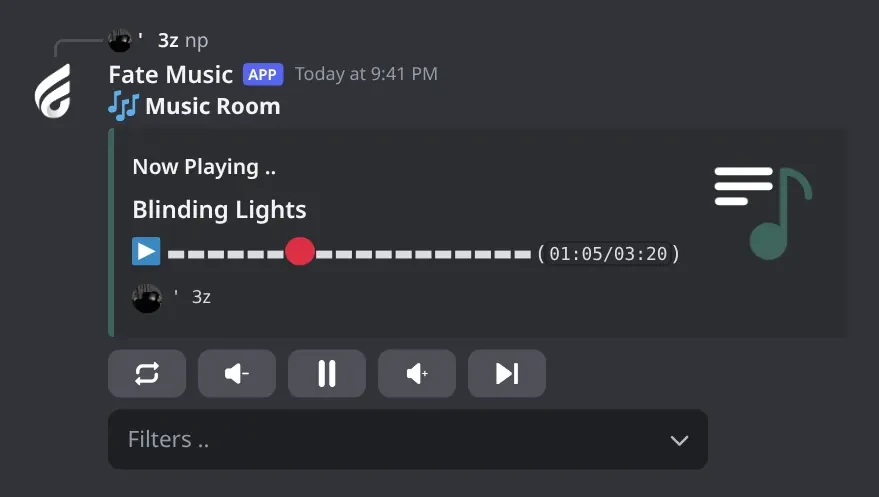
    In embed mode it shows a progress bar. If control buttons are on, the reply has them too. Aliases: np, now, الان.

  • pause

    Also works aspa
    Who can use it: Everyone

    Pauses the song.

    Usage
    pause
    Example
    pause

    If it is already paused, the bot tells you to use resume. Alias: pa.

  • play

    Also works asplaypشغلش
    Who can use it: Everyone

    Plays a song by name or link, or adds it to the queue if something is already playing.

    Usage
    play <song name | link>
    Example
    play blinding lights

    Type it in the bot's voice room chat (or the commands chat) while you are in the same voice room. A name searches YouTube by default; the owner can switch to SoundCloud or Spotify from @bot vip. Links from YouTube, SoundCloud, Spotify, Deezer, Apple Music, Twitch, Tidal and JioSaavn play directly, and a playlist link adds every track. Any other link is refused. With no text, the bot shows how to use it and joins your room. To call a bot that isn't in your room yet, use its number prefix (1play) or mention it (@bot play). Aliases: p, شغل, ش.

  • queue

    Also works asqqueقائمهالقائمه
    Who can use it: Everyone

    Shows the song playing now and the songs waiting after it.

    Usage
    queue [page]
    Example
    queue 2

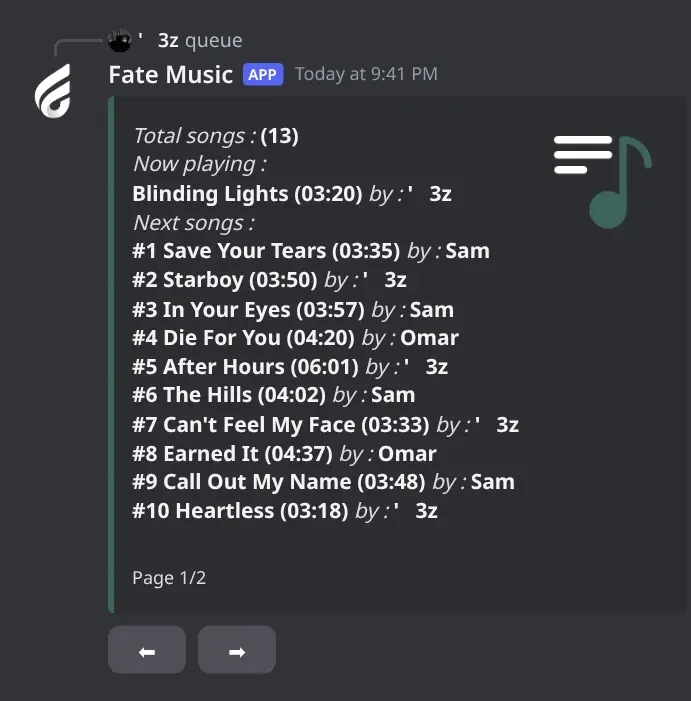
    10 songs per page. With more than 10 songs, ⬅ and ➡ buttons appear for 60 seconds; only you can press them. Add a page number to jump to that page. Aliases: q, que, قائمه, القائمه.

  • resume

    Also works asresكمل
    Who can use it: Everyone

    Continues a paused song.

    Usage
    resume
    Example
    resume

    If nothing is paused, the bot replies The player is not pauses. Aliases: res, كمل.

  • seek

    Also works asskقدمتقديم
    Who can use it: Everyone

    Jumps to a time in the current song.

    Usage
    seek <seconds | m:ss>
    Example
    seek 1:11

    Write seconds (seek 90) or minutes:seconds (seek 1:30). Arabic digits work. Live streams can't be seeked. The bot reacts with ✅. Aliases: sk, قدم, تقديم.

  • shuffle

    Also works asshخلط
    Who can use it: Everyone

    Mixes the order of the songs in the queue.

    Usage
    shuffle
    Example
    shuffle

    Needs more than 2 songs waiting in the queue. The bot reacts with 🔀. Aliases: sh, خلط.

  • skip

    Also works assتخطيتس
    Who can use it: Everyone

    Skips the song that is playing now.

    Usage
    skip
    Example
    skip

    If the player is paused, skipping also resumes it. Aliases: s, تخطي, ت, س.

  • stop

    Also works asstوقفتوقف
    Who can use it: Everyone

    Stops the music and clears the queue. The bot stays in the room.

    Usage
    stop
    Example
    stop

    Also turns off loop, autoplay and filters. The bot reacts with ⛔. Aliases: st, وقف, توقف.

  • volume

    Also works asvolvصوتص
    Who can use it: Everyone

    Shows or changes the volume.

    Usage
    volume [0-150]
    Example
    volume 80

    Without a number it shows the current volume. The value must be 0 to 150; the default is 50. The bot saves it for next time. Arabic digits (٨٠) work too. Aliases: vol, v, صوت, ص.

Music dashboard1

  • @bot dash

    Also works asdashbord
    Who can use it: Owners only

    Posts a music control panel with buttons in a channel.

    Usage
    @bot dash <#channel> [text] [attached image]
    Example
    @bot dash #music Press a button to control the music

    Buttons: play, skip, volume down, volume up, stop, loop, pause/resume, now playing. A button controls the Fate bot in the room of the member who presses it. Add text to replace the default message, and attach an image to show it in the panel. Run it again with the same channel and no text or image to switch it off (☑️). Alias: dashbord.

    Heads up: The bot deletes the last 100 messages in that channel before posting the panel. Use an empty channel.

Panels and guides

What each panel and menu does, and how to set it up.

Bot settings panel (@bot vip)

Change one bot: its name, picture, banner, activity, status, server, owners and reply style.

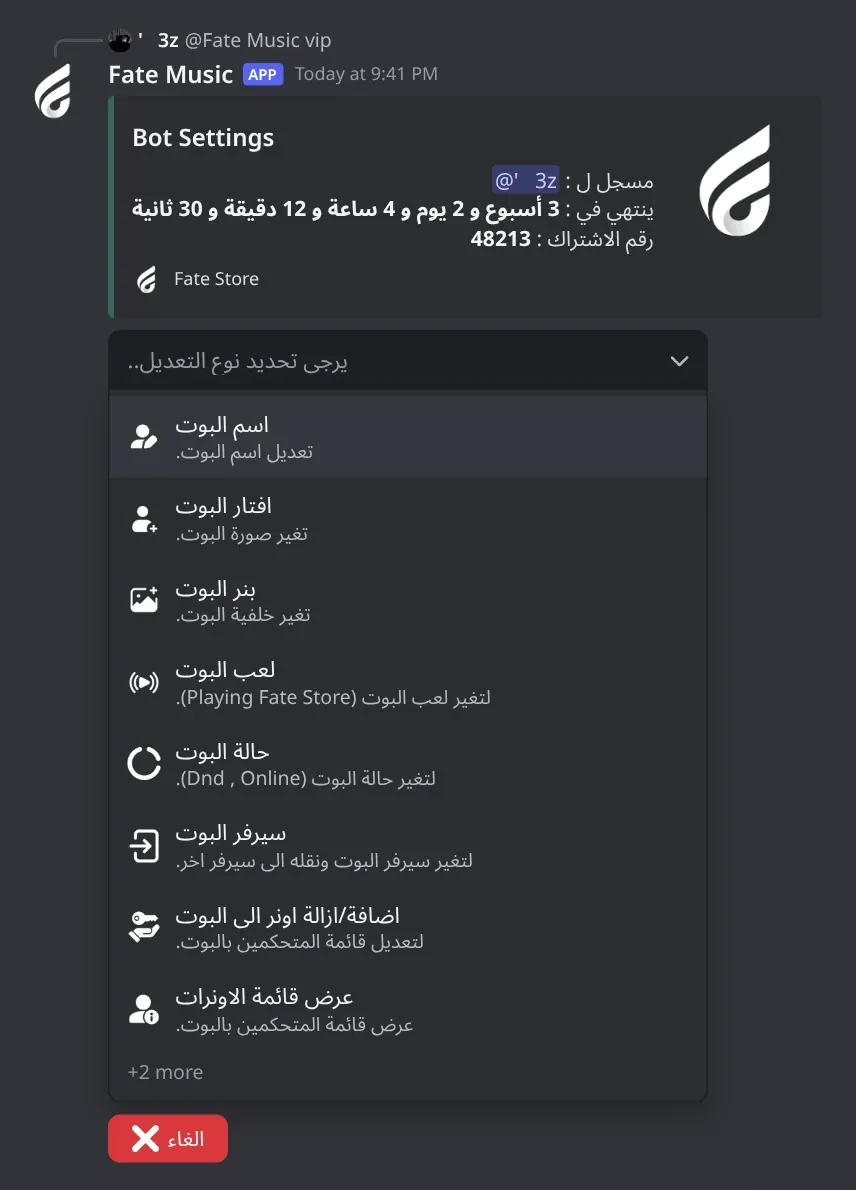
Bot settings panel (one bot). Settings for one music bot. Shows the subscription owner, time left and Subscription ID, then a menu of changes. Options 1-10 are here; the rest are in the next panel.
Bot settings panel (one bot) · Settings for one music bot. Shows the subscription owner, time left and Subscription ID, then a menu of changes. Options 1-10 are here; the rest are in the next panel.

What's in it

  • The top shows who the subscription is registered to (مسجل ل), the time left (ينتهي في) and the Subscription ID (رقم الاشتراك).
  • اسم البوت, افتار البوت, بنر البوت: type the new name, or send an image or link, within 60 seconds.
  • لعب البوت and حالة البوت: a small menu opens for 15 seconds. The change shows within about 2 minutes.
  • سيرفر البوت: type the new server's invite link or ID. The bot sends its new invite link, leaves and restarts.
  • اضافة/ازالة اونر الى البوت adds or removes an owner; عرض قائمة الاونرات lists them.
  • On/off menus for embed, buttons and play-in-room; menus for language and platform.
  • تعديل شات التشغيل and تعديل شات اللوق: type a channel within 60 seconds, or none to remove it.
  • ازالة افتار البوت, ازالة بنر البوت, اعادة تشغيل البوت, and the red الغاء button to close the panel.

How to set it up

  1. Type @bot vip (mention the bot you want to change).
  2. Pick an option from the menu.
  3. Answer in the chat or in the small menu before the time runs out.
  4. Repeat for each bot you want to change.

Common mistakes

  • Using #mp to change one bot. #mp changes every bot; use @bot vip for one.
  • Typing the answer after 60 seconds. Pick the option again.
  • Changing the name many times in a row. Discord blocks it; wait about 30 minutes.
  • Expecting a prefix option here. Change one bot's prefix with @bot prefix.

All bots panel (#mp)

Change all your music bots at once, get their invite links and pin them to rooms.

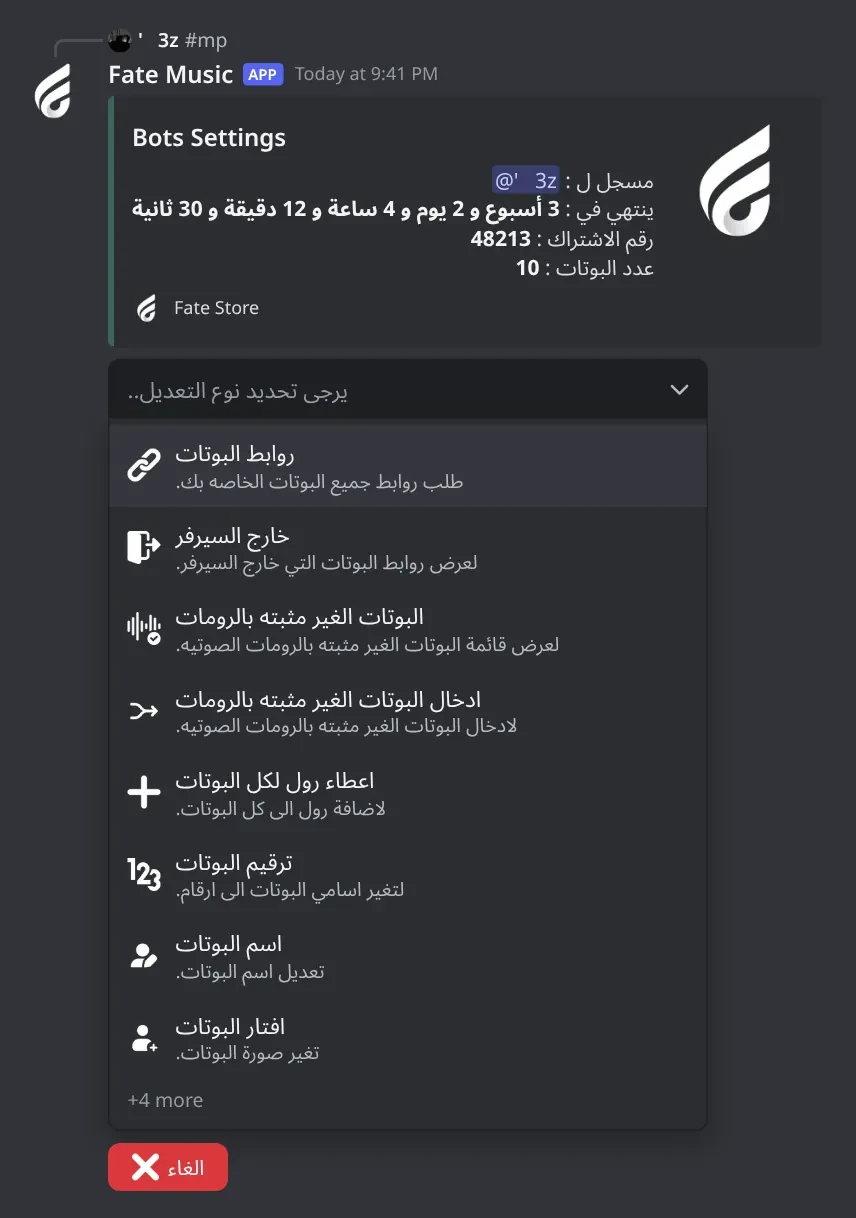
All bots panel (#mp). Settings for all your music bots at once, typed in your server. Options 1-12 are here; the rest are in the next panel.
All bots panel (#mp) · Settings for all your music bots at once, typed in your server. Options 1-12 are here; the rest are in the next panel.

What's in it

  • روابط البوتات: invite links of every bot (🟢 in the server, 🔴 not yet).
  • خارج السيرفر: only the links of bots not in your server.
  • البوتات الغير مثبته بالرومات lists bots with no 24/7 room; ادخال البوتات الغير مثبته بالرومات pins them.
  • اعطاء رول لكل البوتات: gives a role to every bot. ترقيم البوتات: sets nicknames to 1., 2., 3.…
  • Name, avatar, banner, activity, status and server for all bots.
  • Owners of all bots, embed, embed colour, buttons, language, platform, commands chat, logs chat.
  • Remove avatars or banners, restart all bots, and the red الغاء button.

How to set it up

  1. Type #mp in your server (or in the Fate Store server).
  2. Pick an option. Replies are only visible to you.
  3. Answer within 60 seconds for typed options, 15 seconds for small menus.

Common mistakes

  • Expecting a change to apply to one bot only. Everything here applies to all bots.
  • Using ترقيم البوتات when the main bot has no Administrator or its role is below the other bots.
  • Giving a role that is above the main bot's highest role. The bot can't give it.

#mp in the Fate Store server

Edit your bots from the Fate Store server, even before they are in your server.

What's in it

  • If you have several music subscriptions, pick one from ⏳ Please select a Subscription. within 15 seconds.
  • The same options as #mp: links, name, avatar, banner, activity, status, server, owners, embed, colour, buttons, language, platform, chat, remove avatar or banner, restart.
  • It also has the on/off menu for play-in-room (playing by typing just the song name).

How to set it up

  1. Type #mp in the Fate Store server.
  2. Pick your subscription if asked.
  3. Pick an option and answer within the time.

Common mistakes

  • Trying with less than 15 minutes left on the subscription. It is refused.
  • Using an account that isn't the subscription owner.
  • Adding an owner who isn't in the Fate Store server. The bot can't find them.

Pin bots to rooms 24/7

Keep each bot in its own voice room, even after restarts.

What's in it

  • @bot come [room]: pins one bot. @bot setup [room]: pins it and renames it to the room's name.
  • @bot leave: takes the bot out and turns 24/7 off.
  • setupall: one bot per voice room, renamed after the room, then all bots restart.
  • comeall [room]: every bot joins one room.
  • #mp → ادخال البوتات الغير مثبته بالرومات: type a voice room ID (all unpinned bots go there) or a category ID (one bot per empty room).

How to set it up

  1. Make sure the bots have a role with View Channel, Connect and Speak in the rooms.
  2. For one bot, join the room and type @bot come.
  3. For all bots, type setupall or use #mp.
  4. Check with checkchannelall.

Common mistakes

  • Bots without a role. They can't join the room.
  • Running setupall while music is playing. It restarts all bots.
  • Putting 5 or more bots in one room. Bare commands then get 🔇 and are ignored.

Play replies and control buttons

What the bot shows when a song plays, and the buttons under it.

Now playing (embed mode). The current song with a progress bar and the member who requested it.
Now playing (embed mode) · The current song with a progress bar and the member who requested it.

What's in it

  • Embed mode: Playing Song or Add Song with the duration and the member who asked.
  • Text mode (default): Playing song : … by : ….
  • Buttons: 🔁 loop, 🔉 volume −10, ⛔ stop, 🔊 volume +10, ⏭️ skip.
  • Filters .. menu (embed mode): None, 8D, Nightcore, BassBoost, Vaporwave, Slowmode.
  • nowplaying shows the current song; in embed mode with a progress bar.

How to set it up

  1. Turn on buttons: buttonsall on, @bot buttons, or the vip / #mp menu.
  2. Turn on embed: embedall on, @bot embed, or the menu.
  3. Pick a colour with ecolorall #hex if you want.

Common mistakes

  • Pressing buttons from outside the bot's room. Only members in the room can use them.
  • Looking for the Filters menu in text mode. It only shows in embed mode.

Queue

See what is playing and what comes next.

Queue. The song playing now and the songs after it, 10 per page.
Queue · The song playing now and the songs after it, 10 per page.

What's in it

  • The current song, then up to 10 waiting songs per page with who asked for each.
  • ⬅ ➡ buttons when more than 10 songs wait. They work for 60 seconds.

How to set it up

  1. Type queue in the bot's room, or queue 2 for page 2.

Common mistakes

  • Pressing the page buttons when someone else typed queue. Only that member can use them.

Filters

Change how the music sounds.

What's in it

  • Menu: 8D, Nightcore, BassBoost, Vaporwave, Slowmode (pick several).
  • Clear removes all filters. Cancel closes the menu.

How to set it up

  1. Type filters in the bot's room, or use the Filters .. menu under a play message in embed mode.
  2. Pick the filters within 30 seconds.

Common mistakes

  • Expecting filters to stay after stop. Stop clears them.

Music dashboard (dash)

A fixed message with buttons that control the bot in the presser's room.

What's in it

  • ▶️ play (opens a text box), ⏭️ skip, 🔉 volume −10, 🔊 volume +10.
  • ⛔ stop, 🔁 loop, ⏯️ pause or resume, 🎶 now playing.
  • Optional text and image on the panel.

How to set it up

  1. Make an empty channel.
  2. Type @bot dash #channel [your text], and attach an image if you want one.
  3. To switch it off, type @bot dash #channel again with no text or image.

Common mistakes

  • Using a channel with messages you want to keep. The bot deletes the last 100 messages there.
  • Pressing buttons while not in a room with a Fate bot.

Help

The command list, sent to your DMs.

What's in it

  • Music commands for everyone; owner commands too if you are an owner.
  • Support button: opens the Fate Store support server.

How to set it up

  1. Type help (or اوامر) in the bot's room.

Common mistakes

  • Closed DMs. The bot reacts 🔐; open your DMs and try again.

Settings summary

Check how one bot is set up.

What's in it

  • Subscription ID, prefix, 24/7 voice room, commands chat, bot server, embed, play-in-room and platform.

How to set it up

  1. Type @bot settings.

Common mistakes

  • Reading another bot's settings. Mention the exact bot you want to check.

Troubleshooting

Common problems and how to fix them.

The bot doesn't reply to play.

How to fix it

  • Join the same voice room as the bot, or call it with its number (1play) or a mention (@bot play).
  • Type in the room's own chat or the commands chat. If a commands chat is set, other chats are ignored.
  • Undeafen yourself.
  • Give the bot Send Messages and Embed Links in that chat.

The bot reacts 🔇.

How to fix it

  • There are 5 or more bots in the room. Move some bots out, or call the bot with its number or a mention.

The bot says You must be listening in ….

How to fix it

  • The bot is already in another room. Join that room, or use another bot.

The bot won't join the voice room.

How to fix it

  • Make sure the bot has a role.
  • Give the role View Channel, Connect and Speak in the room.
  • If the room is full, raise the limit or use another room.

The bot leaves the server right after I invite it.

How to fix it

  • Make sure the server ID registered for the bot is your server. Change it from @bot vip, #mp, or the subscriptions control channel → تعديل → تغير السيرفر.
  • Check your server's protection bots; they may be kicking it.

I got only some of my bots.

How to fix it

  • Type #mp and pick روابط البوتات, or go to the subscriptions control channel → تعديل → ارسال الروابط.
  • Type checkchannelall to see which bots aren't in the server, with their links.
  • If there are fewer links than the bots you bought, the support team will check it.

I changed one bot and all of them changed.

How to fix it

  • #mp changes every bot. Mention the bot and use @bot vip to change one bot only. Repeat for each bot.

I don't know the bot's prefix.

How to fix it

  • Mention the bot instead: @bot settings shows the prefix.
  • Change it with @bot prefix <new>.

The bot plays songs from normal chat messages.

How to fix it

  • Play-in-room is on. Turn it off from #mp (in the Fate Store server), from @bot vip → تفعيل/تعطيل التشغيل بالروم, or with playinvcall off.

The bots reply in English.

How to fix it

  • Type langall ar, or use #mp → تعديل اللغه.

The name or avatar won't change.

How to fix it

  • Discord limits fast changes. Wait about 30 minutes and try again, or try another name.

The control buttons don't show under play messages.

How to fix it

  • Turn buttons on: buttonsall on, @bot buttons, or the vip / #mp menu.

help didn't arrive.

How to fix it

  • It is sent to your DMs. If the bot reacted 🔐, open your DMs and try again.

Error When Playing The Track.

How to fix it

  • The source refused the song (region, age limit or login). Try another link, or search on another platform.

The music froze or stopped.

How to fix it

  • Type stop, then play again.
  • Restart the bot with @bot restart, or all bots with restartall. Settings are kept after a restart.

#mp in the Fate Store server says I can't use it.

How to fix it

  • You need an active music subscription on your account.
  • Subscriptions with less than 15 minutes left can't be edited.

I want the music bot to follow members into temporary rooms.

How to fix it

  • Set the music room in the Temp Rooms bot, then type settempall <category ID> with the temporary rooms' category.

Can I change the music shortcuts or make them Arabic?

How to fix it

  • No, the music shortcuts can't be changed. Arabic shortcuts like شغل, تخطي, وقف already work.

I need more music bots than my limit.

How to fix it

  • Going over the bot limit isn't available.